
Text to Frames vs Image to Frame: Which Canva Frame App Do You Need?
Text to Frames and Image to Frame are both QRdy frame makers for Canva, but they solve different problems: photos inside letters vs photos inside a custom shape. Here's a clear comparison so you pick the right one.

QRdy makes several frame apps for Canva, and two of them get mixed up constantly: Text to Frames and Image to Frame. Both turn something into a real Canva frame you can fill with a photo or video. But they start from different inputs and are built for different jobs. Pick the wrong one and you'll fight the tool; pick the right one and it's a two-minute task.
Here's the short version, then the details.

The one-line difference #
- Text to Frames turns typed letters into frames — photos live inside the letterforms.
- Image to Frame turns an image or shape into a frame — photos live inside a custom outline (a star, a logo, a hand-drawn shape).
If your design idea is a word with pictures showing through it, that's Text to Frames. If it's a shape with a picture inside it, that's Image to Frame.
Side by side #
| Text to Frames | Image to Frame | |
|---|---|---|
| Input | Text you type (up to 200 chars) | PNG / SVG / JPG up to 5MB, or a shape on your page |
| Output | Each character becomes a Canva frame | The image outline becomes one Canva frame |
| Signature feature | Split into letters — a different photo in every letter | Frame follows the exact silhouette of a transparent image |
| Fonts | 100+ fonts (5 free), bold/italic where the font supports it | N/A |
| Effects | Blur, Border, Inner Shadow (Pro) | Border thickness + color |
| Prep needed | Just type | Remove the background first or you get a rectangle |
| Best at | Photo-filled typography, titles, event names | Logos, custom silhouettes, themed shapes |
Text to Frames — photos inside letters #
The magic of Text to Frames is that every character comes out as its own real Canva frame. Type a word, choose from 100+ fonts, and hit add. Then either drop one photo across the whole word, or turn on Split into letters and fill each letter with a different image — the "SUMMER" title where every letter shows a different beach, or a name where each letter holds a different memory.
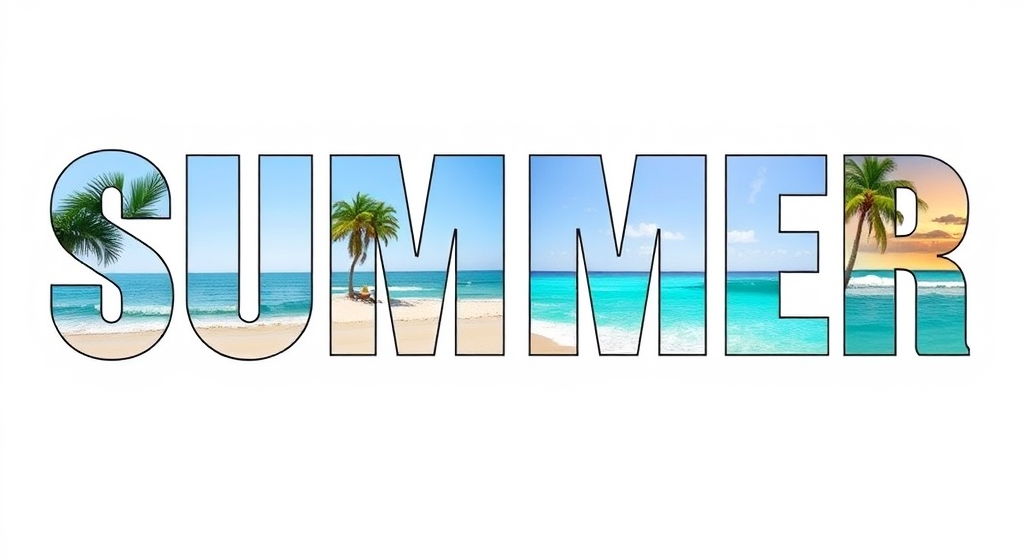
Because the letters are true frames, you keep all the usual Canva moves: reposition and zoom the photo inside each letter, swap it out, or even drop in a video. Three Pro effects — Blur (glow behind the text), Border (an outline hugging each stroke), and Inner Shadow (depth inside the letters) — let you lift the text off a busy image so it stays readable. This is the tool for titles, posters, event banners, thumbnails, and logotype where the text itself is the canvas.
What it can't do: trace a graphic. If your input isn't typed characters, Text to Frames isn't the app.
Image to Frame — photos inside a custom shape #
Image to Frame goes the other direction. You bring a shape — a logo, an icon, a scanned drawing, a themed silhouette — as a PNG, SVG, or JPG (up to 5MB), or you export a shape you built on the Canva page. The app converts it into a single frame that follows the outline, and you drop a photo or video inside.
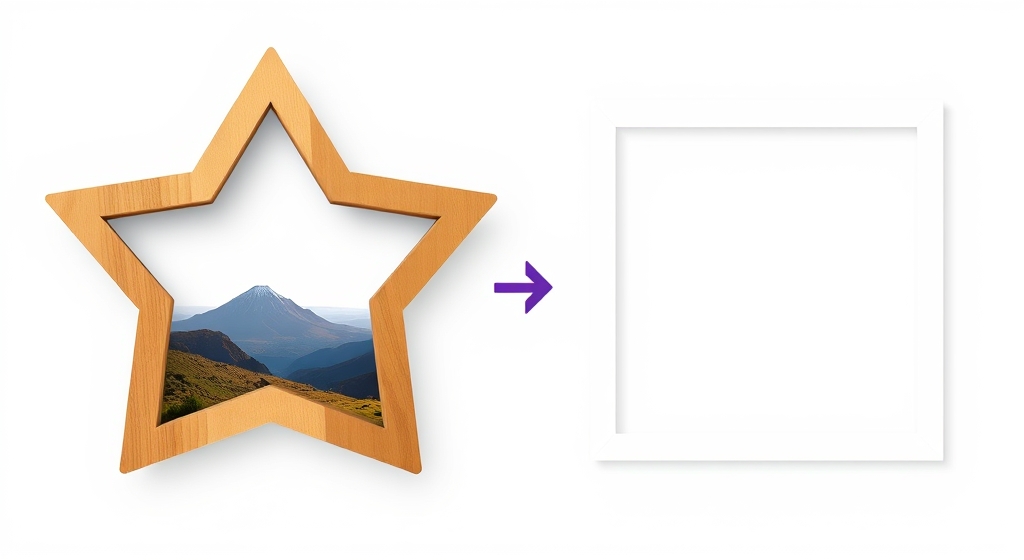
The make-or-break tip: remove the background before converting. If the image still has a white or colored background, the frame comes out as a plain rectangle. Feed it a transparent PNG and the frame hugs the true silhouette. You can then set a border thickness (0–50) and color. This is the tool for brand shapes, scrapbook silhouettes, product-in-logo mockups, and any "picture inside this specific shape" idea that Canva's built-in frames don't cover.
What it can't do: it won't give you per-letter photo fills or live font controls — it treats text as just another image.
The verdict #
They're not competitors so much as two halves of the same toolbox:
- Choose Text to Frames when the text is the design — photo-filled words, split-letter titles, typographic posters.
- Choose Image to Frame when a shape is the design — logos, custom silhouettes, themed props.
And they combine well: build a photo-filled headline with Text to Frames, a logo-shaped frame with Image to Frame, and lay them into one composition. If you're still unsure, ask whether you're typing something or importing something — that answer picks the app for you.
For comparison, Canva's native Clipping Mask-style approach and built-in Elements frames can fill a single shape or show one image through text, but neither offers per-letter fills or arbitrary custom outlines, which is exactly the gap these two apps fill.
Frequently asked questions
Not really. Text to Frames is built to convert typed characters into frames, so it handles fonts, letter spacing, and splitting a word into per-letter frames. Image to Frame converts an existing image or shape into a frame following its outline. They overlap only if you first render text as a transparent PNG and feed it to Image to Frame — doable, but you lose the live font controls and per-letter fills that Text to Frames gives you.
Yes. Both apps output valid Canva frames, meaning you drag a photo (or video) onto the result and it clips to the shape while staying editable — you can reposition and zoom the image inside. That's different from a clipping mask or a flat PNG.
Image to Frame. Upload your logo as a transparent PNG or SVG (up to 5MB), remove the background first, and it becomes a frame in the exact logo outline. Text to Frames is only for typed characters, so it can't trace a graphic logo.
Related products


More from QRdy Blog
What Is a Mockup? Meaning, Types, and How Print-on-Demand Sellers Use Them
A mockup is a realistic preview of your design on a real product. Learn the two meanings of "mockup", the main product mockup types, what makes one look fake, and three ways print-on-demand sellers make them.
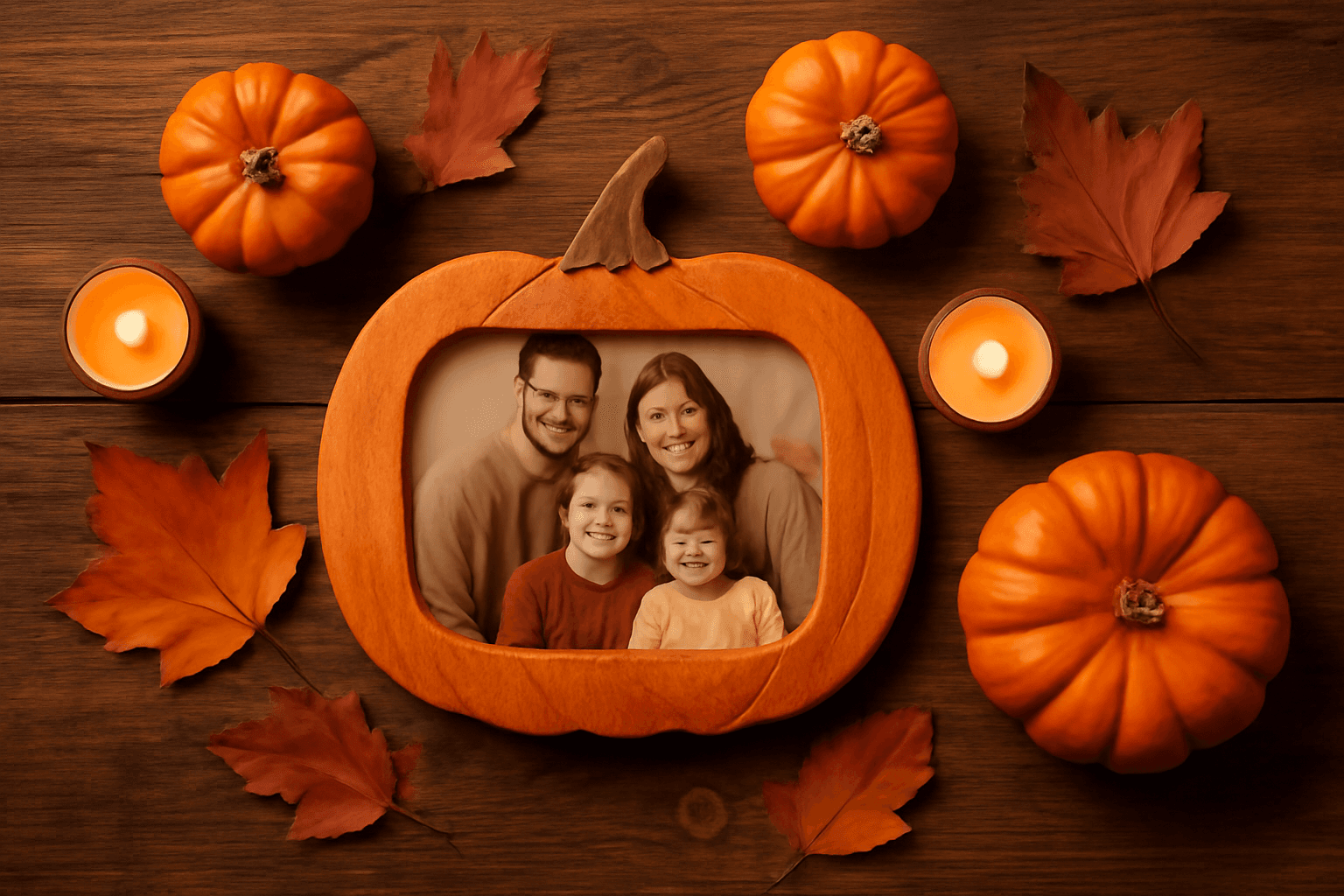
How to Make a Pumpkin Photo Frame in Canva (Halloween, Step by Step)
Put your family, pet or costume photo inside a pumpkin shape in Canva. Three ways to do it, a step-by-step with Image to Frame, plus tips for jack-o-lantern and ghost frames.

What Is a Perpetual Calendar? Meaning, Types, and How to Make One in Canva
A perpetual calendar works in any year because it never prints one. Learn what it is, the main types, how it works, and how to build a reusable birthday version in Canva.