
The Best Canva Apps for Photo Booth Frames (2026)
Making photo booth props and frames in Canva? Here are the best Canva apps for turning any shape into a fill-with-photo frame — ranked, with a quick-pick table and honest notes on what Canva already does for free.

Photo booth frames are having a moment — at weddings, birthdays, brand activations, and classroom parties. The look is simple: a bold cut-out shape (a star, a speech bubble, a heart, a monogram) that people either hold up as a prop or use as an on-screen overlay, often with a photo tucked inside.
The tricky part is that Canva doesn't let you turn any shape into a fillable frame on its own. You get a small set of built-in frames in Elements, and that's it. To build custom booth props — your event's logo, a themed shape, a grid photo strip — you need an app that converts a shape into a real Canva frame you can drop photos and video into.
Here are the Canva apps we reach for most, ranked, with an honest note on what Canva already handles for free.

Quick pick #
| If you want to… | Use | Free tier |
|---|---|---|
| Turn your own shape / logo / PNG into a prop frame | Image to Frame | Yes (Pro unlocks Frame Store) |
| Describe a prop and have AI draw it | AI Frames | 20k+ frame store is free |
| Build arc backdrops, bursts, and grid strips by dialing settings | Frames Lab | Limited adds free |
| Add decorative dotted / icon borders to a prop | Border Art Maker | Yes |
| Make a mosaic photo-strip wall | Frame Collage | Yes |
1. Image to Frame — the workhorse for custom props #
If your photo booth theme has a specific shape — a company logo, a themed icon, a hand-lettered word — Image to Frame is the most direct route. You upload a PNG, SVG, or JPG (up to 5MB), or export a shape you built on the Canva page, and the app converts it into a valid Canva frame that follows the real outline.
The one tip that makes or breaks the result: remove the background first. If your image still has a white or colored background, the frame comes out as a rectangle. Feed it a transparent PNG and the frame hugs the true silhouette of your prop. You can also set a border thickness (0–50) and color, which is exactly what you want for hold-up props that need to pop against a busy backdrop.
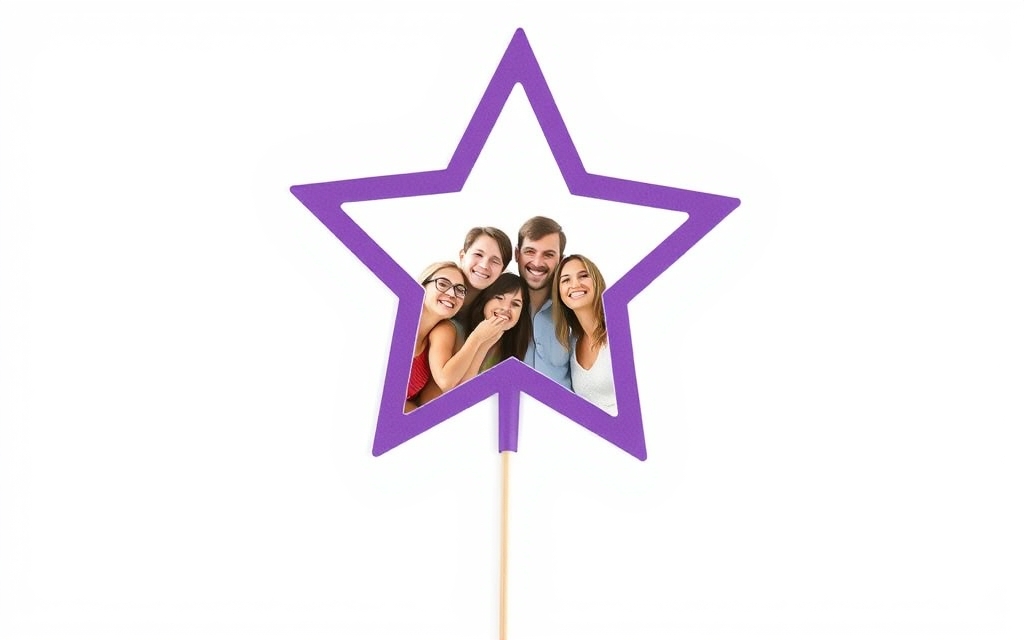
Best for: event planners and brands who need props in an exact shape and don't mind prepping a clean cut-out.
2. AI Frames — describe the prop, skip the design work #
Don't have a shape ready? AI Frames lets you type a description — "a speech bubble frame with rounded corners," "a star frame with glowing edges" — and it generates the frame for you. No SVG, no Photoshop. It also ships with a free store of 20,000+ ready-made frames you can search and drop in without spending a generation, plus an exclusive Frames Style step for adding shadow, border, and effects to give a flat prop some depth.
Best for: hosts who want good-looking props fast and would rather describe than draw.
3. Frames Lab — parametric backdrops, bursts, and strips #
Frames Lab is the most technical of the bunch, and that's a plus for booth backdrops rather than hand props. Its Create modes — Shape, Burst, Grid, Arc, and Diagonal — let you dial in exactly what you need. An Arc frame makes a lovely curved photo banner behind your booth; a Burst makes a sunburst/firework frame that screams celebration; a Grid builds the classic four-shot photo-strip layout. Frames auto-fit the page, and the Style tab adds Blur, Border, and Inner Shadow.
Best for: designers who want repeatable, adjustable booth layouts and photo strips.
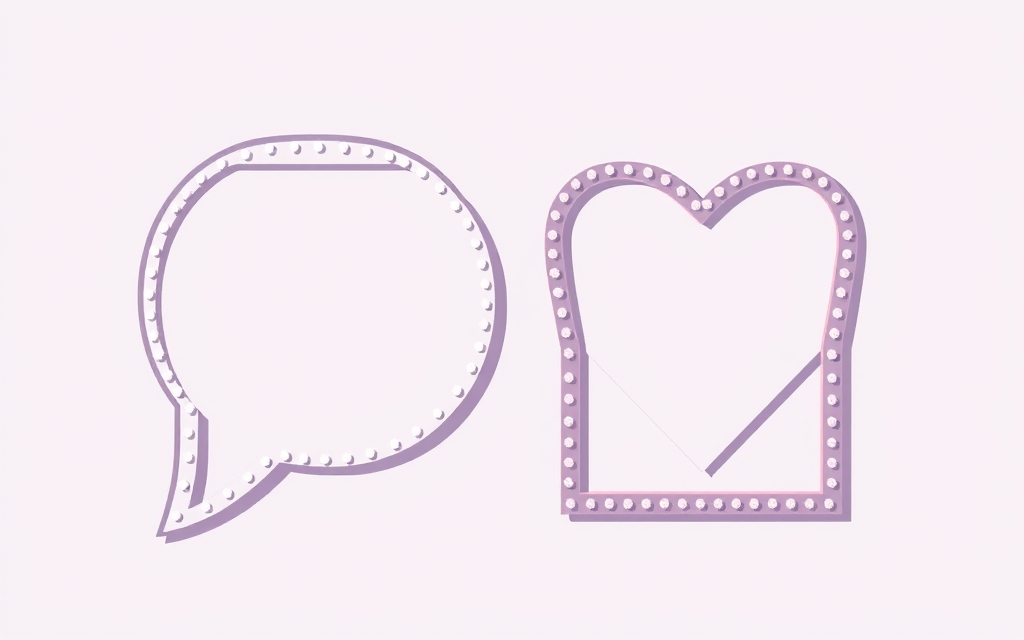
4. Border Art Maker — dress up the edges #
Booth props live and die on their edges. Border Art Maker builds decorative borders out of dots, icons (stars, hearts, flowers), or your own repeated image, auto-distributing them evenly with control over spacing and rotation. Wrap one around a plain frame and a flat prop suddenly looks finished and festive.
Best for: adding that trim of stars or hearts around a prop or booth sign.
5. Frame Collage — the mosaic photo wall #
For a step-and-repeat photo wall or an Instagram-style grid of shots, Frame Collage builds grids from 8×8 up to 32×32 by toggling cells on and off, with presets shaped like hearts, stars, and letters. Each cell becomes its own frame, so you fill the wall photo by photo.
Best for: recap collages and grid photo walls after the event.
What Canva already does for free #
Give credit where it's due: Canva's Elements → Frames includes circles, hearts, and a handful of outline shapes you can fill with a photo, and the template library has plenty of ready-made photo booth prop sets. If your theme fits a standard shape and you don't need it printed to an exact custom outline, start there — it's free and instant. The apps above earn their place the moment you need your shape, your logo, or a layout Canva's defaults don't offer.
Bottom line #
For most custom photo booth props, start with Image to Frame (bring your own shape) or AI Frames (describe or browse one). Reach for Frames Lab when you're building backdrops and photo strips, Border Art Maker to decorate the edges, and Frame Collage for a mosaic recap wall. All of them output real Canva frames, so your props stay easy to refill right up to the day of the party.
Frequently asked questions
Sort of. Canva's Elements panel has a Frames section with basic shapes (circles, hearts, some outlines) that you can drop a photo into, and there are ready-made photo booth prop templates. What it doesn't do is turn your own shape, logo, or prop outline into a fillable frame — that's where apps like Image to Frame come in.
A frame is a special Canva object: you drag a photo onto it and the photo is clipped to the shape and stays editable — you can reposition and zoom the photo inside. Placing a photo on top of a shape just stacks two layers and the photo keeps its rectangle. Every app here produces real Canva frames, so your booth props stay easy to refill.
Yes. Once your shape is a frame with a photo (or a bold color) inside, you design at your print size, add a handle or stick graphic, and export as PDF or PNG. For hand-held props, add a thick colored border so they read well from a distance.
Related products


More from QRdy Blog
What Is a Mockup? Meaning, Types, and How Print-on-Demand Sellers Use Them
A mockup is a realistic preview of your design on a real product. Learn the two meanings of "mockup", the main product mockup types, what makes one look fake, and three ways print-on-demand sellers make them.
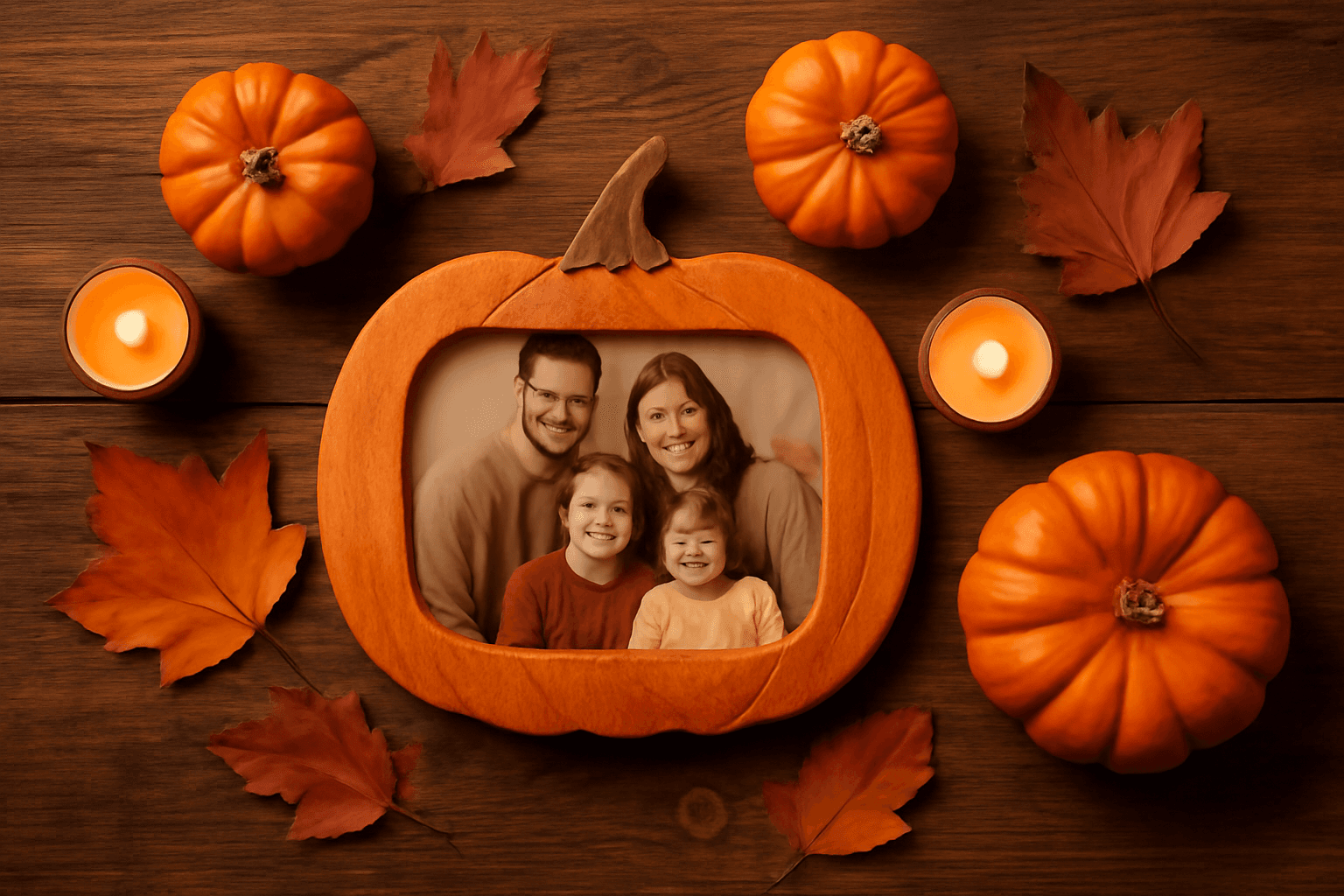
How to Make a Pumpkin Photo Frame in Canva (Halloween, Step by Step)
Put your family, pet or costume photo inside a pumpkin shape in Canva. Three ways to do it, a step-by-step with Image to Frame, plus tips for jack-o-lantern and ghost frames.
What Is a Perpetual Calendar? Meaning, Types, and How to Make One in Canva
A perpetual calendar works in any year because it never prints one. Learn what it is, the main types, how it works, and how to build a reusable birthday version in Canva.