
9 Creative Ways to Use Frames Lab in Canva (Beyond a Plain Photo Frame)
Most people fill a rectangle with a photo and call it done. Frames Lab lets you drop images into arcs, grids, bursts and diagonals instead. Here are 9 creative ways to use it in Canva.
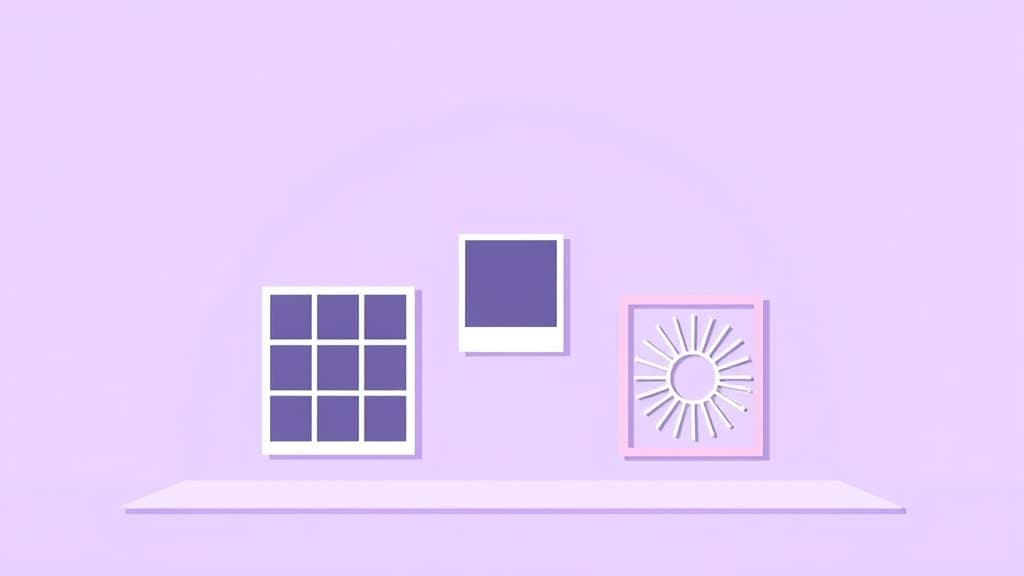
In Canva, a "frame" is just a shape you can drop a photo into so the image clips to that outline. Canva ships with a handful of built-in frames (circles, hearts, a few device mockups), and for a lot of jobs those are all you need. But the moment you want something more expressive — a photo curved into an arc, a tidy grid of memories, a starburst that pops off a sale poster — the built-in library runs out fast.
That's the gap Frames Lab fills. It's a QRdy Canva app that runs in the editor's side panel and acts like a toolbox for building frames from parameters: you pick a mode, tune a few sliders, and it drops a made-to-fit frame straight onto your design. Every frame auto-scales to the page you have open, so you never fight with sizing.
Here are nine creative ways to put it to work.
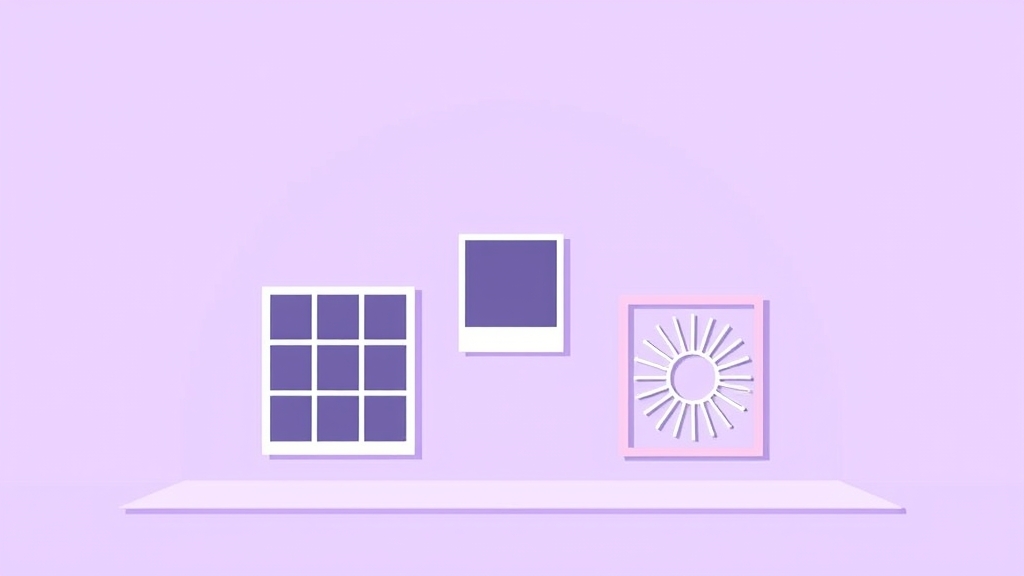
1. Curve a photo into an arc banner #
Arc frames are the fastest way to make a design feel intentional instead of templated. Use the Arc mode to bend a photo into a semi-circle or a soft crescent, then park a headline underneath it. It's a natural fit for travel posts, event invites, podcast covers, and "welcome" slides where a straight rectangle feels stiff.
In the app, open Create → Arc, set the Pill value for how much of the circle you want (270° gives you a wide sweeping arch), nudge the Start angle to rotate it, add a border if you like, and hit Add to design. Then drag any photo into the arc.

2. Build a clean photo grid or collage #
The Grid mode turns one control panel into a full collage. Set the columns, rows, and gap, and Frames Lab generates a lattice of cells that are each their own frame — drop a different photo into every one. It's great for product line-ups, team pages, before/after boards, and monthly recap posts.
Because you control the exact column-by-row count and spacing, you get a much tidier result than dragging individual frames around by hand. Keep it under roughly 30 cells so the layout stays snappy.
3. Make a starburst or "sunburst" highlight #
Sale badges, "new arrival" stickers, and hero call-outs love a bit of energy. The Burst mode generates random spark / sunburst frames you can fill with a photo or a bold color. Tune Density, Size, Spread, and Variation, and the preview reshuffles into new options each time.
Burst results are fully random, so when you see one you like, add it immediately — changing a slider regenerates the set.
4. Add motion with a diagonal photo strip #
Straight rows read as calm; diagonals read as dynamic. The Diagonal mode is like Grid, but the bands run on an angle you set. Use it for sporty flyers, music covers, and promo banners where you want the eye to move across the page. You can even apply a subtle Wave so the strips ripple instead of running dead straight.
5. Turn any Canva shape (or AI Shape) into a frame #
This is the quiet superpower. Drop any shape from Elements → Shapes/Graphics onto your page — or generate one with Canva's own AI Shape — then in Frames Lab open Create → Shape and hit Recheck design. The app finds that shape and converts it into a working frame. Now your custom blob, badge, or geometric icon holds a photo. Just remember to press Recheck design again whenever you edit the artwork.
6. Grab a ready-made frame from Explore #
Not every project needs custom parameters. The Explore tab is a curated gallery of pre-built frames you can click straight onto the canvas — no sliders, no setup. It's the "I just need something nice in five seconds" path, and the collections refresh over time so there's usually something seasonal to grab.
7. Polish frames with glow, border, and inner shadow #
Once you've added a frame, the Style tab remembers it under "Last frames" so you can re-add it with effects layered on. You get three controls — Blur (a soft glow or halo), Border (color and thickness), and Inner Shadow (depth inside the frame). A little inner shadow makes a photo look like it's sitting inside the shape rather than pasted on top, which instantly upgrades thumbnails and cover art.
8. Design a consistent frame system for a brand kit #
If you run social content for a brand, one-off frames create visual chaos. Because Frames Lab builds frames from repeatable parameters, you can lock in a signature look — say, a 300° arc with a 4px brand-color border — and rebuild it identically across every post, story, and highlight cover. That parameter-driven consistency is hard to get by eyeballing Canva's native frames.
9. Make geometric cards for infographics #
Hexagon clusters, angled data panels, and tessellated shapes are staples of infographics and pitch decks. Use Grid, Diagonal, or a converted AI Shape to create geometric photo cells, then fill them with headshots, icons, or product shots. It's a clean way to make a stats section or "meet the team" block feel designed rather than dropped in.
Which mode does what #
| You want… | Use this mode |
|---|---|
| A curved photo header | Arc |
| A multi-photo collage | Grid |
| A radiating badge / highlight | Burst |
| An angled, dynamic layout | Diagonal |
| Your own shape as a frame | Shape (+ Recheck design) |
| Something nice, instantly | Explore |
| Glow / border / depth | Style |
When Canva's built-in frames are enough #
To be fair: if you only need a photo in a circle, heart, or simple square, Canva's native Frames element already does that for free — search "frames" in the Elements panel and drag one in. Reach for Frames Lab when the built-in shapes can't express what you're picturing: parametric arcs, custom grids, random bursts, angled strips, or turning your own artwork into a frame.
Frames Lab is free to use with a cap on how many frames you can add; heavy users can upgrade to Pro for unlimited adds. Either way, the workflow is the same — pick a mode, tune it, add it, drop in your photo.
Ready to try it? Open Frames Lab in Canva and see how far past a plain rectangle you can push a photo.
Frequently asked questions
Frames Lab is a QRdy Canva app that runs in the editor's side panel and lets you build custom photo frames from parameters. Instead of only using Canva's built-in circle or heart frames, you can create arc, grid, burst, and diagonal frames, or turn any shape in your design into a frame. Every frame auto-scales to fit the page you have open.
Yes, Frames Lab is free to use with a limit on how many frames you can add. When you hit the cap, the app invites you to upgrade to Pro, which removes the limit. The core modes — Shape, Burst, Grid, Arc, Diagonal, plus the Explore gallery — are all available to try.
Canva's native Frames are a fixed set of shapes (circles, hearts, a few mockups) you drag from the Elements panel. Frames Lab builds frames from adjustable parameters — arc angle, grid columns and rows, burst density, diagonal angle — and can convert any shape or AI Shape in your design into a working frame, so you get far more control and variety.
Yes. Add a shape from Canva's Elements panel (or generate one with AI Shape), then open Frames Lab's Create → Shape mode and click Recheck design. The app detects the shape and converts it into a frame you can drop a photo into. Press Recheck design again any time you edit the artwork.
Related products


More from QRdy Blog
10 Family Planner and Calendar Ideas You Can Make in Canva
Ten printable family planner ideas you can build in Canva with Calendar Maker: a fridge calendar, chore chart, birthday calendar, meal plan, carpool grid and more. Honest notes on where Canva's built-ins are enough.

Image to Frame vs Trace to Frame: Which Canva App Makes Your Custom Frame?
Need a custom-shaped frame in Canva? Image to Frame converts a PNG, SVG or JPG; Trace to Frame lets you click points to draw a polygon. Here is when each one wins, with a side-by-side table.
Ứng dụng Canva tốt nhất để làm thiệp Valentine (2026)
Chọn app Canva nào để làm thiệp Valentine có ảnh? So sánh Image to Frame, Text to Frames và Frames Lab: ảnh trong khung trái tim, tên người thương bằng chữ ảnh, lưới kỷ niệm.