
Photoshop Clipping Mask vs Text to Frames: Photo-in-Text in Canva
Filling text with a photo is a classic Photoshop trick. Here is how the Photoshop clipping mask compares with Text to Frames in Canva, and which one fits a quick title or banner.
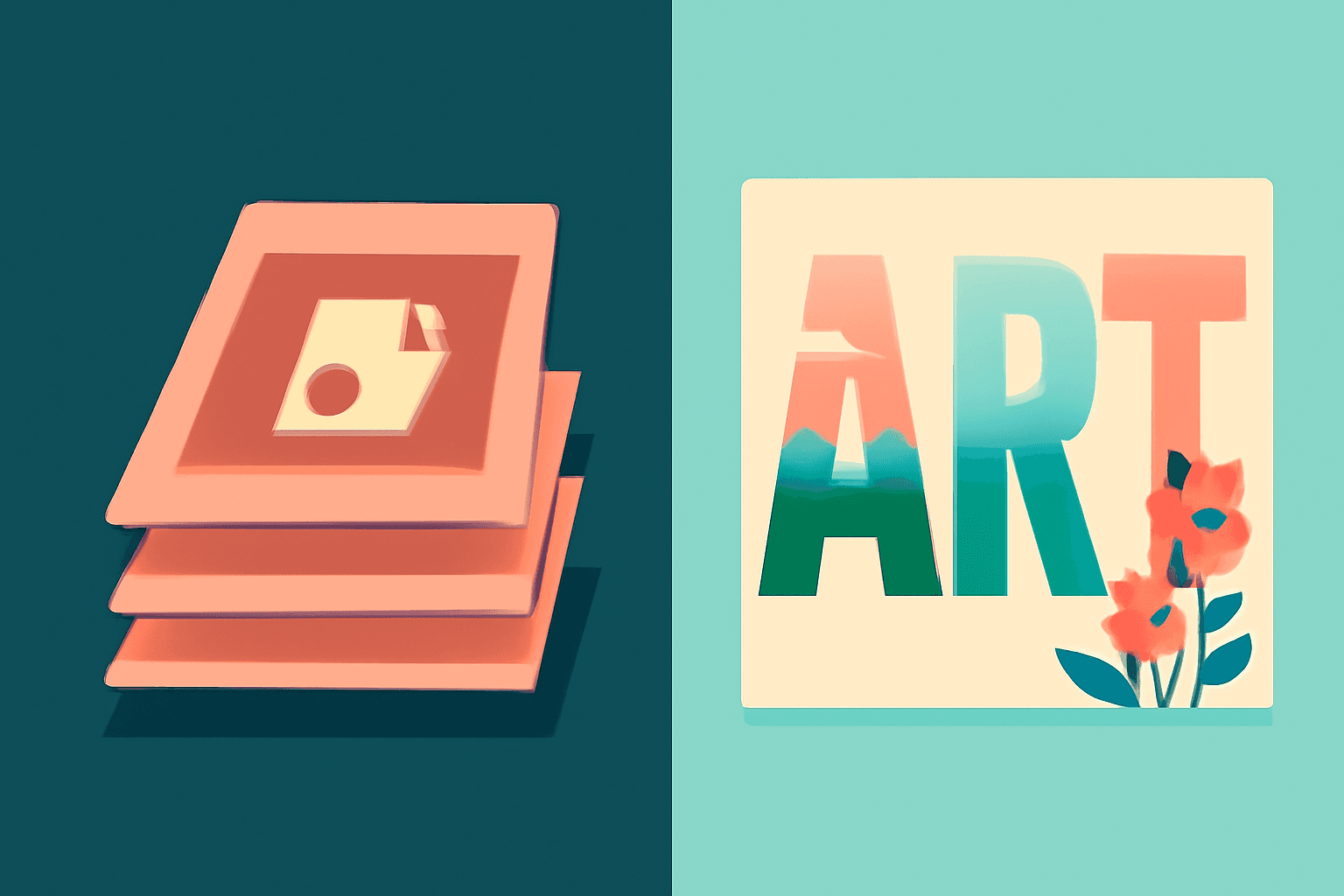
Putting a photo inside text is a classic Photoshop trick: type a word, place a picture above it, and make a clipping mask so the image only shows inside the letters. It works, but it means opening Photoshop, keeping layers intact, and re-exporting every time the wording changes. If you just need a title, banner or social graphic, you can get the same look in Canva with Text to Frames. Here is how the two compare.
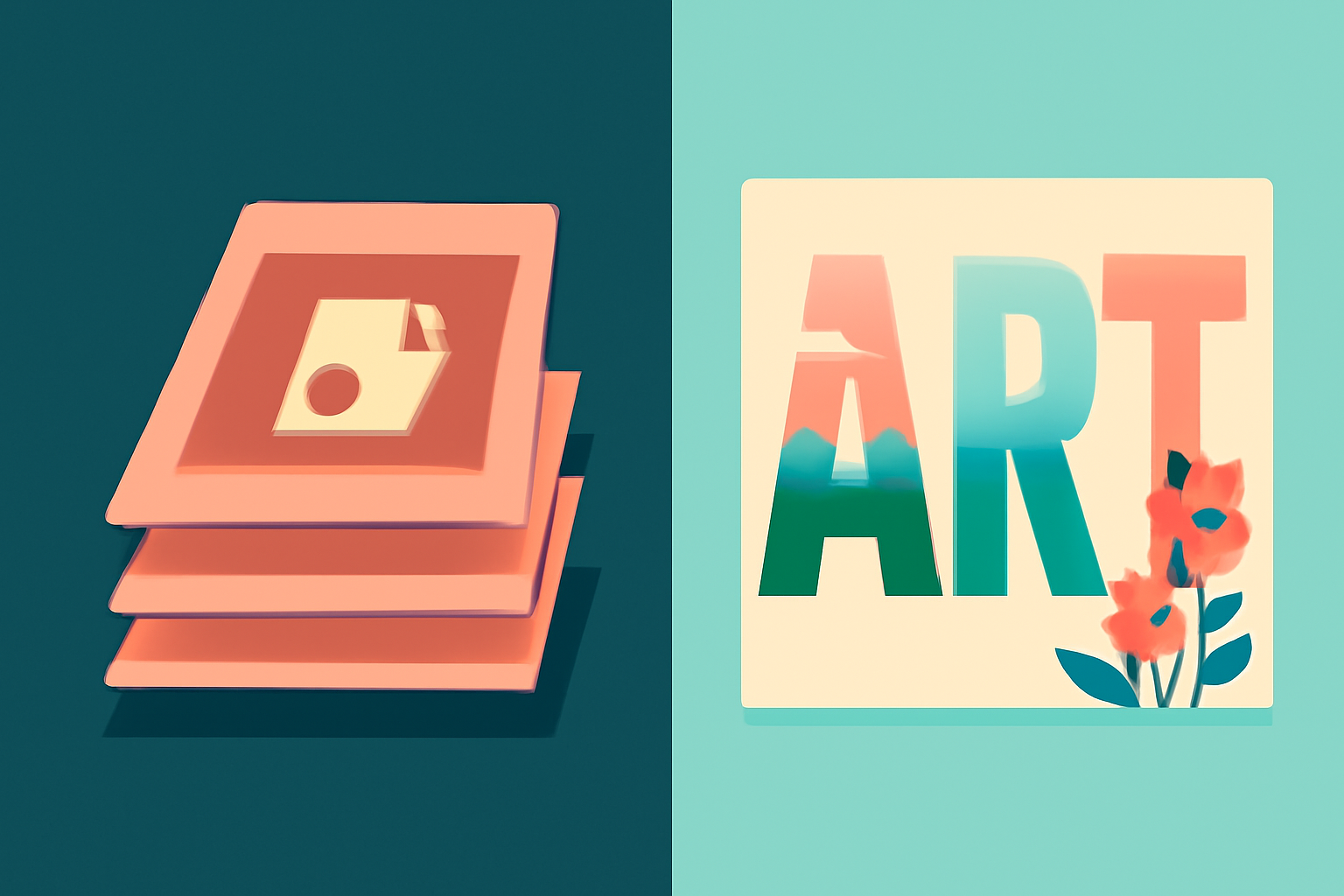
Quick comparison #
| Photoshop (clipping mask) | Canva (Text to Frames) | |
|---|---|---|
| Cost | Paid subscription | Free tier; Pro for extra fonts and effects |
| Live preview | No, you nudge the layer to see the crop | Yes, the preview matches what gets added |
| Editable after placing | Keep the file layered | Letters are real Canva frames you can drag and zoom into |
| Different image per letter | Manual, layer by layer | One toggle: Split into letters |
| Borders, glow, depth | Layer styles | Built-in Border, Blur and Inner shadow (Pro) |
| Best for | Print-grade, complex compositing | Fast titles, banners, social graphics |
The Photoshop way #
In Photoshop you type your word on a type layer, place the photo on the layer directly above it, then create a clipping mask (Layer, Create Clipping Mask, or Alt/Option-click between the two layers). The image then shows only inside the letters. It is a solid technique, and it gives you full compositing control. The friction is the license, the layered file you have to keep around, and a re-export whenever the word changes.
The Canva way: Text to Frames #
Text to Frames converts each letter of your word into a real Canva frame, the same kind of placeholder Canva uses for profile pictures. You drop an image in and it crops to the exact letter shapes. It is not a PNG pasted over text, so you can still drag the photo around inside the letters, zoom it, or swap it.

- Open a Canva design (Presentation, Poster or Instagram Post work well), open Apps, then Text to Frames.
- Type your word (up to 200 characters) and pick a font. The free plan includes Roboto, Open Sans, Lato, Playfair Display and Pacifico; Pro unlocks 100+ fonts. Bold, rounded fonts hold a photo best.
- Adjust letter spacing and font size. Turn on Split into letters if every letter should hold a different photo.
- Check the preview, then click Add to design.
- Drag a photo (or a video) onto the letters, then drag or zoom it inside to frame the subject.
If you see "Frames can't be added to this design type," open the app in a different design type.
Making the text readable #
A busy photo can swallow thin letters. Text to Frames has three stackable Pro effects, each with its own color: Border (an outline hugging each letter), Blur (a soft glow behind the word) and Inner shadow (depth inside the letters).
Which should you pick? #
Choose Photoshop when you need print-grade output, complex compositing, or you already live in layered files.
Choose Text to Frames when you want a photo-filled title in a minute, a different photo per letter, or you want to keep editing inside Canva.
If you only need one image across the whole word or a shape, our Clipping Mask app is the simpler Canva route. For a quick native option, Canva can also put an image through text by itself.
Verdict #
Photoshop is the more powerful tool, but for everyday titles, banners and social posts, Text to Frames gets you the same effect faster, with a live preview and per-letter photos.
Frequently asked questions
Yes. Text to Frames turns your letters into Canva frames and crops any photo to the letter shapes, so you never open Photoshop or build a clipping mask.
Yes. Turn on Split into letters before adding to your design. Each letter becomes its own frame, so you can drop a unique image or video into every character.
For print-grade work and complex compositing, Photoshop still wins. For a title, banner or social graphic you want to publish today, Canva is faster.
Related products


More from QRdy Blog
The Best Canva Apps for Birth Announcements (2026)
Making a birth announcement in Canva? Here are the best Canva apps for it in 2026: custom photo shapes, name lettering, photo grids, borders, and a first-year calendar. Honest picks, with Canva's built-in tools included.
How to Make a Christmas Tree Photo Collage in Canva (Step by Step)
Turn your favorite family photos into a Christmas tree-shaped collage in Canva: two methods (a tree-shaped frame or a stacked grid), exact steps, print sizes, and tips so faces stay visible.
What Is a Monogram? Meaning, Styles, and How to Make a Photo Monogram in Canva
A monogram is a design built from one or more initials. Learn the definition, the classic three-letter order rule, the main styles, and how to make a photo-filled monogram in Canva with Text to Frames.