
Frames Lab vs FrameSpark: The Best Canva Frame Maker in 2026?
FrameSpark is the free Canva frame app every creator is talking about — but is it actually good? An honest, hands-on comparison with Frames Lab, and how to pick the right Canva frame maker for your workflow.
If you spend any time on design TikTok or YouTube, you have probably seen the same clip a dozen times: a creator uploads a photo, taps a button, and — boom — it becomes a custom Canva frame. The app in almost every one of those videos is FrameSpark, a free Canva frame maker that has quietly become a KOL favorite.
It is a genuinely clever tool. But "goes viral in a 20-second video" and "saves you time on real projects" are not the same thing. After building dozens of Canva frames with both FrameSpark and **Frames Lab**, here is an honest look at where FrameSpark shines, where it quietly frustrates you, and which Canva frame maker deserves a spot in your sidebar in 2026.
What each app actually does #
The two tools solve the "custom frame" problem from opposite directions, and that difference explains everything.
FrameSpark takes one image you provide — a PNG, JPG, or static GIF with a transparent background — and traces its outline to convert it into a frame you can drop a photo or video into. Its whole job is image in, frame out. That is perfect for the classic tutorial demo: a hand silhouette, a star, a bottle shape.
Frames Lab is a broader toolbox. Instead of converting one file, it gives you two fast paths to a frame:
- Explore — a library of ready-made frames (arcs, grids, polygons, bursts). You open the tab, click a frame, and it lands in your design instantly.
- Create — parametric frame builders (Shape, Burst, Grid, Arc, Diagonal) where you tune real controls like columns, rows, arc angle, or gap, then hit Add to design.
So FrameSpark is a single-purpose converter, and Frames Lab is a full Canva frame maker. Keep that in mind — it is the root of the three problems below.
The three things the viral videos don't show you #
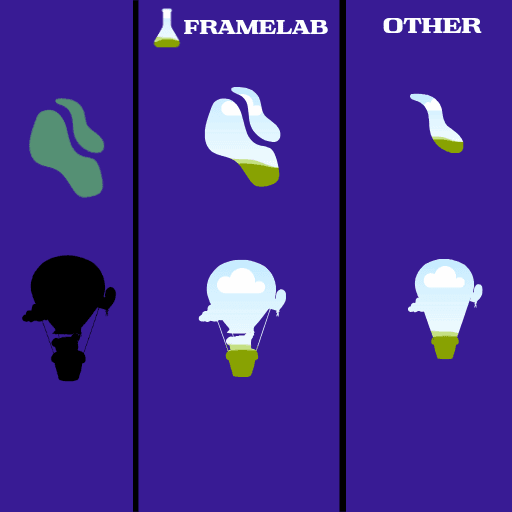
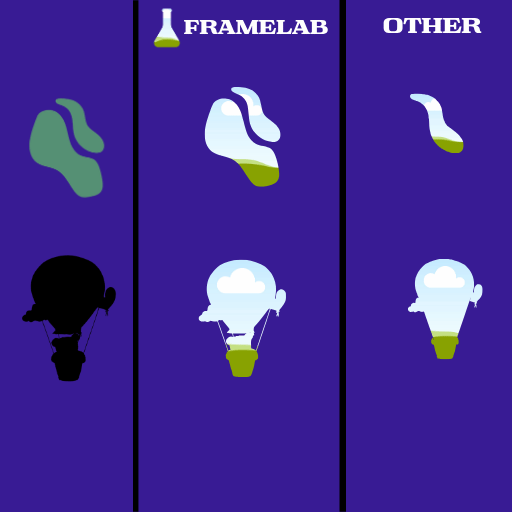
FrameSpark demos always use a clean, simple silhouette, because that is exactly the case where it works flawlessly. Real design work is messier, and that is where three issues show up. The picture below tells the whole story: feed both tools the same source shapes, and the "other" frame app quietly drops detail while Frames Lab keeps it intact.
1. Frames with many objects lose objects #
Because FrameSpark builds a frame by tracing edges, an image with several separate shapes can confuse it. Feed it artwork with multiple objects and you will often get a frame where some of those objects have simply vanished — the app kept the biggest silhouette and dropped the rest. For a decorative one-shape frame that is fine. For anything intricate, it is a problem you only discover after you have committed the image.
2. Complex, detailed frames can come out blank #
Push the detail further — fine linework, thin elements, lots of tiny gaps — and the trace can fail almost entirely, returning an empty or near-empty frame. FrameSpark's own guidance admits it: "not all images are compatible." When your source art is the interesting part, that is the moment the tool taps out.
3. The edge-detection number you have to guess #
This is the one almost no KOL mentions, and it is the biggest daily friction. FrameSpark's tracing is governed by an edge-detection slider. When a result comes out partial, the official advice is to adjust the slider and try several numbers — and some images "only work with a single value." In practice that means trial-and-error: nudge the value, re-render, check, repeat, until the frame finally fills in. There is no preview that tells you the right number in advance. You guess.
None of this makes FrameSpark bad. It makes it a narrow tool wearing a viral costume.
How Frames Lab handles the same jobs #
Here is the contrast, using the exact scenarios above.
Need a frame right now? Open Frames Lab, go to Explore, and click one. It drops into your design ready to fill — no upload, no tracing, no number to guess. This is the "it basically does the work for you" moment: you see the frame, you click, it is done.
Need a specific geometric frame? Use Create and pick a mode. Want a 3×4 photo grid with a 12px gap? Set columns, rows, and gap, watch the live preview, and add it. The output is defined by clean parameters, not by whether an edge tracer got lucky. Grids too dense simply get capped, so you never ship a broken frame.
Want to turn a shape into a frame? Frames Lab's Shape mode reads shapes already in your design — including ones generated by Canva's AI Shape — and converts them into frames. And with the Style tab you can add a Canva frame border, blur, or inner shadow to any frame you have used, so you are styling, not troubleshooting.
The mental model is different: FrameSpark asks "can I trace this image?" Frames Lab asks "what frame do you want?" The second question fails far less often.
When FrameSpark is genuinely the right call #
To be fair, there is a lane where FrameSpark is a great free pick:
- You have one clean, transparent-background silhouette you want as a frame.
- The shape is simple — a heart, a blob, a single bold object.
- You are making a quick social graphic and do not need the frame to be pixel-precise.
If that is your whole use case, FrameSpark will do it for free, and you can stop reading. The trouble only starts when your needs grow past a single simple shape.
When you want more than a converter #
Reach for a fuller Canva frame maker when you:
- Build collages and grids and want to control columns, rows, and spacing.
- Need precise geometric frames (arcs at a set angle, diagonals, bursts) for brand or infographic work.
- Are tired of guessing an edge-detection number and want frames that just appear.
- Want to add borders and effects without leaving the frame tool.
That is Frames Lab's home turf. And if your specific need really is "turn my PNG or logo into a frame" — the one thing FrameSpark is built for — QRdy's **Image to Frame does that same conversion in a single step, without an edge-detection dial to babysit. Prefer to describe a frame in words? **AI Frames generates one from a text prompt. In other words, every job FrameSpark does has a QRdy tool that does it with less guesswork — plus a lot of jobs FrameSpark can't touch.
The verdict #
FrameSpark earned its viral moment: converting an image into a Canva frame with one tap is a great party trick, and for a single clean silhouette it is a perfectly good free tool. But the demos hide the ceiling. The moment your art has multiple objects, fine detail, or you just don't want to play the "guess the edge-detection number" game, the cracks show.
Frames Lab is the tool you keep. Ready-made frames you click and use, parametric builders for exact shapes, shape-to-frame conversion, and built-in styling — no tracing lottery. For anyone making frames more than once, it is simply less work.
If you want to test the difference yourself, install Frames Lab in Canva, open the Explore tab, and click a frame. The whole point is that there is nothing to guess.
Frequently asked questions
Yes, FrameSpark has a free tier inside Canva that lets you convert a transparent-background image into a custom frame. Like most Canva apps, heavier usage or advanced features may sit behind an upgrade, but the core convert-to-frame action is available for free.
FrameSpark builds a frame by tracing the edges of your image, and that tracing is controlled by an edge-detection value. If the number is too high or too low for your particular image, the app can drop small objects or return an almost-empty frame. The fix is to adjust the edge-detection slider and try several values until the shape fills in — some images only work at one specific number.
If you just want a frame fast, open Frames Lab, go to the Explore tab, and click any ready-made frame to drop it straight into your design — no settings to guess. If you need to turn your own PNG or logo into a frame, Image to Frame converts it in one step without an edge-detection dial.
Yes. In Frames Lab, the Shape mode reads shapes already in your design (including Canva AI shapes) and converts them into frames you can drop photos into. You can also build parametric frames — arcs, grids, diagonals and bursts — and add borders, blur or inner shadow from the Style tab.
Related products


More from QRdy Blog
How to Put a Photo in a Heart Shape in Canva (3 Easy Ways)
Want a heart-shaped photo in Canva? Use the built-in heart frame, turn any heart graphic into a custom frame with Image to Frame or Frames Lab, or build a heart collage. Step-by-step for each.

What Is a Silhouette? Meaning, Examples, and How to Use One in Canva
A silhouette is a solid, single-color outline of a shape with no inner detail. Here is what it means, how it works, the main types, and how to turn one into a photo frame in Canva.
10 Weekly Schedule & Countdown Calendar Ideas You Can Make in Canva
Ten practical ideas for weekly schedules and countdown calendars in Canva: class timetables, chore charts, 30-day challenges, wedding and holiday countdowns, all built with Calendar Maker's Week and Custom tabs.