
The Best Canva Apps for Real Estate Agents (2026)
Listing flyers, just-listed posts, open house signage and a yard sign QR that still works after the property goes under contract. Six Canva apps that cover the parts a template cannot, and an honest note on what Canva already handles by itself.
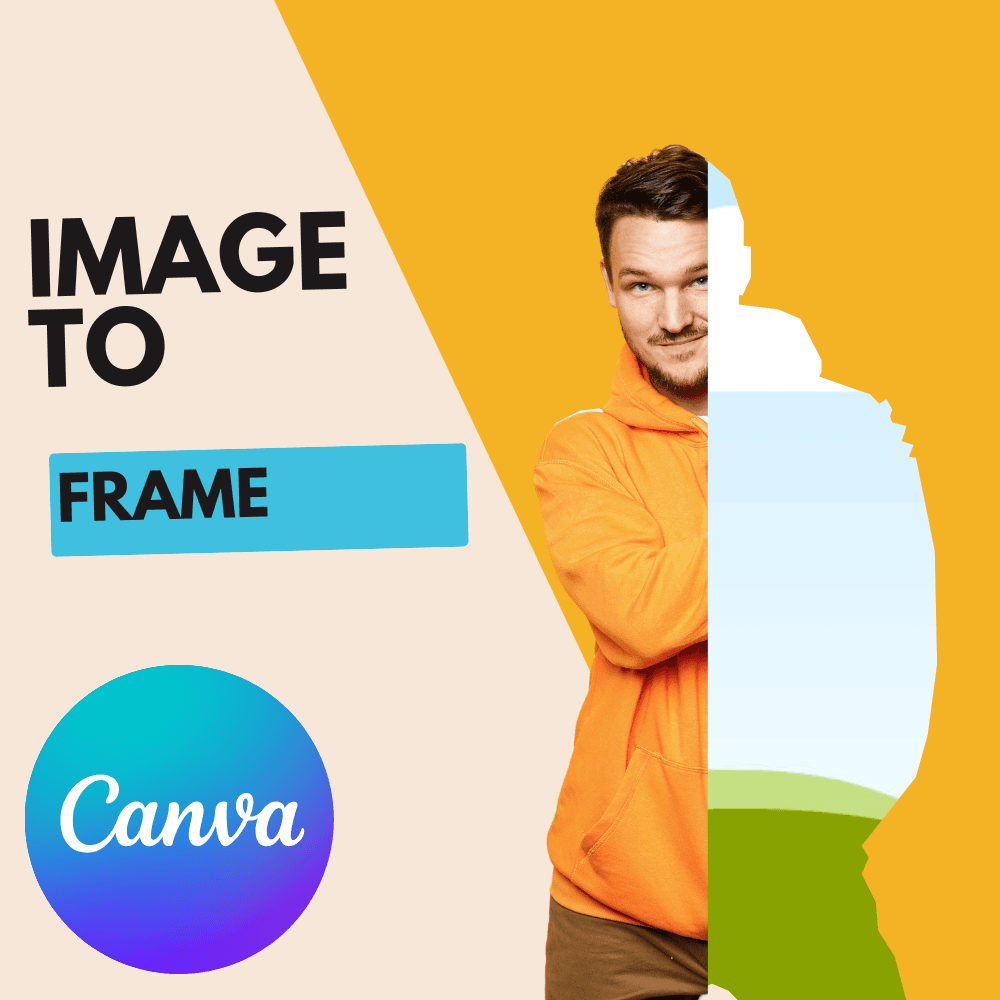
Most agents design the same five things over and over: a listing flyer, a just-listed social post, open house signage, a monthly market post, and whatever goes on the yard sign rider.
Canva's real estate templates handle the layout of all five. What they do not handle is the awkward middle bit — a photo that needs to sit inside your brokerage's logo shape, a six-photo listing collage that is not a plain rectangle grid, a printed QR code that has to survive the property going under contract, or a January-through-December open house calendar you do not want to type out by hand.
These six apps cover that middle bit. They install into the Canva editor sidebar under Apps, and none of them require you to leave Canva.
Quick pick #
| If you need to… | Use | Free tier? |
|---|---|---|
| Put a QR on a flyer or yard sign you may want to repoint later | Qrdy — Dynamic QR | Yes (Starter) |
| Fill your logo, or a house shape, with a listing photo | Image to Frame | Trial, then Pro |
| Build a listing collage that is not a plain grid | Frames Lab | Yes, with an add limit |
| Generate an open house schedule or content calendar | Calendar Maker | View only — Add to design is Pro |
| Put the property photo inside the word SOLD | Text to Frames | Yes, 5 fonts |
| Make one QR per listing, forty at a time | Bulk QR | Yes, unlimited |
1. Qrdy — Dynamic QR — for anything that gets printed #
This is the one that matters most in real estate, for a reason that has nothing to do with design.
A static QR code has the destination baked into the pattern. Print five hundred flyers with a static code pointing at a listing, the property goes under contract, and every one of those flyers is now pointing at a dead page. A dynamic code points at a redirect you control, so the same printed square can send people to the listing today, and to a "just sold — here's what it went for, want yours valued?" page next month.
What the app does inside Canva:
- Generates a dynamic QR and drops it straight onto the page — flyer, brochure, rider, business card, open house sign.
- Customises colour, background, dot style, and a logo in the centre.
- Supports Link, App Store (routes iOS and Android separately), QrdyLink smart links, WiFi, and Phone codes.
- Tracks scans: total, trend by day, week and month, split by device and operating system, and by country.
The free Starter tier covers device-based routing, a custom link and basic tracking. Pro is $5/month and removes the ad, lifts the code limit, unlocks the full styler and the deeper analytics.
An honest word on Canva's own QR generator. Canva replaced its old third-party QR app with its own generator in 2026. It is free, it is right there in Elements, and for a code pointing at something permanent — your website, your review page — it is genuinely the sensible choice. The change did alter a few things about how those codes work, which we walked through in How to make a QR code in Canva (2026 update). The question to ask is not which tool is better, it is whether the destination will ever need to change. For a listing, it always does.
2. Image to Frame — your logo, filled with a listing photo #
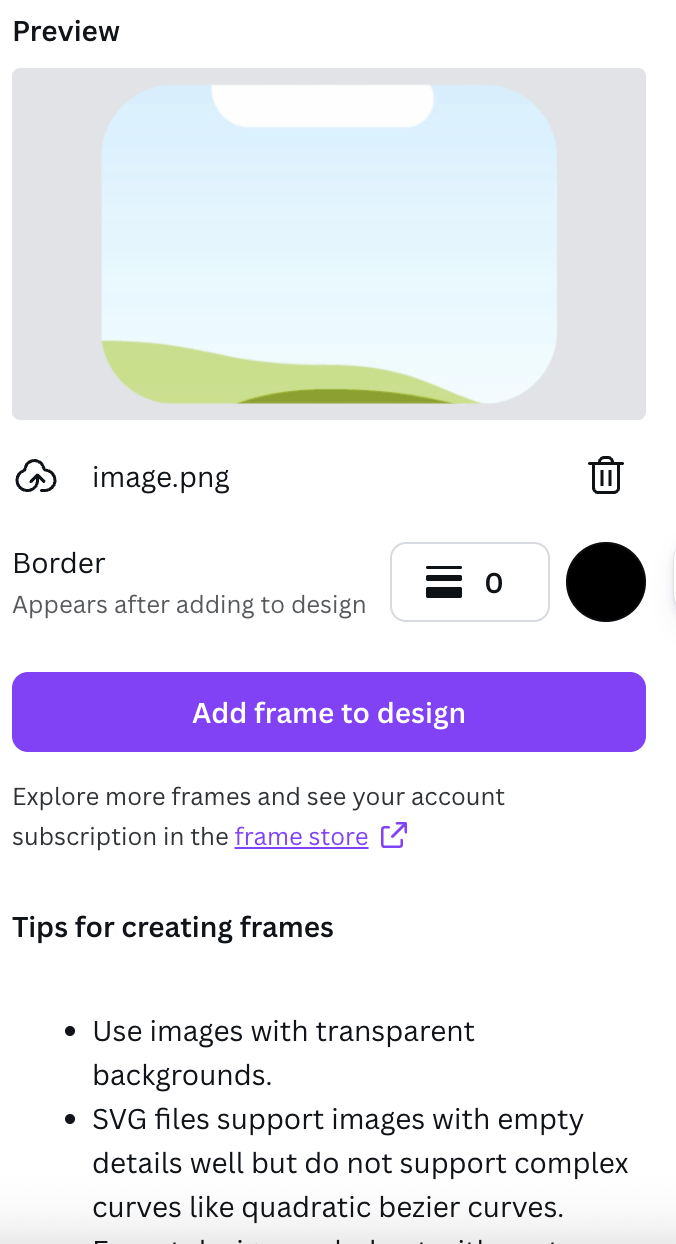
Canva's Frames library has circles, arches and hearts. It does not have your brokerage's logo, or the house silhouette from your farming postcard. Image to Frame converts a picture you already own into a real Canva frame — a window in that exact shape that you drop photos into.
The practical details, because two of them decide whether it works:
- Accepts PNG, SVG and JPG, up to 5MB.
- Three ways in: upload a file, select an image already sitting on your page, or Export design, which exports the current page as a single transparent PNG. That last one is the right path when your mark is made of several separate elements you want treated as one shape.
- Remove the background first. If the file still has a white background, the frame comes out as a plain rectangle. PNG and SVG carry transparency; JPG never does.
- Border thickness runs 0–50 with a colour picker, but it only renders once the frame is on the page, not in the preview.
- Very tangled curves occasionally fail to convert. The app points you at its Frame Store when that happens, and a simplified SVG usually goes through cleanly.
Real estate uses that actually come up: the hero shot inside your logo for a listing card, a house-shaped photo for a "just listed" post, an agent headshot in a custom badge shape, and a neighbourhood outline filled with a street photo for farming material.
3. Frames Lab — listing collages that are not a plain grid #
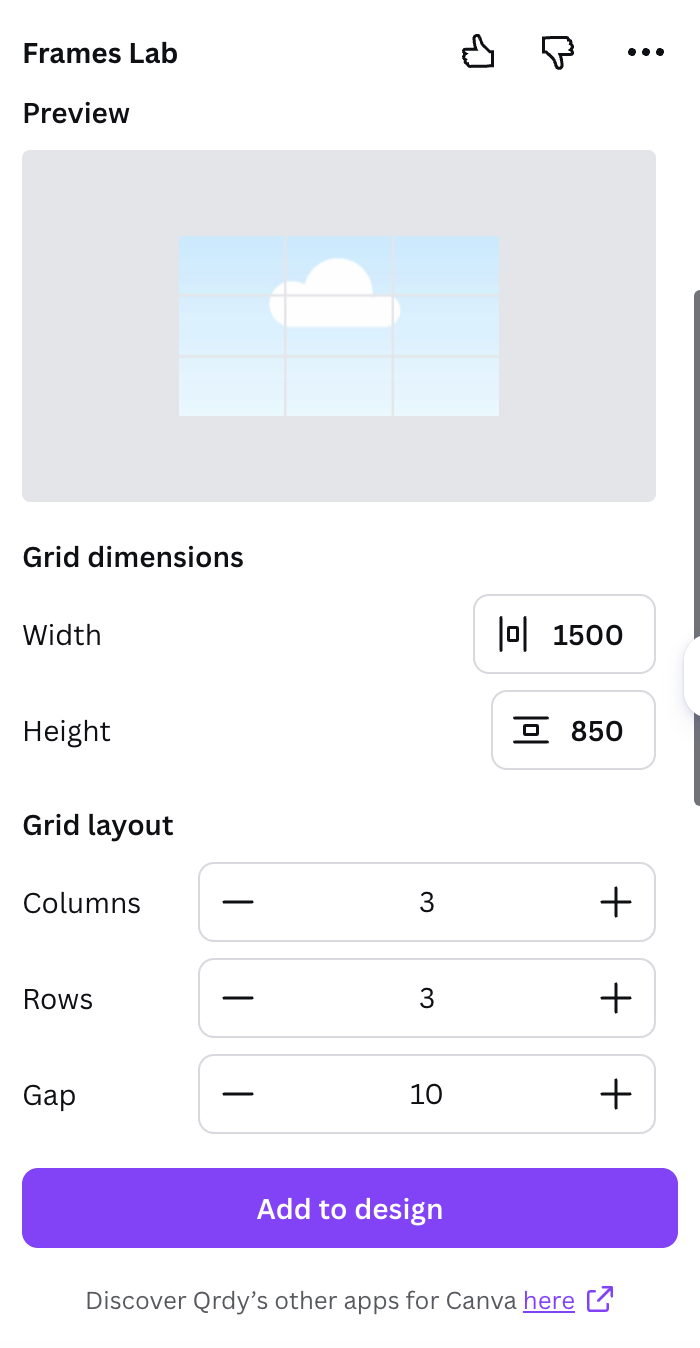
A listing sheet is usually one hero exterior shot plus six interiors. Canva's Grids do rectangles, and they do them well. Frames Lab is for when you want the layout to do a bit more work.
Five Create modes:
- Grid — set columns, rows and gap by number. The Advanced panel adds rounded corners and a merge option, which is how you get one big hero cell and six smaller ones in the same grid.
- Arc — Pill degrees plus a start angle, for the arched exterior crop that has quietly become the look of property marketing.
- Shape — turns a shape already on your page into a frame. It does not auto-refresh, so hit Recheck design after you add the shape.
- Burst and Diagonal — scattered and angled arrangements, useful for a lifestyle or neighbourhood-vibe post rather than a listing sheet.
Two limits worth knowing: there is roughly a 30-cell ceiling on Grid and Diagonal, and frames scale to whatever page size is open, so set your page to the real dimensions before you generate. The Style tab adds Blur, Border and Inner Shadow to frames you recently added.
4. Calendar Maker — open houses, showings and the content calendar #
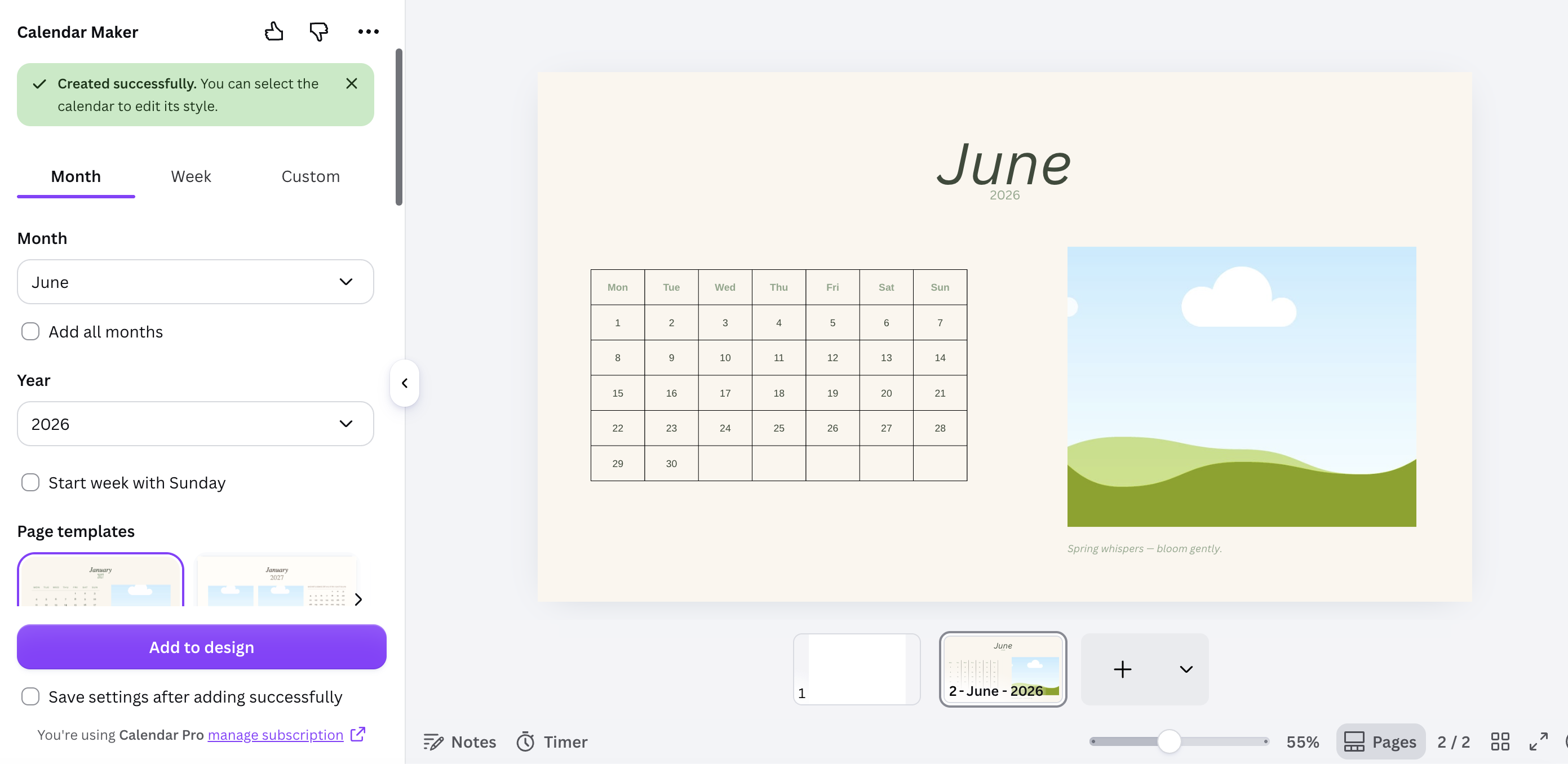
Three tabs, three different jobs an agent actually has:
- Month — a dated grid for an "open houses this month" post or a printed market-update calendar. Pick month and year (ten years either side of now), tick Add all months for all twelve at once, and Each month on its own page to split them. There are around fourteen decorative page templates.
- Week — choose which weekdays appear, set Number of rows from 1 to 27, and turn on Shorten labels. This is your showings board or weekly schedule.
- Custom — any date range up to 150 days. Good for a listing campaign timeline or a 90-day marketing plan.
Styling is per-element: font, bold/italic/underline, alignment, size 1–100 and colour for the header row and the date numbers separately, plus a header bar colour and two alternating row colours. There are 30-plus preset palettes and a live preview.
The setting most people miss is Save settings after adding successfully. Tick it, and your brand colours and font come back next month instead of being rebuilt — the app keeps roughly thirty saved setups per tab.
Note that Add to design is the Pro-gated part. Free accounts can configure and preview but see Unlock to use instead of the insert button.
5. Text to Frames — SOLD, with the house inside the letters #
Type a word, and each letter becomes a genuine Canva frame you can pour a photo into. For agents that means SOLD filled with the property exterior, a street name filled with neighbourhood shots, or a "JUST LISTED" header where the letters carry the interiors.
- Text field caps at 200 characters; you will see "Text is too long" if the settings push past what fits.
- Free tier opens five fonts: Roboto, Open Sans, Lato, Playfair Display and Pacifico. The full library runs past 100 and is marked Pro.
- Letter spacing runs −100 to 100. Negative values overlap the letters.
- Split into letters is the setting that matters — with it on, each character is its own frame and can hold a different photo. Off, one image runs across the whole word.
- Blur (0–20), Border (0–50) and Inner shadow (0–40) are the Pro effects, each with a colour picker.
- Canva frames accept video as well as stills, which is how you get a Reel cover with footage running inside the letters.
If you see "Frames can't be added to this design type", that is a Canva restriction rather than an app fault — reopen it inside a Presentation, Poster or Instagram Post design.
6. Bulk QR — one code per listing, all at once #
Free, and unlimited for static codes. Paste a list and it generates the whole batch: Link, Text, Email, SMS, WiFi, or MeCard/vCard codes. It also reads QR codes back out of an image, which is handy when a colleague sends you a flyer and nobody remembers where the code goes.
Where it fits: a mailer campaign across forty addresses, WiFi codes for a staged property, a vCard on the back of every business card, or per-room codes at a large open house.
Where it does not fit: anything whose destination might change. These are static codes, fixed once printed. That is exactly the split — Bulk QR for volume with fixed destinations, Dynamic QR for anything tied to a listing's status.
Also worth a look #
- Border Art Maker — repeating decorative borders with adjustable spacing and rotation, for postcards and printed farming material.
- Color Harmony — six harmony types and a one-click apply across the page, useful when your brokerage gives you two brand colours and you need three more that do not fight.
- One Color — recolours a transparent PNG to a single colour while keeping the anti-aliasing, which is the fastest way to get a one-colour version of a logo for a sign vendor.
What Canva already does well #
Worth saying plainly, because you may not need any app at all:
- Real estate templates. Hundreds of them, many free — flyers, feature sheets, social posts, open house signs. If one is close, editing it beats building from scratch.
- Brand Kit. Load your brokerage colours, fonts and logo once and stop eyedropping hex codes off a PDF.
- Native Frames and Grids. Free, and they work in the mobile app. If the shape you want is a circle, an arch or a rectangle grid, use these.
- Background Remover. Pro, but it is the fastest route to the transparent file Image to Frame needs.
- Bulk Create. Feed it a spreadsheet and it produces a card per row — genuinely good for a batch of listing tiles.
- Its own QR generator. Free and built in. Right choice for a permanent destination.
Reach for the apps when you hit the specific wall Canva does not clear: your shape as a frame, a collage that is not a grid, a dated calendar generated rather than typed, or a printed code you will need to repoint.
A starter stack, by what you actually make #
| What you're making | The two apps to install first |
|---|---|
| Listing flyer and yard sign | Qrdy Dynamic QR + Image to Frame |
| Just-listed / just-sold social posts | Frames Lab + Text to Frames |
| Open house schedule and signage | Calendar Maker + Qrdy Dynamic QR |
| Neighbourhood farming mailers | Bulk QR + Border Art Maker |
Before you send it to print #
- Set the page to the physical size first. Frames scale to whatever page is open when they are added, so a page set to 8.5 × 11 inches saves you re-fitting everything later.
- Remove backgrounds before converting a logo, not after. It is the difference between a logo-shaped frame and a rectangle.
- Check photos at 100% zoom. MLS exports are often smaller than they look on screen, and a photo that survives a social post can fall apart on a printed feature sheet.
- Scan the printed proof yourself, from the distance a person walking past a yard sign would actually stand.
- Export as PDF Print for anything going to a print shop.
Building a flyer this week? Image to Frame handles the logo-shaped photo, Frames Lab handles the collage, and Calendar Maker handles the open house schedule — all inside the Canva editor. For the code on the sign, the question to answer first is whether the destination will ever need to change.
Frequently asked questions
Not for Canva Pro specifically. Each app has its own free and paid tier, separate from your Canva plan. Bulk QR is free with no cap on static codes. Qrdy Dynamic QR has a free Starter tier and a $5/month Pro tier. Text to Frames gives free accounts five fonts and the Split into letters toggle. Calendar Maker's Add to design button is gated — free accounts see "Unlock to use" instead. Where you will want Canva Pro is Background Remover and transparent PNG export, both of which make the frame apps behave better.
Only if it is a dynamic code. A static QR has the destination baked into the pattern itself, so the only way to change it is to reprint. A dynamic code points at a redirect you control, which means the same printed square can send people to the listing today and to a "just sold" page next month. For real estate that difference is the whole argument, because listings change status faster than signage gets reprinted.
Canva's own frames do — you can tap a frame, choose Replace, and double-tap to crop, all on a phone. The frame-creating apps run in the desktop editor sidebar, so the usual workflow is to build the custom frame or the calendar once on a laptop, then fill in photos from your phone between showings.
Yes, for your own listing and marketing material. Two things worth checking first: your brokerage's brand guidelines, which often specify logo placement and disclaimers on anything public-facing, and Canva's content licence, which governs how you may use Canva's stock photos and elements — particularly if a design is being sold or distributed at scale rather than used to market your own listing.
Related products


More from QRdy Blog

How to Put a Photo in a Heart Shape in Canva (3 Easy Ways)
Want a heart-shaped photo in Canva? Use the built-in heart frame, turn any heart graphic into a custom frame with Image to Frame or Frames Lab, or build a heart collage. Step-by-step for each.

What Is a Silhouette? Meaning, Examples, and How to Use One in Canva
A silhouette is a solid, single-color outline of a shape with no inner detail. Here is what it means, how it works, the main types, and how to turn one into a photo frame in Canva.
10 Weekly Schedule & Countdown Calendar Ideas You Can Make in Canva
Ten practical ideas for weekly schedules and countdown calendars in Canva: class timetables, chore charts, 30-day challenges, wedding and holiday countdowns, all built with Calendar Maker's Week and Custom tabs.