
Canva Frames vs Image to Frame: Built-In Frames vs a Custom Frame Maker (2026)
Canva's built-in frames are free and fast, but locked to a stock library. Image to Frame turns any PNG, SVG, or JPG into a real Canva frame. Here's exactly when to use each.
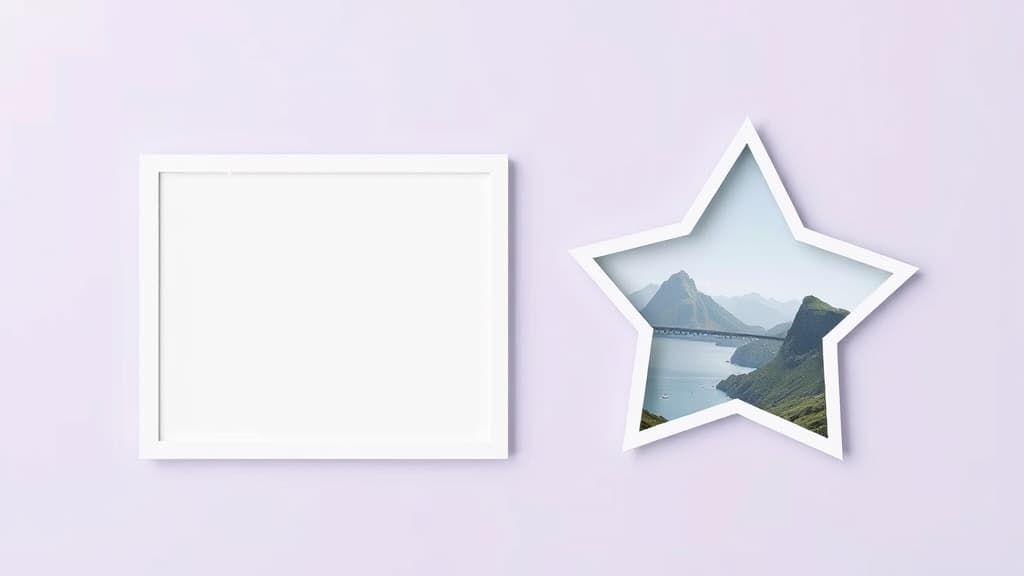
Canva already has frames built in, so why would you need an app for them? The short answer: Canva's frames are a fixed library, and the moment you want a frame in your shape — a logo, a star, a hand-drawn outline — the built-in option runs out of road.
This guide compares Canva's native frames with Image to Frame, the QRdy Canva app that turns any image into a real, fillable frame. Both make the "drop a photo into a shape" effect. They just start from very different places.
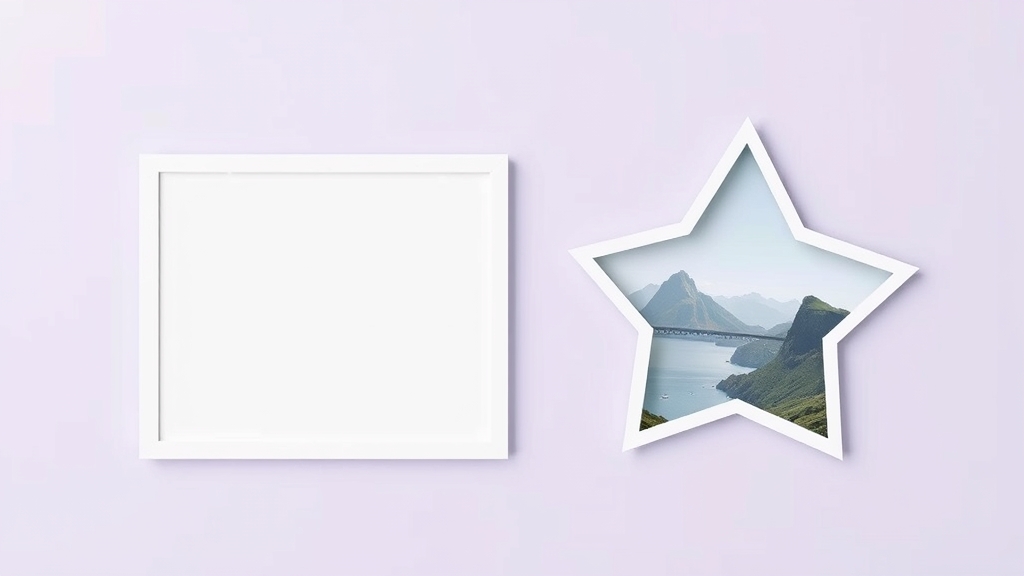
Quick verdict #
- Use Canva's built-in frames when a stock shape (circle, square, basic grid, simple artistic frame) already does the job. It's free, instant, and there's nothing to install.
- Use Image to Frame when you need a frame in a shape Canva doesn't stock — your logo, an icon, a custom silhouette, or scanned handwriting — and you want to fill it with a photo or video like a normal frame.
At a glance #
| Canva built-in frames | Image to Frame | |
|---|---|---|
| Price | Free (Free & Pro plans) | Free tier; Pro unlocks full features + Frame Store |
| Where it lives | Elements → Frames | Canva app panel (left sidebar) |
| Frame shapes | Fixed stock library | Any shape you supply — from a PNG, SVG, or JPG |
| Custom logo / icon as a frame | No | Yes |
| Fill with photo and video | Yes | Yes |
| Custom border color + thickness | Limited | Yes (0–50 thickness + color) |
| File limit | n/a | 5MB per source file |
| Best for | Quick, standard shapes | Brand shapes, unique silhouettes |
How Canva's built-in frames work #
Canva's frames live under Elements → Frames. You drag one onto the page and drop a photo or video inside, and it crops to fit automatically. There's a decent range — circles, rounded rectangles, grids, and a handful of artistic and seasonal shapes.
For everyday layouts this is genuinely all most people need, and it's the right first stop. The catch is that you're limited to the shapes Canva ships. There is no native way to say "make this image into a frame." When your brand shape or the exact silhouette you pictured isn't in the library, the built-in path stops.
How Image to Frame works #
Image to Frame is a Canva app that runs in the editor's left panel. Instead of picking from a fixed list, you give it a shape and it builds the frame:
- Supply a source image one of three ways — upload a file (PNG, SVG, or JPG, up to 5MB), pick an image already on your page, or export the whole design as a transparent PNG to combine several elements into one frame.
- Preview the frame the app will create.
- Adjust the border — thickness (0–50) and color.
- Click "Add frame to design" and the frame drops onto your Canva page.
From there it behaves like any Canva frame: drag a photo or video in, reposition, and zoom inside the shape. There's also a built-in Frame Store of ready-made frames if you'd rather grab one than build it.
The one tip that decides your result: remove the background from your source image first. Image to Frame traces the true outline only when the image has transparency. If it still has a white or colored background, you'll get a rectangle instead of your shape.
When each one wins #
Reach for Canva's built-in frames when you need a circle for a profile photo, a simple grid for a collage, or any shape that's already in the library. No install, no fuss.
Reach for Image to Frame when the shape is the whole point: dropping product photos inside your logo, turning a scanned drawing or handwriting into a frame, building a custom polygon from an icon, or making puzzle-piece frames where each piece holds a different image. These are the jobs the stock library simply can't do.
Where the other QRdy frame apps fit #
Frames are a family, not a single tool. If Image to Frame isn't quite the right entry point, a sibling app usually is:
- Frames Lab — a parametric toolbox for Arc, Grid, Burst, and Diagonal frames when you need precise geometric control rather than a shape from an image.
- Text to Frames — turns each letter of your text into its own frame, so you can pour a different photo into every character.
- AI Frames — describe the frame in words and let AI draw it, no source image required.
- Trace to Frame — click points to draw a freeform frame by hand.
Bottom line #
Canva's built-in frames and Image to Frame aren't really rivals — they're two rungs of the same ladder. Start with Canva's stock frames; they're free and cover the common cases. The moment you need a frame in a shape Canva doesn't offer, Image to Frame picks up exactly where the built-in library leaves off, turning any image into a real frame you fill the normal Canva way.
Frequently asked questions
Yes. Canva includes a library of frames you can find under Elements → Frames on both the free and Pro plans. You drag a frame onto your page and drop a photo or video into it. The limitation isn't price — it's that you can only use the shapes Canva already offers.
Not with the built-in library. Canva has no button to convert an arbitrary image into a frame. That's exactly what the Image to Frame app does: upload a PNG, SVG, or JPG (up to 5MB), and it converts the outline into a valid Canva frame you can fill with any photo or video.
The source image still has a background. Image to Frame traces the image's real outline only when it has transparency (an alpha channel). Remove the background first so the frame hugs the true shape instead of a rectangle.
Yes. A frame made by Image to Frame is a genuine Canva frame, so you drag a photo or video in, reposition it inside the shape, and zoom exactly like any stock frame.
Related products


More from QRdy Blog

Word Calendar Template vs Canva Calendar Maker: Which Should You Use?
Microsoft Word calendar templates are fast and familiar; Canva's Calendar Maker app is built for good-looking, printable calendars. Here is an honest side-by-side, with a clear verdict for each use case.
The Best Canva Apps for Invitations (2026): Birthday, Baby Shower & Party
Canva's invitation templates get you 80% of the way. These Canva apps cover the rest: custom photo shapes, monogram letters, borders, palettes and RSVP QR codes.

How to Put a Photo in a Heart Shape in Canva (3 Easy Ways)
Want a heart-shaped photo in Canva? Use the built-in heart frame, turn any heart graphic into a custom frame with Image to Frame or Frames Lab, or build a heart collage. Step-by-step for each.