
The Best Canva Apps for Text Effects (2026)
Flat text is boring. Here are the best Canva apps for text effects in 2026 — photo-filled letters, image-in-text, curved typography, and word clouds — plus when Canva's built-in tools are enough.
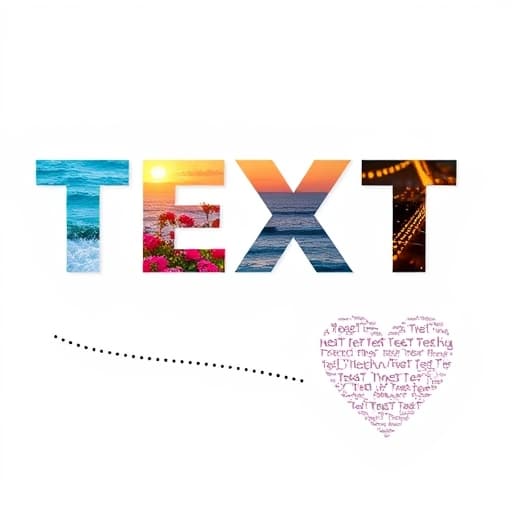
Plain text does the job, but it rarely stops the scroll. If you want headlines where each letter holds a different photo, an image showing through your words, typography that curves along a wave, or a word cloud shaped like a heart, Canva's built-in tools only get you part of the way. These four QRdy Canva apps cover the effects Canva can't do natively — and each one runs right inside your Canva editor.
Here's the quick-pick guide, then a closer look at each.
Quick pick #
| You want to… | Best app | Why ||---|---|---|| Fill each letter with a different photo/video | Text to Frames | Every character becomes its own real Canva frame || Show one image through all your text | Clipping Mask | Single-image text mask, done in seconds || Bend text along a wave, spiral or custom path | Text Path Maker | Goes beyond Canva's single-arc Curve Text || Turn a list of words into a shaped word cloud | Text Shape | Fills any shape (or uploaded image) with words |
1. Text to Frames — a different photo in every letter #
This is the standout for photo typography. Text to Frames turns each letter you type into a genuine Canva frame, so you can drag a different image or video into each character and reposition it independently — the word "SUMMER" with a beach shot in one letter and flowers in the next.
Because every letter is a real Canva frame (not a flat PNG pasted over text), you keep all the normal frame controls: drop an image in, nudge it, zoom it, swap it. It ships with 100+ curated fonts (5 free, the rest on Pro) and three Pro effects — Blur for a glow behind the text, Border to outline each stroke, and Inner Shadow for depth. A live preview shows exactly what will land in your design.
Best for: event banners, movie-poster titles, thumbnails, and branding where each letter tells its own story.
2. Clipping Mask — one image showing through your words #
Sometimes you want the opposite: a single photo showing through the whole word, like a landscape revealed inside "EXPLORE." That's Clipping Mask. Choose a background image, choose a mask (text, a shape, or your own uploaded design), hit apply, and the image is cut cleanly to the outline. It's the Photoshop clipping-mask effect without leaving Canva or knowing any design software.
Best for: quote graphics, banners and cover images where one consistent image reads across all the letters.
3. Text Path Maker — curve text along any path #
Canva's built-in Curve Text only bends words along a single circular arc. Text Path Maker lets you draw a free path — waves, spirals, zig-zags, S-curves — or pick a preset, and the text flows evenly along it. You can reverse the direction and keep full control of font, size, color and spacing.
Best for: logos with a curved slogan, music posters, wedding invitations, and packaging where the text wraps around an image.
4. Text Shape — words arranged into a shape #
Text Shape takes a list of words and packs them into a word cloud in any outline — a circle, star, heart, or an image you upload. Each word can vary in color and size, and you can weight important words larger.
Best for: teachers building visual summaries, marketers recapping keywords, HR value clouds, and personalized gifts like a name cloud shaped like a heart.
When Canva's built-in tools are enough #
Be fair to Canva here: if you only need a font swap, letter spacing, a basic drop shadow, or a simple curved arc, the native tools handle it with no extra app. Reach for these apps when you want effects Canva genuinely can't do — different photos per letter, custom text paths, or shaped word clouds.
The bottom line #
For most people chasing that "wow" typography look, Text to Frames is the most versatile pick because each letter is independently editable. Pair it with Clipping Mask for single-image text, Text Path Maker for curved layouts, and Text Shape for word clouds, and you've got every text effect worth having — all inside Canva.
Frequently asked questions
Yes, for basic effects. Canva has built-in font styles, letter spacing, shadow and a Curve Text option that bends text along a single circular arc. But for advanced effects — filling each letter with a different photo, wrapping text along a wavy or spiral path, or building a shaped word cloud — you need a dedicated Canva app like the ones below.
Clipping Mask shows one single image through all your letters at once. Text to Frames turns each letter into its own real Canva frame, so you can drop a different photo or video into every character and reposition each one independently.
Each has a free tier. Text to Frames, for example, opens 5 fonts free and unlocks 100+ fonts plus Blur, Border and Inner Shadow effects on Pro. You can try the core effect before deciding to upgrade.
Related products


More from QRdy Blog
Word Calendar Template vs Canva Calendar Maker: Which Should You Use?
Microsoft Word calendar templates are fast and familiar; Canva's Calendar Maker app is built for good-looking, printable calendars. Here is an honest side-by-side, with a clear verdict for each use case.
The Best Canva Apps for Invitations (2026): Birthday, Baby Shower & Party
Canva's invitation templates get you 80% of the way. These Canva apps cover the rest: custom photo shapes, monogram letters, borders, palettes and RSVP QR codes.
How to Put a Photo in a Heart Shape in Canva (3 Easy Ways)
Want a heart-shaped photo in Canva? Use the built-in heart frame, turn any heart graphic into a custom frame with Image to Frame or Frames Lab, or build a heart collage. Step-by-step for each.