
Best Canva Apps for Photographers (2026)
A photographer's shortlist of Canva apps for custom frames, collages, borders, and photo calendars — with an honest note on what Canva already does for free.
Canva already covers a photographer's basics — background remover, filters, and a decent photo editor. Where it gets thin is everything around the photo: shaped frames, real collage layouts, custom mats and borders, photo-filled titles for an album cover, and print products you can actually sell. A handful of Canva apps fill those gaps. This is the shortlist I reach for, what each one is best at, and where Canva's built-in tools are honestly enough.
Quick pick #
| If you want to… | Use | Why |
|---|---|---|
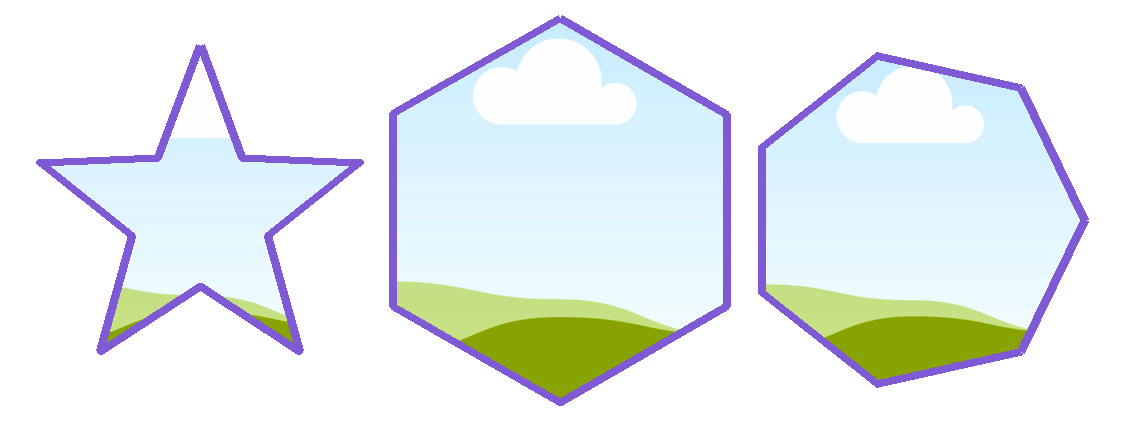
| Put a photo in any shape or custom frame | Image to Frame | Turns any shape, logo, or silhouette into a frame your photo crops into |
| Build a grid, arc, or diagonal collage | Frames Lab | Collage layouts Canva's native Grids can't make |
| Drop a quick multi-photo collage | Frame Collage | Fast, toggle-able photo grids |
| Add a custom border or mat to a print | Border Art Maker | Repeating decorative borders around any photo |
| Sell photo calendars | Calendar Maker | Generates month/week/year calendars to build a product around your images |
| Fill a title or name with a photo | Text to Frames | Album-cover and studio-branding titles with the image inside the letters |
1. Image to Frame — the everyday workhorse #
For photographers, the single most useful app is Image to Frame. Canva's native frames are a fixed set of shapes; Image to Frame turns any shape — a heart, a monogram, your studio logo, a hand-drawn silhouette — into a frame that your photo crops neatly inside. It's the fastest way to get branded portrait crops, themed session previews, and social posts that don't look like everyone else's.
Best for: branded crops, shaped portraits, custom social templates.
2. Frames Lab — collages beyond the grid #
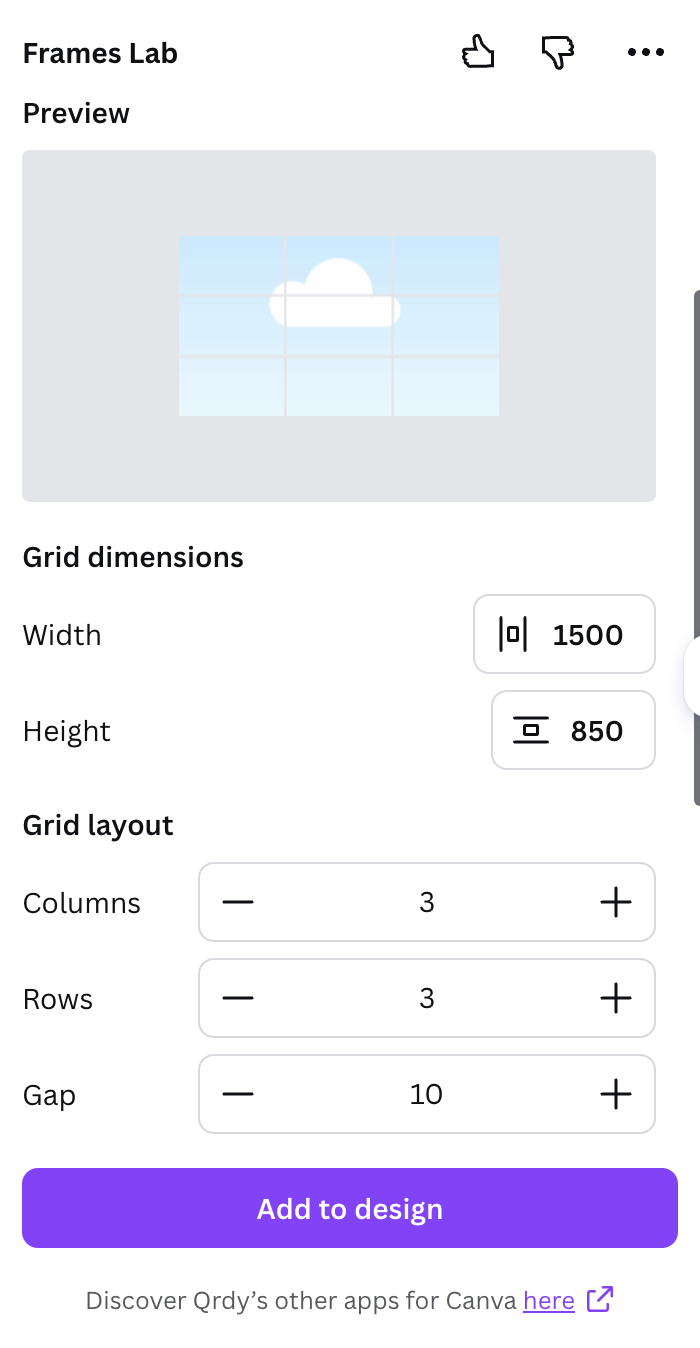
Canva's built-in Grids handle a plain square layout, but photographers usually want more: a curved arc of engagement photos, a diagonal magazine strip, or a grid with one hero cell. Frames Lab builds those layouts in the exact dimensions you set, and every photo drops in and crops automatically. See the step-by-step in how to make a photo collage in Canva.
Best for: album spreads, gallery walls, multi-photo previews.
3. Frame Collage — the fast option #
When you just need a clean multi-photo block and don't want to tune columns and gaps, Frame Collage gives you quick toggle-able grids. It's the lower-effort cousin of Frames Lab — good for a same-day recap post or a story highlight.
Best for: quick recaps, story highlights, batch previews.
4. Border Art Maker — mats and edges #
A print looks finished with the right border. Border Art Maker wraps a custom, repeating decorative border around a photo — think a gallery mat, a vintage edge, or a themed frame for a seasonal mini-session. It's the detail that makes a digital deliverable feel like a physical print.
Best for: print-ready mats, themed borders, framed digital deliverables.
5. Calendar Maker — turn photos into a product #
Photographers leave money on the table by not selling prints. Calendar Maker generates monthly, weekly, or full-year calendars you can drop your images into — a natural year-end product for family, pet, and landscape shooters. Pair a favourite set of twelve images with a generated grid and you have a sellable photo calendar in an afternoon.
Best for: sellable photo calendars, year-end client gifts, branded planners.
6. Text to Frames — photo-filled titles #
For album covers, studio logos, and "2026" year-in-review posts, Text to Frames fills each letter of a word with your photo, so the image shows through the type. It's the difference between a plain caption and a title that is the shoot.
Best for: album covers, studio branding, year-in-review titles.
What Canva already does for free #
Be honest with your time: you don't need an app for everything. Canva's Grids handle simple square collages, its native Frames cover basic shapes, and the built-in editor does background removal, filters, and adjustments. Reach for the apps above when you hit a wall — a shape Canva doesn't have, a collage layout it can't build, or a product (calendars, bordered prints) you want to sell.
The bottom line #
If you install just one, make it Image to Frame — it solves the most common photographer problem, getting a photo into a non-standard shape. Add Frames Lab for real collages and Calendar Maker the moment you want to sell prints. Everything else is a nice-to-have you can add as your workflow grows.
Frequently asked questions
Image to Frame is the most broadly useful — it turns any shape or logo into a frame your photo crops into, which covers branded crops, shaped portraits, and custom social templates. Add Frames Lab for collages and Calendar Maker to sell photo calendars.
Yes, Canva's built-in Grids handle simple square collages for free. Use Frames Lab when you need a grid with a specific column count, a curved arc, a diagonal strip, or a combined hero cell — layouts Grids can't produce.
Calendar Maker lets you generate month, week, or year calendars and build a sellable photo-calendar product around your images. Border Art Maker adds print-ready mats, and Image to Frame creates branded deliverables clients want to keep.
Related products


More from QRdy Blog
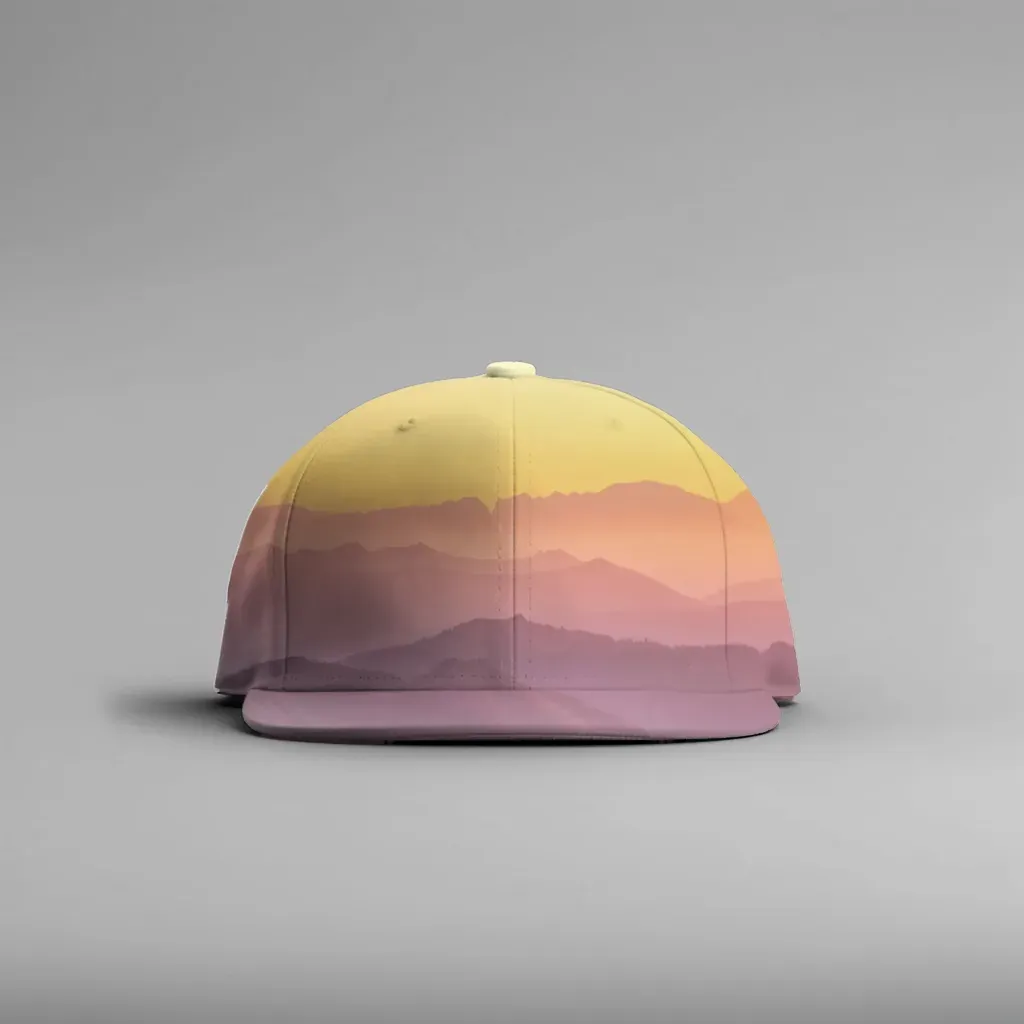
How to Make a Hat Mockup From a Photo (So the Design Curves With the Cap)
Turn one photo of a blank cap into realistic hat mockups: drag a box around the front panel, let the design wrap the curve with the photo's real shading, then render all your designs at once in your browser.
The Best Canva Apps for Family Reunions (2026): Invites, Banners, Photo Walls and Calendars
Planning a family reunion in Canva? Here are the five Qrdy apps that actually help: shaped photo invitations, photo-letter banners, photo-wall grids, a countdown calendar and a QR link that can change after printing.
How to Make a Birthday Calendar in Canva (Family Birthday Tracker, Step by Step)
Build a printable family birthday calendar in Canva: 12 months, one page each, with names added in minutes. A step-by-step tutorial using Calendar Maker, plus honest notes on what Canva does on its own.