
What Is a Clipping Mask? Definition, Examples, and How to Make One in Canva
A clipping mask lets a photo show through the shape of another object — a star, a heart, or a letter. Here is what a clipping mask is, how it works, and the fastest ways to make one right inside Canva.

A clipping mask is one of those design tricks that looks complicated but is simple once you see it. If you have ever noticed a photo showing through the outline of a bold letter, or a landscape tucked neatly inside a star, you have already seen a clipping mask at work.

What is a clipping mask? #
A clipping mask is a technique that clips an image to the shape of another object. The top object — a shape, a piece of text, or a custom outline — acts as a "window." The image below only shows through that window. Everything outside the shape is hidden.
Think of it like a cookie cutter pressed into dough. The cutter is the shape. The dough is your photo. Whatever falls inside the cutter stays; the rest is trimmed away. The photo itself is never damaged — it is just masked, so you can reposition or swap it any time.
The term comes from design software like Photoshop and Illustrator, where a "clipping mask" links one layer to the shape of the layer beneath it. The idea has since spread to almost every design tool, Canva included.
How does a clipping mask work? #
Every clipping mask has two ingredients:
- The mask — the shape doing the clipping. This can be a circle, a star, a heart, a hexagon, a custom icon, or letters of text.
- The content — the image, video, or pattern that shows through the mask.
When you combine them, the software keeps only the pixels of the content that overlap the mask. The result reads as a single object: a star-shaped photo, a heart-shaped photo, or typography with a picture inside each letter.
Because the content stays editable, a clipping mask is non-destructive. You can drag the photo around inside the shape, zoom in, or replace it entirely without redrawing anything.
Clipping masks in Canva #
Here is the honest part: Canva does not have a button called "clipping mask." Its native version of the feature is called a Frame. Drag a photo onto a Canva frame and the photo is clipped to that frame's shape — that is a clipping mask by another name.
The limitation is the frame library. Canva ships with a fixed set of frames, so you cannot clip a photo to just any shape, icon, or word on your own. That is the gap the Qrdy Canva apps fill.
Clip a photo to any custom shape — Frames Lab #
Frames Lab is a toolbox for building frames Canva does not offer out of the box. You can create arc, grid, polygon, burst, and diagonal frames, or turn any shape already in your design into a frame using the Shape mode. Drop a photo into what you build and it clips to that outline. The frame auto-sizes to fit your current page, so there is no manual resizing.
Clip a photo to text — Text to Frames #
Want a photo inside your letters? Text to Frames turns every character into a real Canva frame. Type a word, pick from 100+ fonts, and drop images in. With Split into letters turned on, each letter can hold a different photo — an effect a standard clipping mask cannot do, since a normal mask shows one image across the whole word.
One image across a shape or word — Clipping Mask #
If you want the classic behavior — one image showing through text, a shape, or a custom design all at once — the Clipping Mask app does exactly that. Pick a background image, pick your mask, and apply. It is the Photoshop-style clipping mask, packaged for Canva.
Turn any image into a reusable mask — Image to Frame #
Have a logo or a hand-drawn shape you want to clip photos into? Image to Frame converts a PNG, SVG, or JPG (up to 5MB) into a valid Canva frame. Tip: remove the background first so the frame follows the real outline instead of a rectangle.
When should you use a clipping mask? #
Clipping masks are everywhere in modern design: photo-filled headlines on posters, star- or heart-shaped photos on social posts, brand names with product shots inside each letter, and clean shaped thumbnails for YouTube or TikTok. Any time you want an image to take the shape of something other than a rectangle, a clipping mask is the tool.
The short version #
A clipping mask clips a picture to the shape of a mask object, showing the photo only where the two overlap — and it stays fully editable. Canva calls its version a Frame, and the Qrdy apps extend that to custom shapes, text, and any image you upload, all without leaving Canva.
Frequently asked questions
Canva does not have a button literally named "clipping mask." Its built-in equivalent is Frames: drag a photo into a frame and the photo is clipped to that frame's shape. The catch is that Canva's native frame library is fixed, so you cannot clip a photo to an arbitrary shape or to letters on your own. Qrdy apps like Frames Lab, Clipping Mask, and Text to Frames add that flexibility without leaving Canva.
They describe the same result from two angles. A clipping mask is the technique — clipping an image to the outline of a shape or text. A frame is the object that does the clipping. In Canva you achieve a clipping mask by putting a photo into a frame, so any tool that makes custom frames is effectively a clipping mask maker.
Yes. Filling letters with a photo is one of the most popular clipping mask effects. In Canva you can do this with Text to Frames, which turns each letter into its own frame so you can drop a different image into every character, or with the Clipping Mask app, which shows one image through the whole word at once.
Related products


More from QRdy Blog
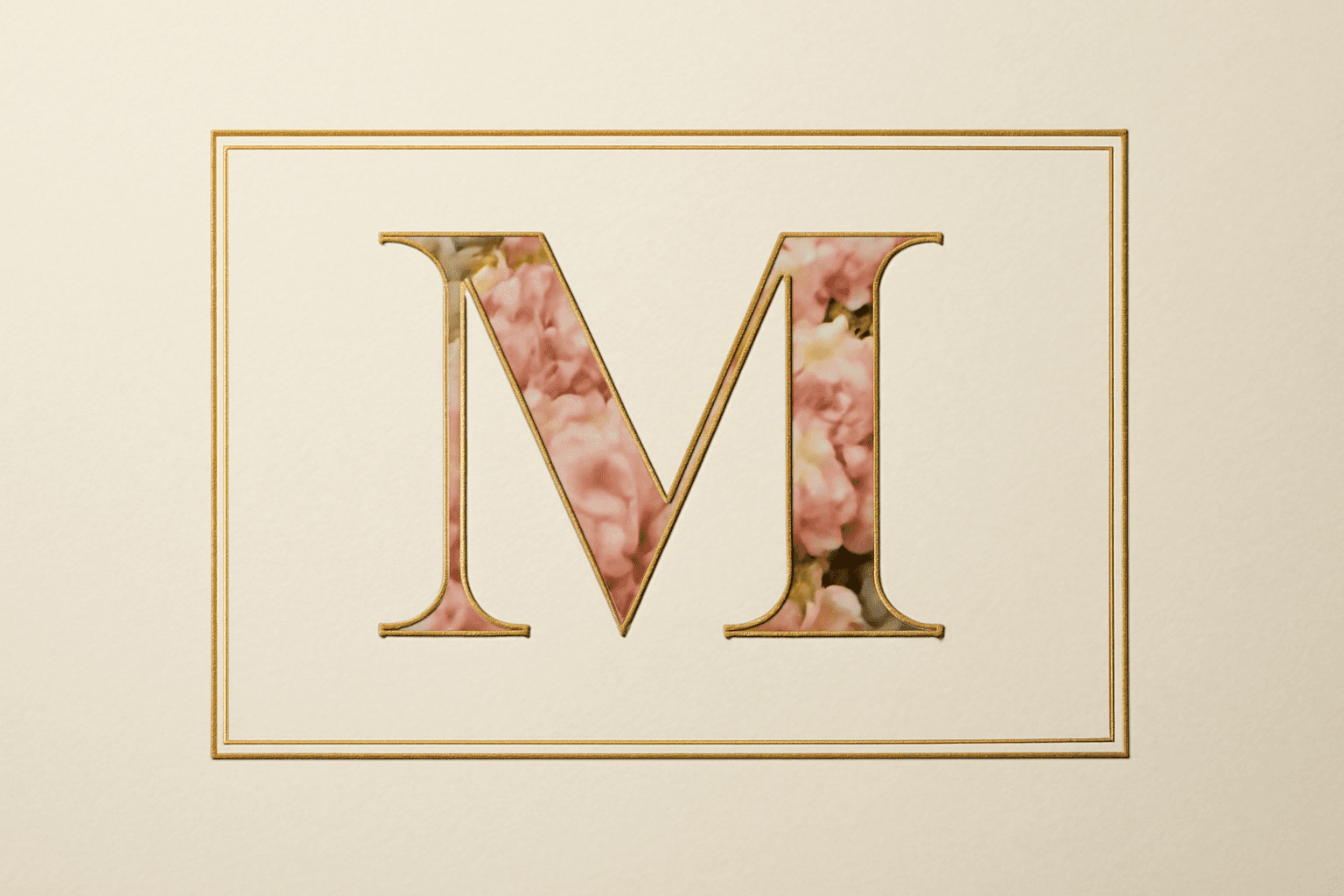
What Is a Monogram? Meaning, Styles, and How to Make a Photo Monogram in Canva
A monogram is a design built from one or more initials. Learn the definition, the classic three-letter order rule, the main styles, and how to make a photo-filled monogram in Canva with Text to Frames.

10 Ý tưởng quà Giáng sinh cho ông bà tự làm trong Canva (lịch ảnh, khung ảnh, thiệp)
10 ý tưởng quà Giáng sinh cho ông bà tự thiết kế trong Canva: lịch ảnh gia đình, khung ảnh hình trái tim, thiệp tên bằng ảnh các cháu, lịch đếm ngược. Rẻ, cá nhân hoá và in được ở nhà.
Word Calendar Template vs Canva Calendar Maker: Which Should You Use?
Microsoft Word calendar templates are fast and familiar; Canva's Calendar Maker app is built for good-looking, printable calendars. Here is an honest side-by-side, with a clear verdict for each use case.