
What Is a Bento Grid? Definition, Examples, and How to Make One in Canva
A bento grid is a layout of rounded tiles in mixed sizes, named after the Japanese lunch box. Learn what it is, how it works, and how to build one with photos in Canva.
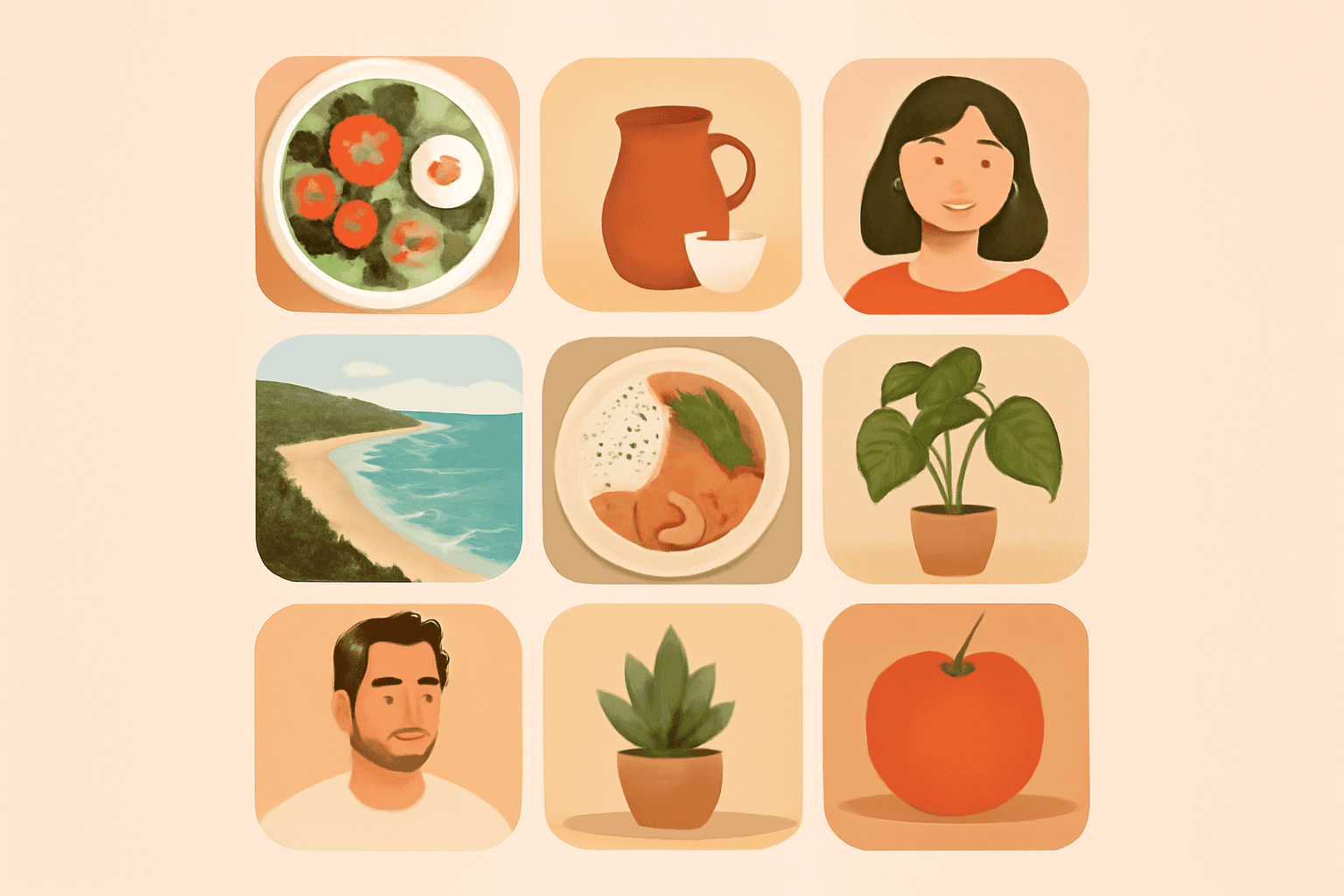
A bento grid is a layout built from rounded rectangular tiles of different sizes, packed together with even gaps. The name comes from the Japanese bento lunch box, where rice, fish and vegetables each sit in their own compartment. In design, each tile plays the same role: one photo, one stat, one idea.
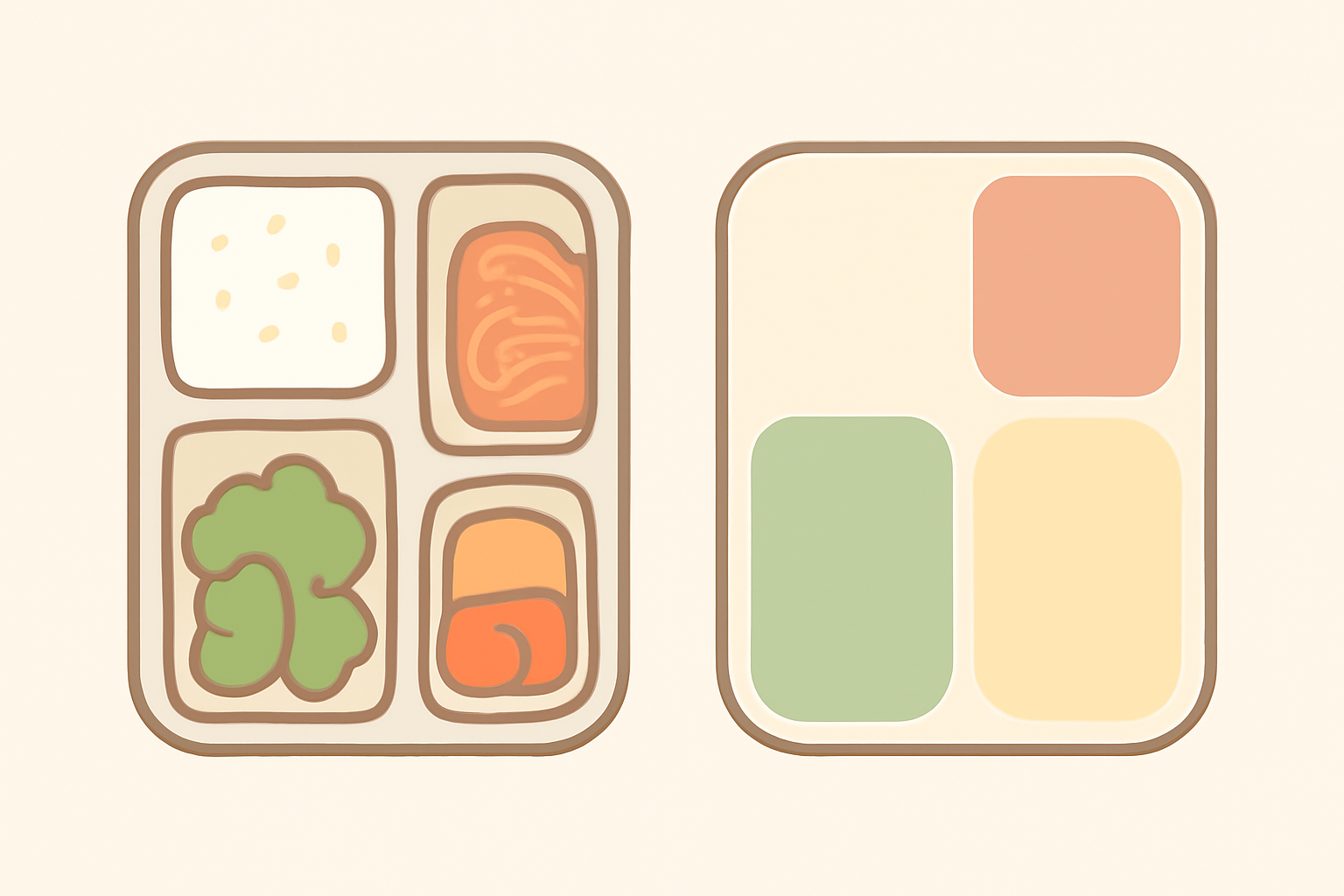
What is a bento grid? #
A bento grid is a modular layout. The page is divided into a grid of rows and columns, and content tiles span one or more cells. Three traits make it recognisable:
- Rounded corners on every tile, usually the same radius.
- Equal gutters between tiles, so the gaps look like thin walls.
- Mixed tile sizes: one or two large "hero" tiles, several medium ones, and a few small ones.
The mixed sizes are what separate a bento grid from a plain even grid. Size creates hierarchy: the biggest tile is read first.
Where you see bento grids #
- Product and landing pages, where each tile highlights one feature.
- Portfolios and link-in-bio pages, where tiles hold projects, socials and a short intro.
- Social posts and carousels, where one image is split into a neat, scannable layout.
- Photo displays, such as a family-year recap or a travel summary on one page.
How a bento grid works #
- Pick a base grid, for example 4 columns by 3 rows.
- Assign spans: the hero tile covers 2×2 cells, others cover 1×1 or 2×1.
- Keep one gap size between all tiles and one corner radius for all tiles.
- Fill each tile with one thing: a photo, a number, a short line of text.
- Balance the weights: put visually heavy photos next to calm, plain tiles.
Bento grid vs a regular photo grid #
| Regular grid | Bento grid | |
|---|---|---|
| Tile sizes | All equal | Mixed, with a hero tile |
| Corners | Often square | Rounded, consistent |
| Hierarchy | None | Strong (size = importance) |
| Best for | Galleries, contact sheets | Features, summaries, showcases |
How to make a bento grid with photos in Canva #
Canva's built-in Grids are fine for a quick equal layout, but mixed spans, exact gaps and rounded corners take effort by hand. One shortcut is Frames Lab, a Canva app by Qrdy whose Grid mode builds a frame layout you can drop photos into.

- Open your design in Canva and launch Frames Lab from the Apps panel.
- In the Create tab, choose Grid mode.
- Set the columns, rows and gap. A 4×3 grid with a small gap is a good start.
- Use the Advanced options for rounded corners, then check the live Preview.
- Click Add to design. The frame scales to fit your page.
- Drag photos into each tile. Ungroup or resize tiles if you want one to span more cells, so it becomes your hero.
- Optionally use the Style tab to add a border or inner shadow.
Tips: keep gaps identical everywhere, use one hero photo with a clear subject, and mix in one or two plain colour or text tiles so the photos can breathe. The free plan limits how many frames you can add, and very dense grids can be blocked, so keep the cell count modest.
When not to use a bento grid #
If your content is a long, linear story, a bento grid fragments it. It also works poorly when every tile is equally important, since the hierarchy has nothing to say.
Quick recap #
A bento grid is rounded tiles, equal gaps and mixed sizes, organised so the eye lands on the hero tile first. It is easy to make in Canva once you have a frame layout to fill with photos.
Frequently asked questions
A bento grid is a layout made of rounded rectangular tiles of different sizes that fit together with even gaps, like the compartments of a Japanese bento lunch box. Each tile holds one idea, photo, or piece of content.
They overlap, but a bento grid is stricter: tiles align to a shared grid, have consistent rounded corners and equal gutters, and vary in size to create hierarchy. A collage can be freeform, overlapping, and rotated.
Yes. Canva's built-in Grids work for simple versions, but for mixed-size tiles with exact rows, columns, gaps and rounded corners you can use the Frames Lab Canva app, whose Grid mode creates frames you can drop photos into.
Related products


More from QRdy Blog

10 Photo Name Art Ideas You Can Make in Canva (Words Filled with Photos)
Ten photo name art ideas for Canva: names, words and dates where every letter is filled with a different photo. Gifts, banners, posters and more, built with Text to Frames.
Photoshop Clipping Mask vs Text to Frames: Photo-in-Text in Canva
Filling text with a photo is a classic Photoshop trick. Here is how the Photoshop clipping mask compares with Text to Frames in Canva, and which one fits a quick title or banner.

The Best Canva Apps for Birth Announcements (2026)
Making a birth announcement in Canva? Here are the best Canva apps for it in 2026: custom photo shapes, name lettering, photo grids, borders, and a first-year calendar. Honest picks, with Canva's built-in tools included.