
10 DIY Advent Calendar Ideas You Can Make in Canva (Printable & Digital)
Ten advent calendar ideas you can actually design in Canva — printable wall posters, photo countdowns, envelope garlands, kids' activity calendars and digital versions. Includes the fastest way to generate a numbered 1–24 grid without drawing a single box.
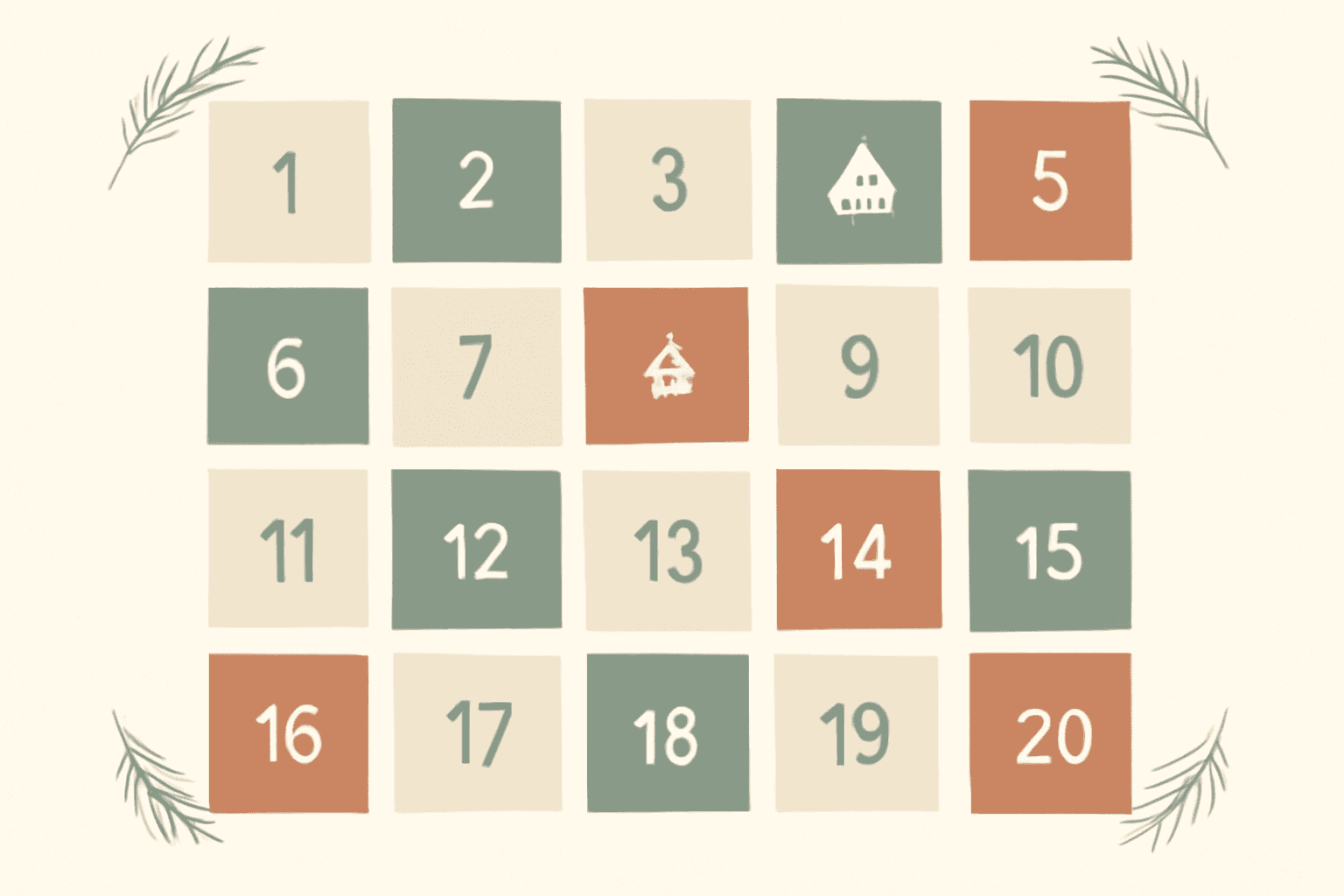
Advent calendars are one of those projects that look simple until you actually start. The design part is fun — colours, illustrations, a nice font. The tedious part is the same every year: drawing twenty-four little boxes, numbering them, and getting them to line up.
This post is ten ideas for what you can make, plus the shortcut for the boring bit. Some of these are printable, some are digital, and a few are physical crafts where Canva just produces the printed parts.
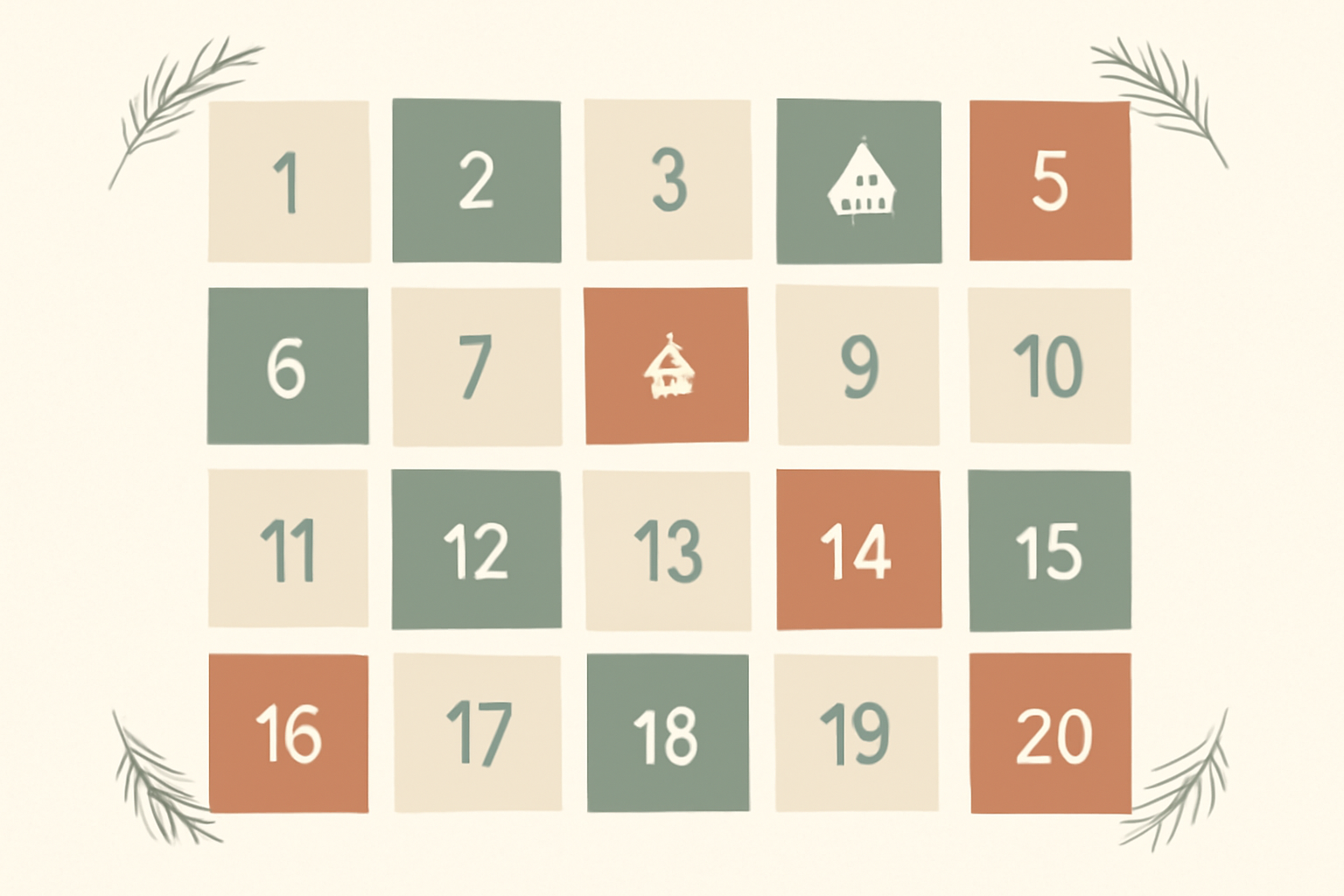
First: the shortcut for the numbered grid #
Nearly every idea below needs the same starting point — a grid of days numbered 1 to 24. Drawing that by hand in Canva means one square, duplicate, align, then twenty-four text boxes you type one at a time.
Calendar Maker skips it. It is a Canva app that generates a date table and drops it straight into your open design. For advent, use the Custom tab rather than Month: set the start date to 1 December and the end date to 24 December, and you get a 24-day grid instead of a full December month with the 25th–31st hanging off the end.
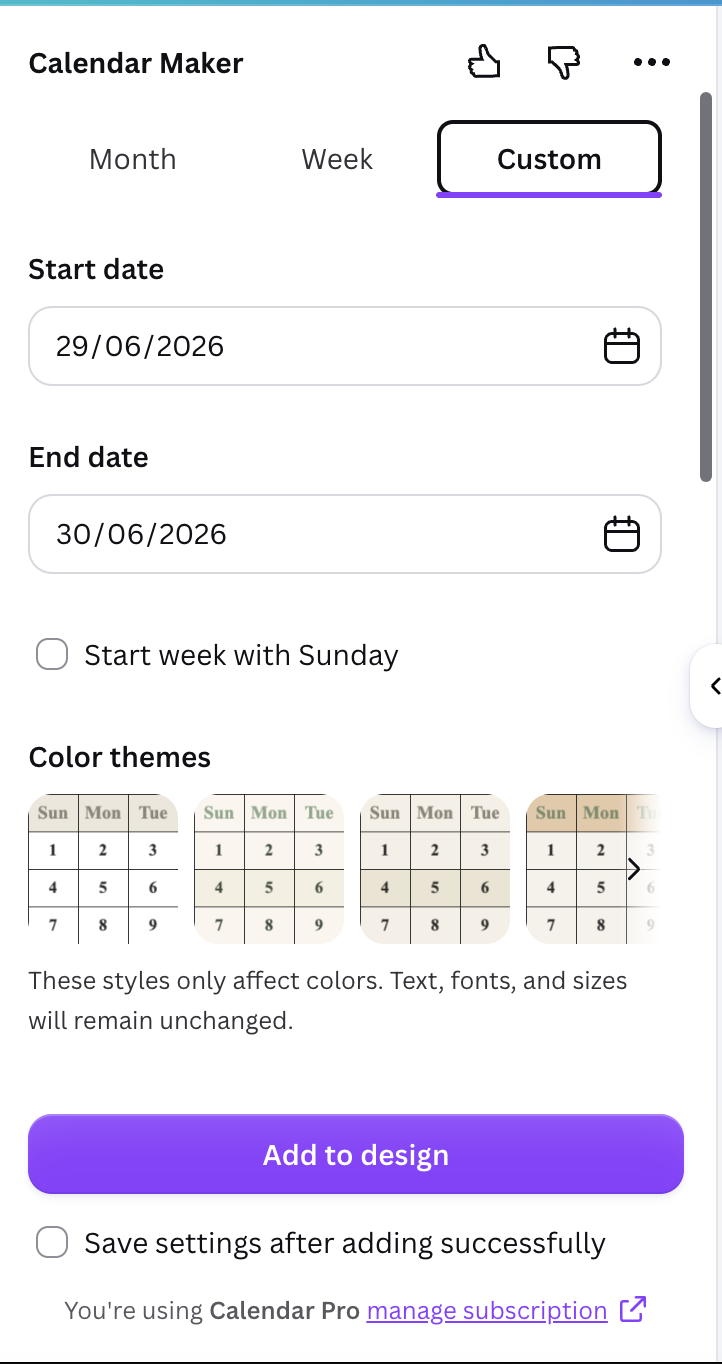
From there you can restyle it: font, bold/italic, alignment, number size, number colour, header bar colour and alternating cell colours. There are 30+ built-in colour presets in a carousel if you would rather not pick shades yourself, and a live preview so you can see it before it lands in the design.
Two honest caveats. Calendar Maker is a Pro app — non-Pro users see an "Unlock to use" button instead of "Add to design". And the Custom tab caps the range at 150 days, which is irrelevant for advent but worth knowing. If you would rather not pay for a once-a-year job, Canva's own template library has advent layouts you can edit; you just inherit whatever grid the template designer drew.
1. The classic printable wall poster #
One A3 or A4 page, a 6×4 grid of numbered squares, decorative border, done. Print it, pin it to the wall, and cross off or sticker each day.
Make the grid with Calendar Maker's Custom tab, then delete the weekday header row (advent does not need "Mon Tue Wed"), leaving a clean 24-cell block. Add a title, some greenery, and export as PDF Print at 300 DPI so the numbers do not go fuzzy.
Best for: households that want the countdown feeling without buying anything to fill.
2. A photo advent calendar of the past year #
Twenty-four photos from the last twelve months, one revealed per day. This is the version people actually keep.
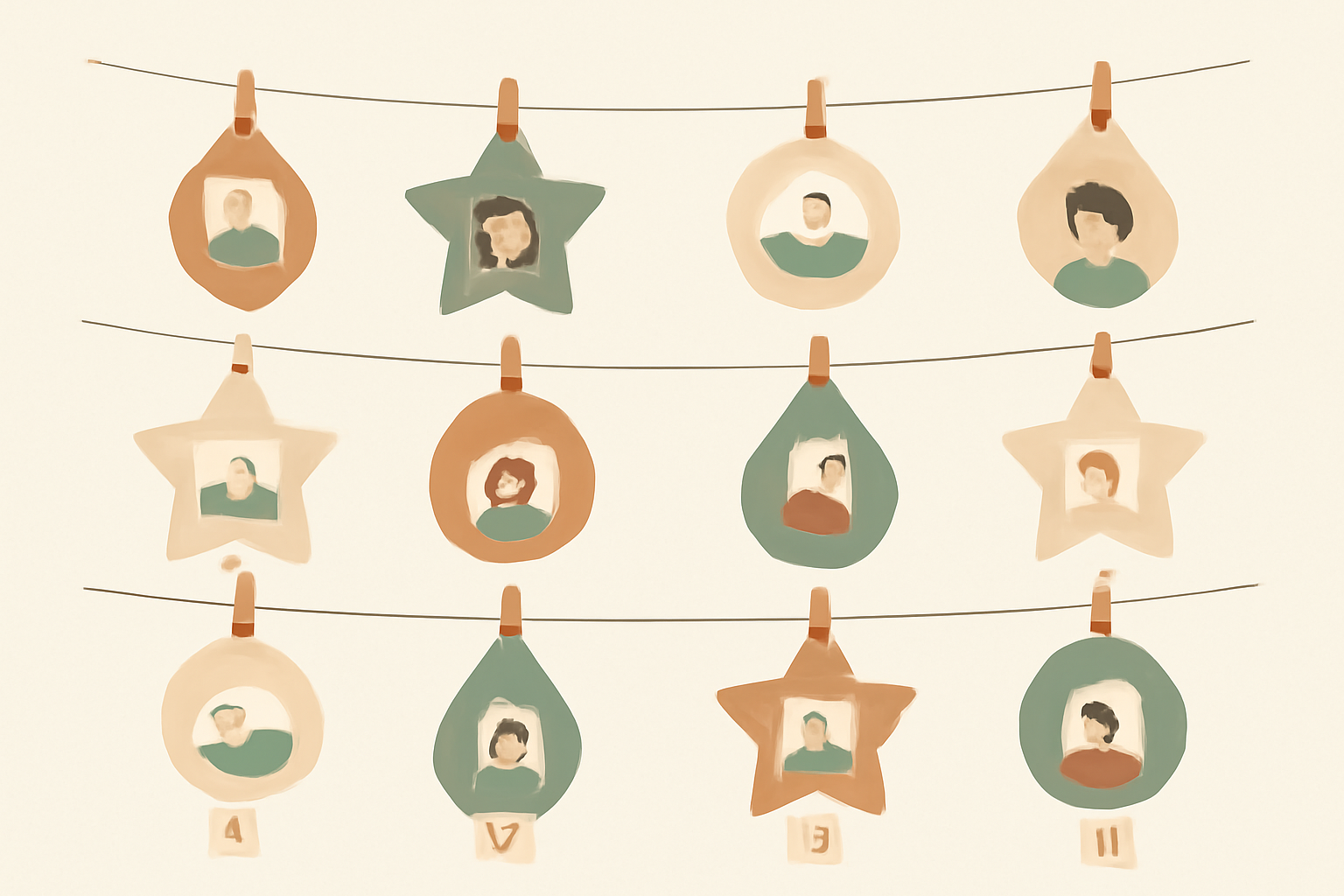
Canva's built-in Frames work fine if you want plain squares and circles. For ornament, bauble, star or tree shapes, Image to Frame converts a PNG or SVG outline into a real Canva frame you can drag a photo into — and Frames Lab builds arc and grid frame layouts if you want the photos arranged in a shape rather than a plain row.
Print it as one poster and cover each photo with a sticky note, or keep it digital and reveal one a day in a shared album.
3. Envelope or tag garland #
No poster at all — twenty-four small numbered tags or mini envelopes pegged to a string across a doorway or mantel.
Design one tag, duplicate it across a page, and change the numbers. Canva's Bulk Create can fill the numbers for you from a list, or use the Calendar Maker grid as a numbering reference so you do not lose track of which ones you have done. Print on kraft card, cut, punch, peg.
Best for: small spaces, and anyone who wants to reuse the same tags year after year.
4. Activity advent calendar (no sweets) #
Instead of chocolate, each day is a thing you do: bake cookies, watch a specific film, call a grandparent, drive to see the lights, wear the ridiculous jumper.
Design it as a poster where each numbered cell has room for a short line of text. Widen the cells and increase the row count so the activity fits — this is where a generated grid beats a template, because you control the proportions.
Best for: families trying to spend less on December, and for anyone whose kids do not need twenty-four more chocolates.
5. A countdown for a specific person #
A partner, a long-distance friend, a kid away at university. Twenty-four small notes: a memory, an inside joke, a photo, one thing you appreciate about them.
Design it as a booklet — 24 small cards, four to a page — rather than a wall poster. Print, cut, and put them in a jar or a small box with the numbers facing up.
6. Digital advent calendar for Instagram or a group chat #
Twenty-four square graphics, one posted each day. Brands do this as a giveaway; families do it as a photo-a-day.
Set your design to 1080×1080, build one template with the number as the hero element, then duplicate it 24 times and swap the number and content. Text to Frames is useful here if you want the number itself filled with a photo — each character becomes its own frame, so "24" can hold two different images.
Best for: small businesses running a December promotion, and anyone who wants the countdown without printing anything.
7. Advent calendar for a classroom #
Twenty-four squares on a bulletin board, each hiding a task, a reading, or a class reward. Teachers usually want it big and re-usable.
Generate the grid, print each day as a separate card (or print the whole grid at A3), and laminate. Pair it with Border Art Maker for a repeated-icon border that reads well from the back of the room.
8. Advent calendar for a shop or café counter #
A branded countdown where each day is a small offer, a featured product, or a free extra. It doubles as a reason for customers to come back.
Design it in your brand colours, then attach a QR code to each day's reveal so the offer can be redeemed or tracked. Bulk QR generates a batch of codes from a list rather than making you create them one at a time.
Best for: independent retail and hospitality in December, where footfall is the whole game.
9. Advent calendar box or pocket chart insert #
If you already own a wooden advent box with 24 drawers, or a fabric pocket chart, you do not need a poster — you need 24 correctly-sized number labels.
Set your Canva page to the exact drawer-front dimensions, design one label, duplicate, renumber, print on sticker paper. Measure twice; drawer fronts are rarely the round number you assume.
10. Advent calendar with three formats at once #
The version that actually gets used in most houses is a hybrid: a printed poster on the wall, physical tags for the treats, and a digital copy on someone's phone.
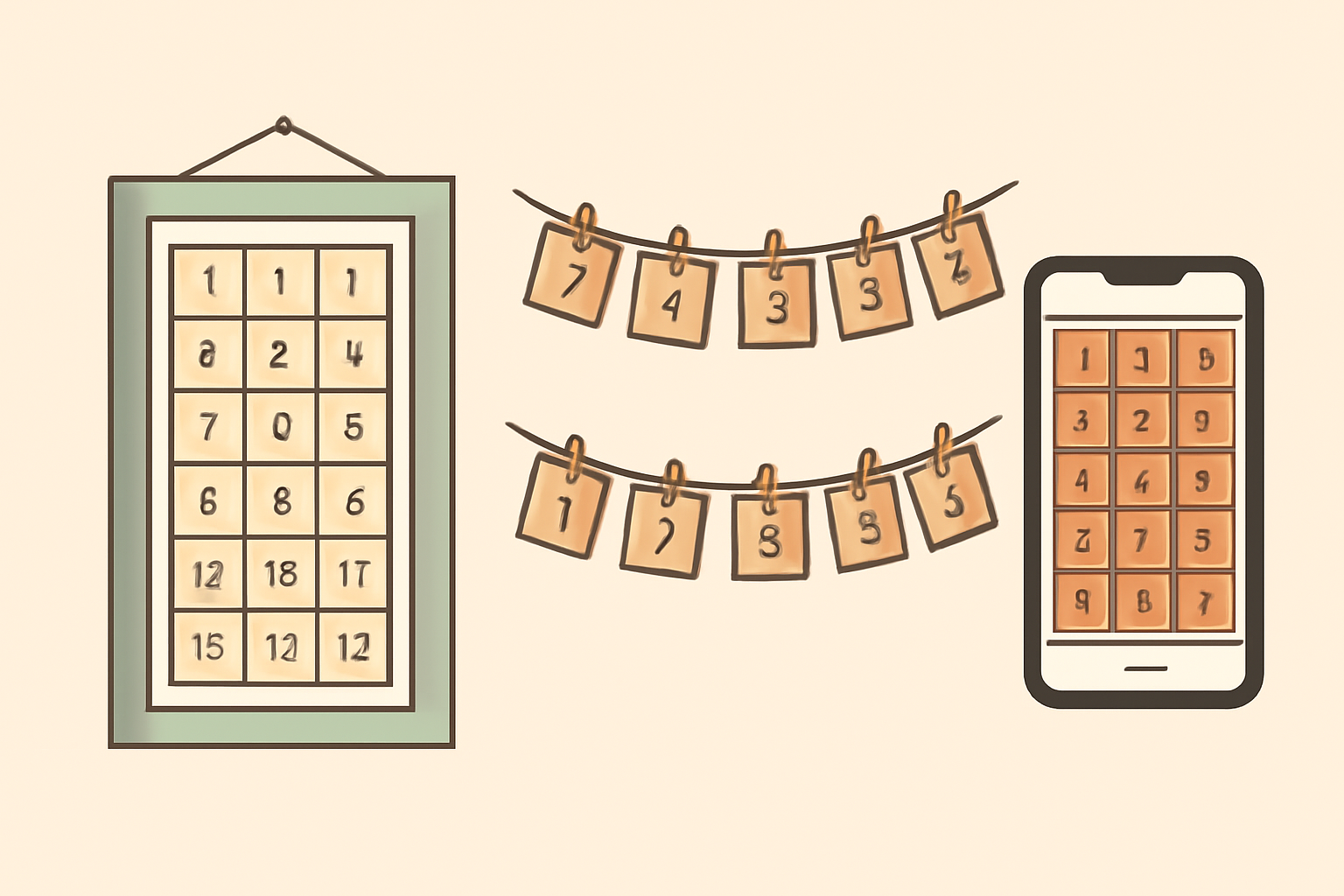
Build the grid once, then duplicate the page and resize for each output — Canva's Resize handles this if you have Pro, or you can copy elements into a new blank design of the right size. Keeping the same colour palette and number font across all three is what makes it look deliberate rather than like three separate projects.
Quick tips before you print #
- Numbers first, decoration second. Get the 24 cells laid out and readable, then add greenery and illustration around them. Decorating first almost always means redoing the grid.
- Leave a margin. Home printers rarely print edge to edge. Keep 10mm clear on all sides or the 1 and the 24 get clipped.
- 300 DPI, PDF Print. Anything lower and small numbers look soft.
- Save the setup. Calendar Maker can store your configuration — colours, fonts, date range — so next December is a two-click job instead of a rebuild.
- Test-print one page before running twenty-four cards. Colours shift on paper, especially muted greens.
Which idea should you pick? #
If you have never made one: start with idea 1, the printable poster. It is one page, one grid, and you will learn where the fiddly parts are.
If you want it to mean something: idea 2 or 5. Photos and notes take longer but they get kept.
If you are doing this for a business or a class: idea 7 or 8, and design it to be re-used next year — laminate, or save the file with the numbers as editable text.
The design is the fun part. Let something else draw the twenty-four boxes.
Frequently asked questions
The traditional advent calendar runs 1–24 December, with the last door opened on Christmas Eve. Some run 1–25 to include Christmas Day. If you are designing your own, 24 is the safest default — it divides neatly into a 6×4 or 4×6 grid, which is why most printable layouts use it.
Yes. Canva's free plan gives you shapes, text, elements and printable page sizes, which is enough for a poster or envelope-tag calendar. Where free gets slow is the numbered date grid itself — drawing and aligning 24 boxes by hand takes a while. Calendar Maker generates that grid for you, and it is a paid app, so budget for either the time or the tool.
A4 (210×297mm) or US Letter (8.5×11in) prints on any home printer and fits a standard frame. If you want something wall-sized, A3 or 11×17in gives each day enough room for a small photo or a written activity. Export as PDF Print at 300 DPI so the numbers stay crisp.
Beyond chocolate: a family photo, a small activity ("bake cookies", "drive to see the lights"), a joke, a Bible verse, a memory from the past year, a voucher ("one movie night"), or a QR code linking to a song or video. Activity-based calendars are cheaper and tend to be the ones families keep repeating.
Related products


More from QRdy Blog
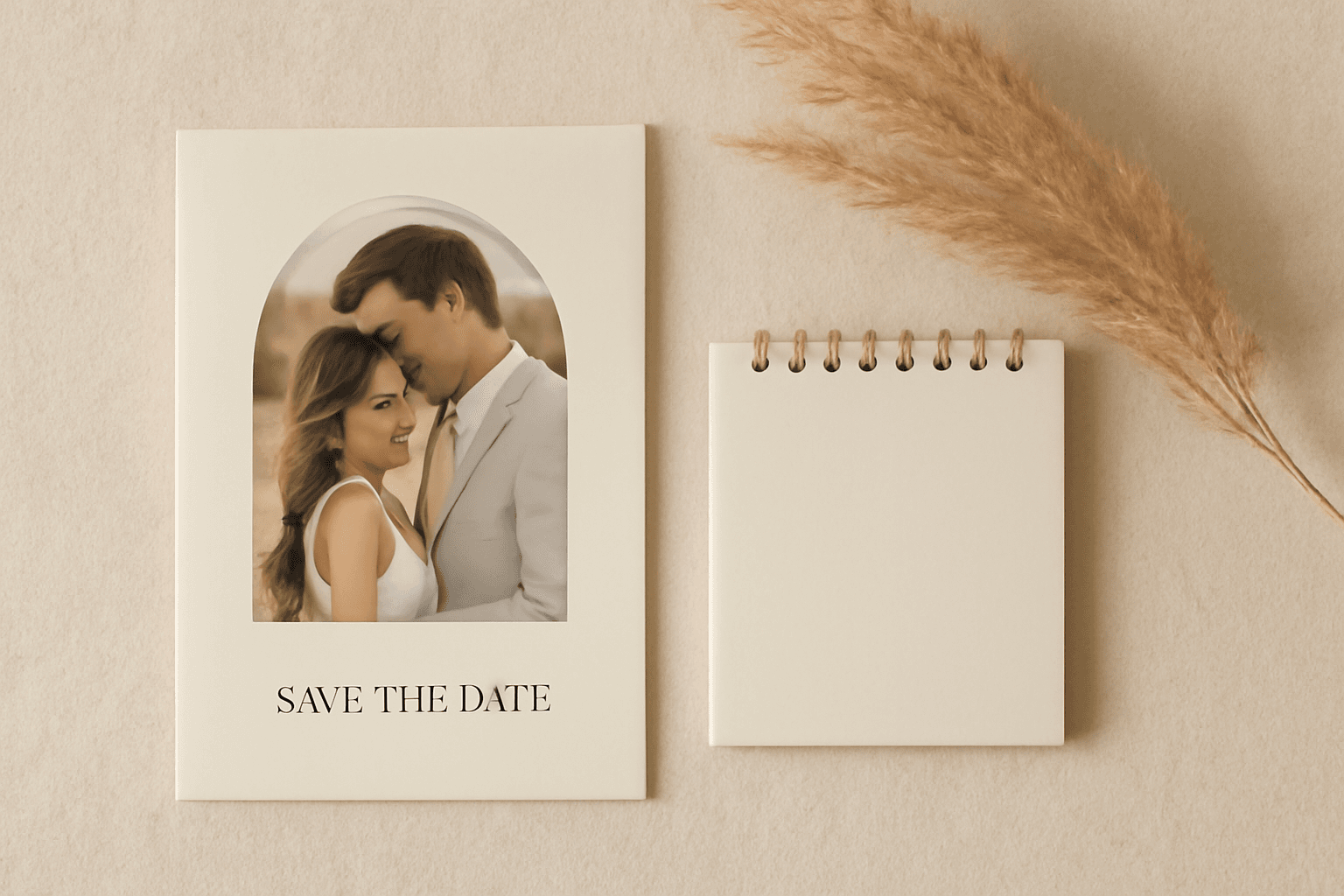
The Best Canva Apps for Save the Dates (2026): Photo Cards, Calendars & QR
Making a save the date in Canva? Here are five Canva apps that add what templates lack: arch and heart photo frames, a monogram, a mini calendar with the date circled, and a QR code.
What Is a Mockup? Meaning, Types, and How Print-on-Demand Sellers Use Them
A mockup is a realistic preview of your design on a real product. Learn the two meanings of "mockup", the main product mockup types, what makes one look fake, and three ways print-on-demand sellers make them.
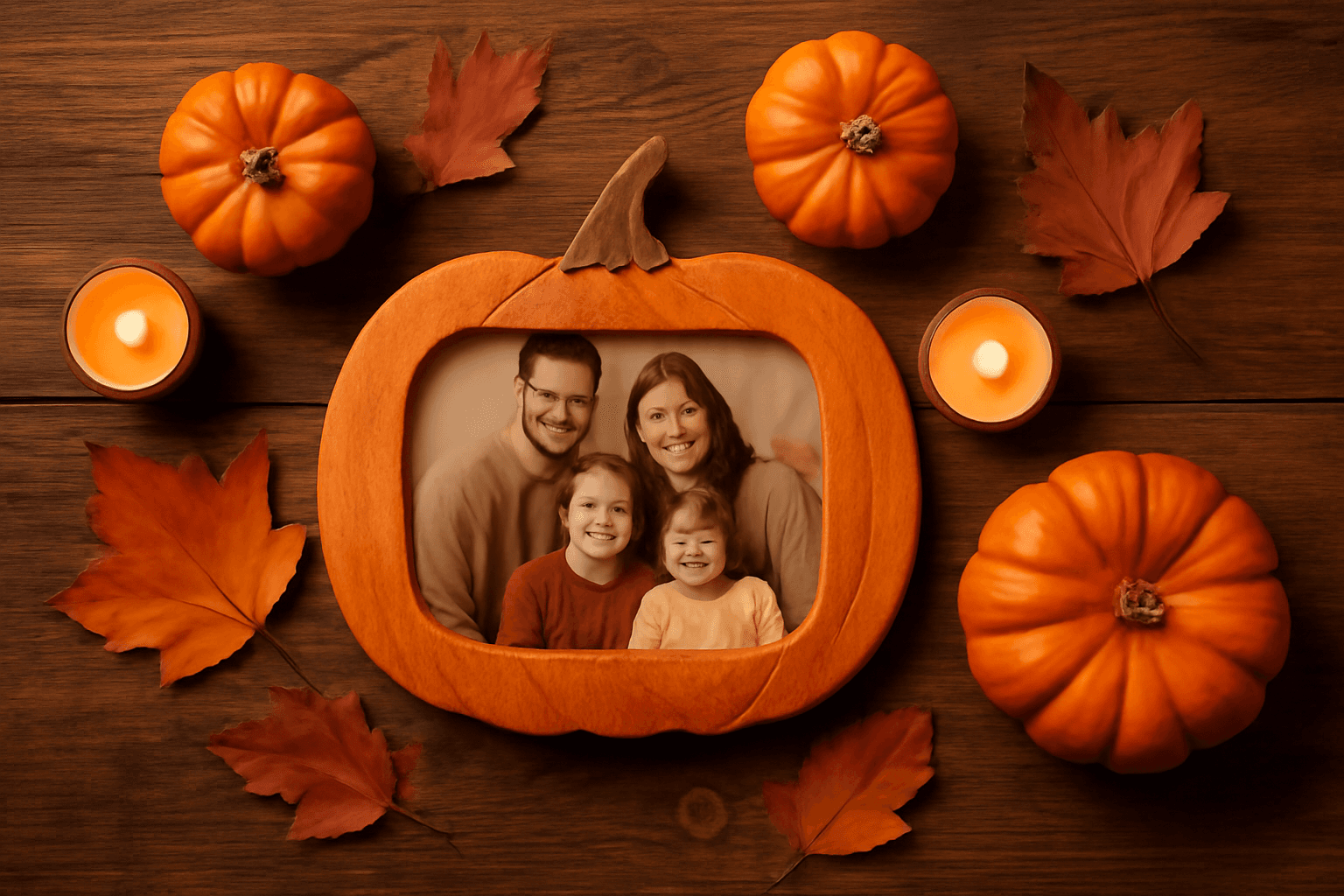
How to Make a Pumpkin Photo Frame in Canva (Halloween, Step by Step)
Put your family, pet or costume photo inside a pumpkin shape in Canva. Three ways to do it, a step-by-step with Image to Frame, plus tips for jack-o-lantern and ghost frames.