
Image to Frame vs AI Frames: Upload a Shape or Describe One?
Both are QRdy Canva apps that make custom frames — but one turns a picture you already have into a frame, and the other draws a frame from a sentence. Here is the honest side-by-side, plus which one to install first.
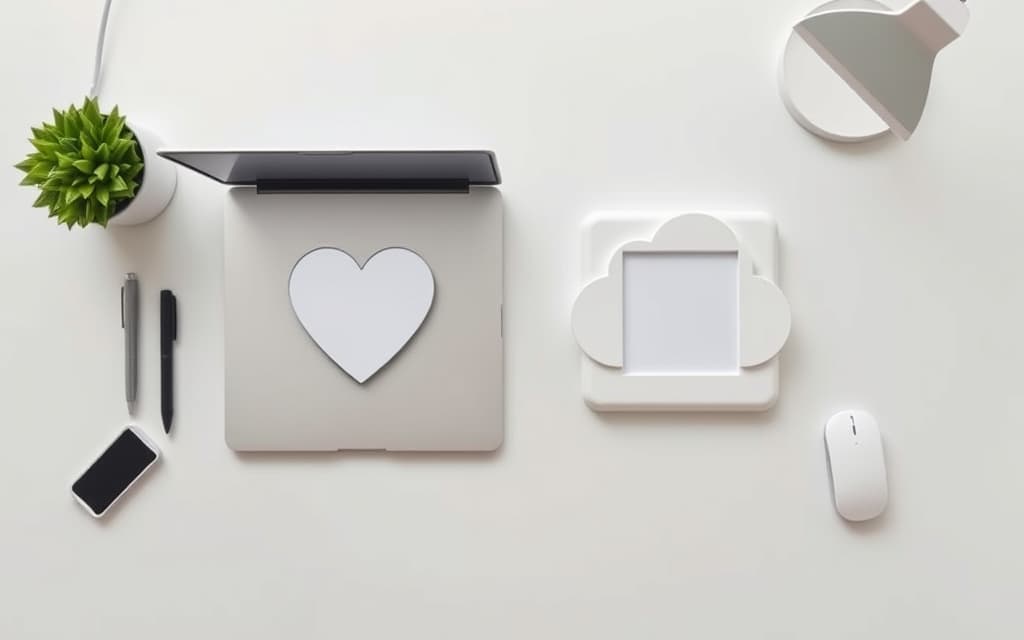
Canva's built-in frames are a fixed set. The moment you want a photo inside a shape Canva does not ship — your logo, a leaf, a hand-drawn blob — you need an app.
QRdy makes two that solve exactly that, from opposite directions. Image to Frame takes a picture you already have and converts it into a working Canva frame. AI Frames takes a sentence and draws the frame for you.
They look similar in the Apps list. They are not interchangeable. Here is how to pick.
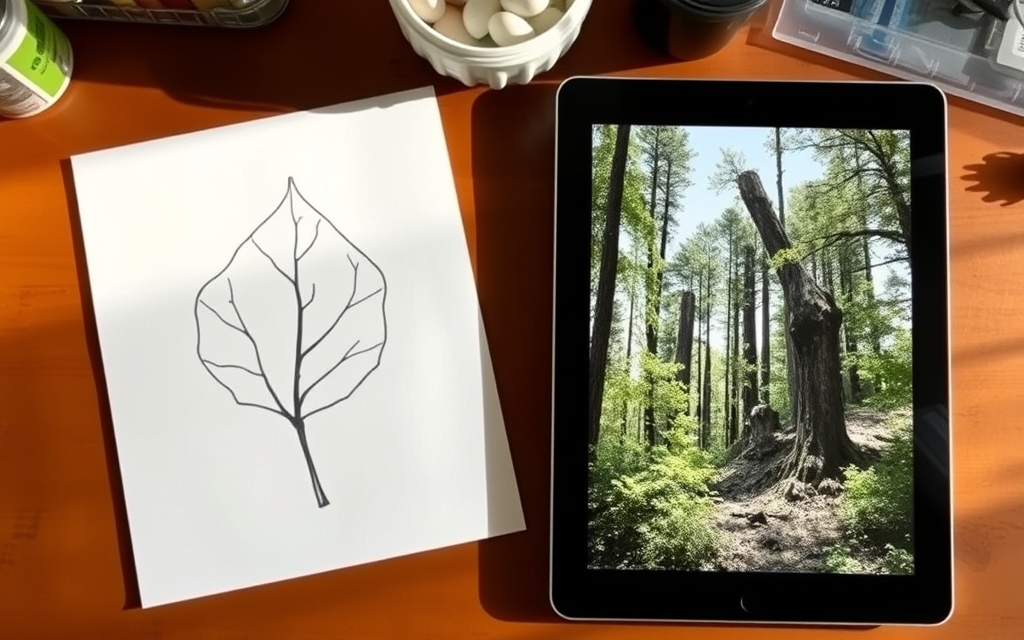
The short answer #
- You already have the shape as a file (logo, icon, scanned drawing, silhouette PNG) → Image to Frame.
- You only have the shape in your head ("a cloud frame", "a star with soft edges") → AI Frames.
That is 90% of the decision. The rest is detail.
Side-by-side #
| Image to Frame | AI Frames | |
|---|---|---|
| How you supply the shape | Upload PNG / SVG / JPG (max 5MB), pick an image already on the canvas, or export the whole page as a transparent PNG | Type a description in English or Vietnamese and hit Generate |
| Precision | Exact — the frame follows your file's outline | Approximate — AI interprets your words |
| Best for | Logos, brand shapes, hand-drawn art, icons, puzzle pieces | Generic objects, quick concepts, when you have no file |
| Ready-made library | Frame Store | Frames Store — 20,000+ frames, free and unlimited search |
| Extra styling in-app | Border thickness (0–50) and border colour | Frames Style: shadow, custom border, frame effects |
| Prep work needed | Yes — remove the background first | None |
| Speed per frame | Seconds, if the file is ready | Seconds, but you may re-prompt a few times |
| Result in Canva | A normal Canva frame | A normal Canva frame |
Where Image to Frame wins #
It is the only one that gives you your shape. A generated "coffee cup frame" is a coffee cup. Your café's actual cup logo is your logo — no prompt gets you there. If the shape has to match something that already exists in your brand, upload it.
Three ways in, which matters more than it sounds:
- Upload a file from your computer (SVG, PNG, JPG, under 5MB).
- Select an image already sitting on the Canva page — no export/re-import round trip.
- Export the whole design as a one-page transparent PNG, which lets you combine several elements (a circle plus a square plus a squiggle) into a single frame.
That third option is the sneaky one. Arrange whatever you like on a page, export it, and the composite becomes one frame.
The catch, and it is the only real one: the frame follows the outline of your file. If there is a white background behind your shape, the outline is a rectangle, and you get a rectangular frame. Remove the background before you convert — that single step is the difference between "this app is magic" and "this app is broken."
SVG works best for clean line shapes. Very intricate curves sometimes fail to convert; when that happens the app says so and points you at the Frame Store instead.
Where AI Frames wins #
Zero prep. You do not need a file, a cutout, or design skill. Type "a heart-shaped frame" or "frame hình đám mây" and you get a frame.

Two things people underrate here:
- The Frames Store is the real feature. 20,000+ prebuilt frames, unlimited search, no generation needed. For common shapes it is faster than prompting and the result is more predictable. Many users open AI Frames and never touch the generator.
- Frames Style adds shadow, custom border thickness and colour, and frame effects inside the app — so a flat silhouette gets depth without you layering elements manually in Canva.
The trade-off is control. AI gives you a star; it does not give you your star. For a client deliverable where the shape is specified, that gap gets annoying fast.
What Canva already does natively #
Worth being straight about this: Canva ships a decent frame library (Elements → Frames) and Grids, and for a circle, a heart, or a simple arch you may not need either app. Both QRdy apps exist for the case where the built-in set runs out — custom outlines, brand shapes, and effects Canva does not expose on frames.
Neither app replaces Canva's frames. They extend them, and the output is a standard Canva frame either way.
The verdict #
Install Image to Frame if you work with brand assets. Designers, small businesses, Etsy sellers, anyone whose shapes are specified rather than invented. The background-removal step is a real cost, but exact outlines are worth it.
Install AI Frames if you improvise. Teachers, content creators, and anyone making a lot of one-off social posts where "close enough" is genuinely close enough — and where the 20k Frames Store means you often skip generation entirely.
Install both if you can. They cost you nothing to have side by side in the Apps panel, and in practice most designs use one of each: a precise logo frame for the brand mark, a quick generated shape for the decorative bits.
Related tools in the same family #
If neither fits exactly:
- Frames Lab — parametric frames: grids, arcs, bursts, diagonals, with row/column/gap control.
- Trace to Frame — click points to draw a free-form frame by hand, no file needed.
- Text to Frames — turns each letter of a word into its own frame so you can fill letters with different photos.
Frequently asked questions
Yes. They are separate Canva apps and both drop a normal Canva frame onto your page, so you can mix a logo-shaped frame from Image to Frame with an AI-generated cloud frame from AI Frames on the same layout. Frames created by either app behave identically once they are in the design — drag a photo or video in, drag it out, swap it later.
Almost always because the source image still had a background. Image to Frame traces the outline of your file, so a JPG or a PNG with a white background produces a rectangular frame. Remove the background first (Canva's background remover or any cutout tool), save as a transparent PNG or an SVG, then convert.
Only for generating new frames from a prompt. The Frames Store inside AI Frames holds 20,000+ ready-made frames that you can search without limits and insert without generating anything, so a lot of people never touch the generator at all.
Image to Frame. AI generation guesses at a shape from a description, which is fine for generic objects but will not reproduce your exact logo. If you have the logo file, upload it — you get the precise outline every time.
Related products


More from QRdy Blog
How to Take Product Photos for Etsy With Your Phone (That Also Work as Mockup Templates)
Window light, rear camera at 1x, a clean print area and one untouched shot: an 8-step phone photo routine for Etsy sellers, plus how to shoot blank products so the same photos become reusable mockup templates.
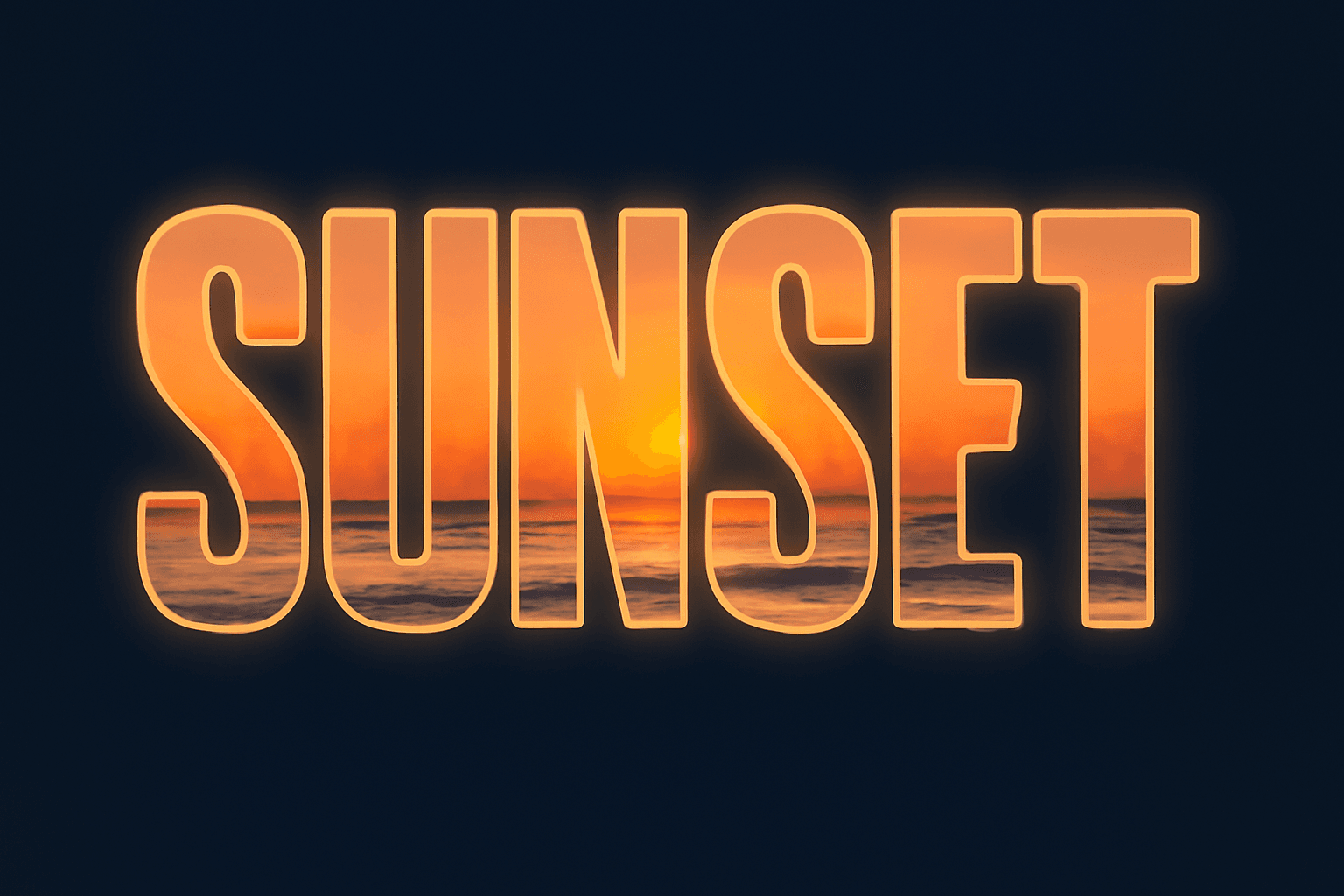
How to Outline Text in Canva (3 Ways, Including Outlined Photo Letters)
Learn how to outline text in Canva with the built-in Outline effect, a stacked-copy trick for thick borders, and Text to Frames for outlined letters filled with photos.

What Is an Alpha Channel? Meaning, File Formats, and Why It Matters for Canva Frames
An alpha channel stores how opaque each pixel is. Learn how it works, which formats support it (PNG, WebP, not JPG), and why it lets a Canva frame follow your real shape.