
How to Put a Photo in a Frame in Canva on Mobile (iPhone & Android)
A step-by-step guide to putting a photo inside a frame in the Canva mobile app on iPhone and Android — using built-in frames, adjusting the crop, and reusing custom shaped frames you made with Image to Frame.
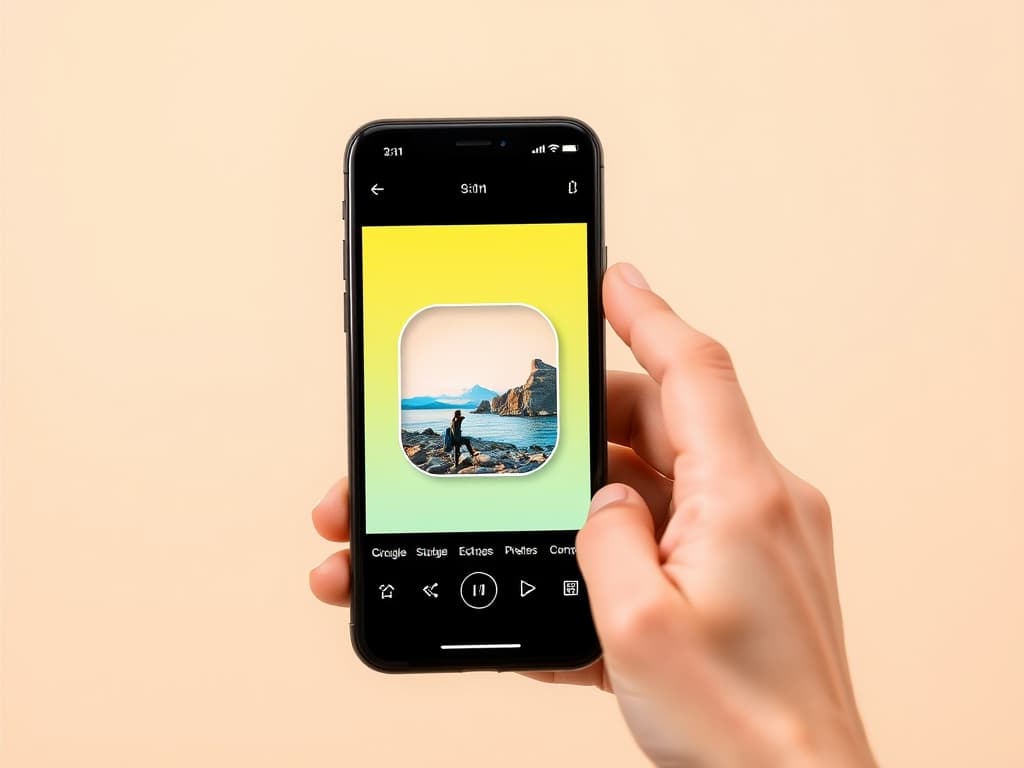
How to Put a Photo in a Frame in Canva on Mobile (iPhone & Android)
Frames are the fastest way to make a photo look intentional in Canva — they crop your image into a clean shape automatically, so you never have to fight with rounded corners or awkward masking. The good news: you can do all of this right from your phone. This guide walks through putting a photo into a frame in the Canva mobile app on both iPhone and Android, step by step.
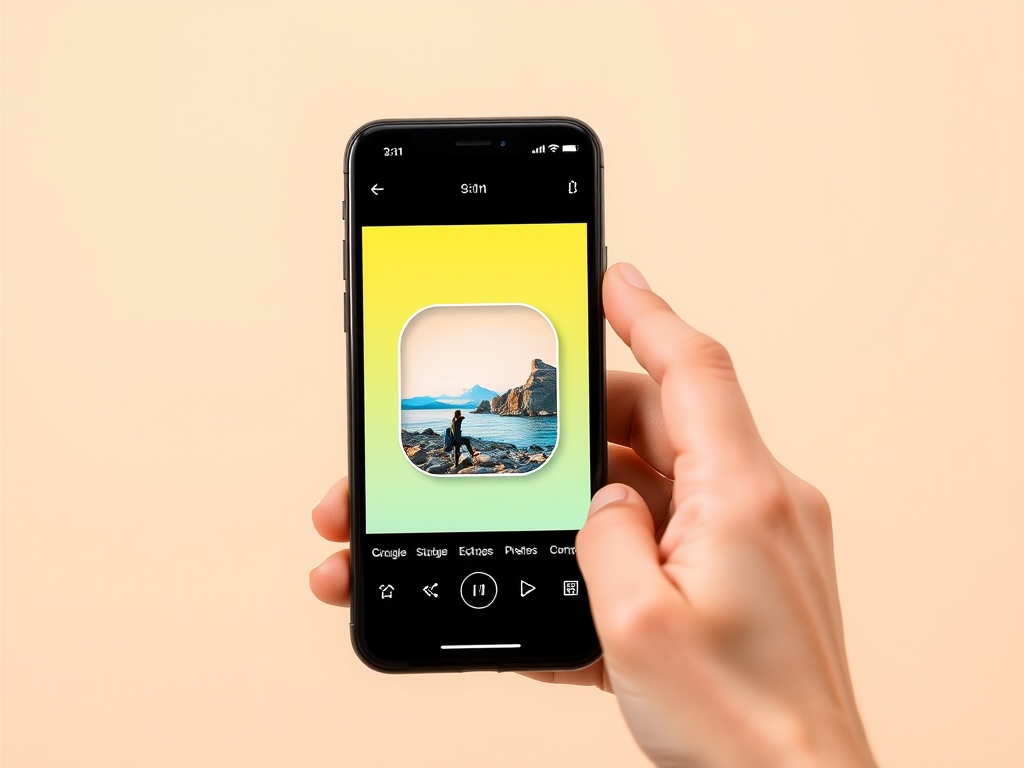
What a "frame" actually does #
A frame in Canva is a shaped container. You drop a photo into it and the photo instantly crops to that shape — a circle, a heart, a rounded square, a grid cell, and so on. Move or zoom the photo inside and the shape stays put. It's the mobile equivalent of a clipping mask, but far quicker.
Step-by-step: add a photo to a frame on mobile #
- Open your design. Launch the Canva app and open an existing design or tap the + to start a new one.
- Add a frame. Tap the + button (bottom-left), choose Elements, and search for
frames. Tap a frame to drop it onto your page. Canva's built-in library includes circles, hearts, rounded squares, and multi-cell grids. - Resize and place it. Drag the frame where you want it and pull the corner handles to size it.
- Fill it with a photo. Tap the empty frame, then tap Replace (or the +/gallery icon that appears). Pick a photo from Uploads, your Camera roll / Gallery, or Canva's stock library. It snaps into the shape automatically.
- Adjust the crop. Double-tap the filled frame to enter crop mode. Drag to reposition the photo and pinch with two fingers to zoom. Tap Done when it looks right.
- Swap anytime. Want a different picture? Tap the frame, hit Replace, and choose another — the shape and size never change.

Using a custom shaped frame on mobile #
Canva's built-in frames cover the basics, but they won't turn your own logo, a hand-drawn shape, or a specific silhouette into a frame. That's where Image to Frame comes in — a QRdy Canva app that converts a PNG, SVG, or JPG (up to 5MB) into a valid Canva frame you can fill with any photo or video.
One honest caveat: Image to Frame runs in the side panel of the Canva desktop editor, not inside the phone app. So the workflow is a quick two-parter:
- On desktop (once): open Image to Frame, upload your shape (remove the background first so the frame follows the real outline instead of a rectangle), optionally set a border thickness and color, and click Add frame to design.
- On mobile (anytime after): open that same design on your phone. The custom frame is already there — just tap it and drop in photos exactly like a built-in frame.

Because the frame is baked into the design, you get the flexibility of a custom shape with the convenience of editing on your phone.
Tips for cleaner results #
- Zoom before you place. Fill the frame generously so faces aren't cut off at the edges — leave a little breathing room around the subject.
- Use high-resolution photos. Small images look soft once cropped and enlarged inside a frame.
- Duplicate for consistency. Made one frame the perfect size? Long-press and duplicate it so every photo in a collage matches.
- Remove the background first if you're building a custom frame with Image to Frame, or the shape will come out as a plain rectangle.
- Try a grid frame for a quick multi-photo layout without lining up several shapes by hand.
When to reach for a dedicated app instead #
If you want to go beyond a single shaped photo, a few QRdy Canva apps pair well with this workflow: Frames Lab builds grid, arc, and burst frame layouts in one place, Frame Collage turns a toggleable grid into fillable cells, and Text to Frames turns each letter of a word into its own frame so a photo shows through your text. All of them create frames you set up on desktop and can then fill from your phone.
The short version #
Putting a photo in a frame on Canva mobile takes three taps: add a frame from Elements, tap it, and choose a photo. For custom shapes, build the frame once on desktop with Image to Frame — after that, your phone handles the rest.
Frequently asked questions
Yes. On both iPhone and Android, add a frame from the Elements tab, tap it, then tap Replace (or the plus) to choose a photo from your uploads or gallery. The photo automatically crops to the frame's shape, and you can double-tap to reposition or zoom it.
Canva apps like Image to Frame run inside the desktop Canva editor's side panel, not the mobile app. The workaround is to create your custom shaped frame on desktop once. It saves into your design, so you can open that design on your phone and drop photos into the frame there.
Double-tap the filled frame to enter crop mode, then drag the photo to reposition it and pinch with two fingers to zoom in or out. Tap Done (or anywhere outside) to lock it in.
Canva's mobile app includes built-in frames such as circles, hearts and grids. For fully custom shapes from your own PNG, SVG or logo, build the frame with Image to Frame on desktop first; once it's in your design you can fill and swap photos from your phone.
Related products


More from QRdy Blog
Canva Monthly Calendar: Template vs Table vs Calendar Maker (Which Is Fastest?)
Three ways to make a monthly calendar in Canva: a ready-made template, a hand-built table, or the Calendar Maker app. We compare setup time, flexibility and 12-month projects, with a clear verdict.
How to Make a Hat Mockup From a Photo (So the Design Curves With the Cap)
Turn one photo of a blank cap into realistic hat mockups: drag a box around the front panel, let the design wrap the curve with the photo's real shading, then render all your designs at once in your browser.
The Best Canva Apps for Family Reunions (2026): Invites, Banners, Photo Walls and Calendars
Planning a family reunion in Canva? Here are the five Qrdy apps that actually help: shaped photo invitations, photo-letter banners, photo-wall grids, a countdown calendar and a QR link that can change after printing.