
How to create custom frames in Canva using Image to Frame
Discover how to use Qrdy's Image to Frame app to convert any image into a custom Canva frame. Step-by-step tips for professional design frames.

Turn any image into a unique Canva frame in seconds. With Qrdy's Image to Frame app, you can convert PNG, SVG, or JPG files into fully functional frames—making your designs stand out beyond Canva’s default options.
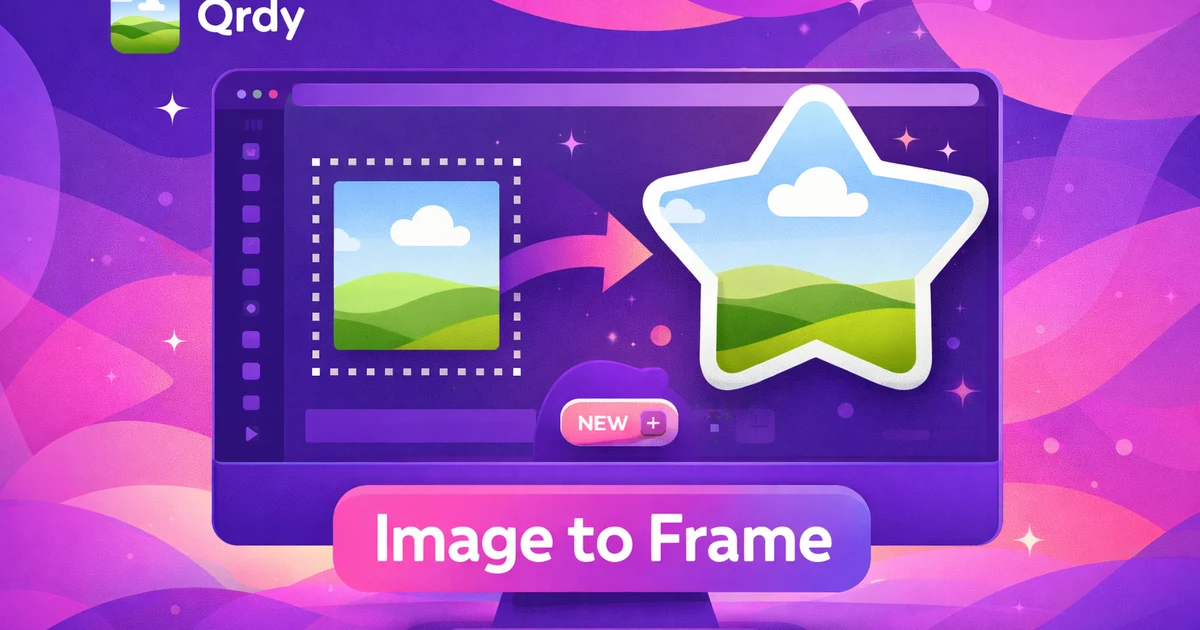
What is Image to Frame and how does it work? #
Image to Frame is a Canva app that lets you turn any image—PNG, SVG, or JPG—into a real Canva frame. A Canva frame is a special element where you can drop in photos or videos, and they automatically fill the shape of the frame. With Image to Frame, you’re not stuck with Canva’s default shapes—you can make frames that match your exact brand or creative idea.
The process is simple: choose your image, click convert, and your new frame is ready to use in your Canva design. Unlike standard frames, these custom frames follow the exact outline of your image, especially if you remove the background first. This means you can have frames shaped like logos, hand-drawn doodles, or anything else you imagine. For more on using frames, check out our guide on how to use Canva frames.
Step-by-step guide to creating custom frames in Canva with Image to Frame #
You can create a custom Canva frame from any PNG, SVG, or JPG. Here’s how to get the best results:
1. Prepare your image #
- For a clean frame, remove the background first—this helps the frame match your image shape instead of a rectangle. Transparent PNGs work best.
- Use high-contrast, simple shapes for best results.
- Make sure your image is high-resolution for a crisp frame.
2. Open the Image to Frame app in Canva #
- Launch the app from the Canva editor to get started.
3. Upload and convert your image #
- Upload your image file (PNG, SVG, or JPG).
- Click the convert button to generate your custom frame.
4. Add your frame to your design #
- Your new frame will appear in your Canva workspace.
- Drag and drop it into your design, then add any photo or video inside.

Quick prep tips
- Test with different images—handwriting, icons, logos—to see what works best for your project.
- Start with high-resolution, clear images for sharper frames.
- After creating your frame, check its shape in Canva. If needed, adjust your original image and try again.
If you need help making backgrounds transparent, see our tutorial on how to remove backgrounds in Canva.
Creative uses for custom frames made with Image to Frame #
Custom frames can spark new design ideas and make your work stand out. Here are some creative ways to use them:
Logo frames #
Turn your brand logo into a frame and fill it with product shots or campaign images. This helps reinforce your branding and creates a unique look.
Handwriting and drawings #
Scan your sketches or handwritten words, remove the background, and convert them into dynamic frames. Personal touches like these can make your designs more memorable.
Puzzle or geometric frames #
Use icon PNGs to create puzzle pieces or polygonal frames for playful layouts. These shapes can add fun and variety to your designs.
Scrapbooking and collage layouts #
Make unique photo book layouts using custom-shaped frames for each image. Custom frames can help organize and stylize your scrapbook pages.
Education and teaching visuals #
Teachers can create themed frames for worksheets or lesson visuals. Custom shapes make learning materials more engaging for students.
E-commerce and product showcases #
Showcase products inside brand-specific shapes for a professional store look. Custom frames help highlight key items in catalogs or ads.

More creative ideas
- Mix multiple custom frames in one design for a collage effect.
- Create seasonal or event-themed frames for special promotions.
- Use frames as interactive elements in presentations or digital worksheets.
For more inspiration, check out our roundup of creative Canva design ideas.
Tips for best results when creating custom frames #
For the best-looking frames, follow these tips:
Remove the background #
Always remove the background before converting—otherwise, you’ll end up with a boring rectangle. Transparent backgrounds let the frame trace your image shape.
Use high-resolution, clear images #
Start with high-resolution images for sharper frames. Simple, bold shapes work better than complex, detailed images.
Test and adjust #
Experiment with different images. After creating your frame, check its shape in Canva. If it’s not perfect, tweak your original image and try again.
Prep with background remover tools #
Use Canva Pro’s background remover or any online tool to prep your image. For more on background removal, see our post on how to remove backgrounds in Canva.
Troubleshooting tips
- If your frame isn’t the right shape, double-check that your image’s background is fully transparent.
- If the frame looks pixelated, try using a higher-resolution image.
- For complex shapes, simplify the image outline for better results.
How custom frames enhance professional Canva designs #
Custom frames give your Canva designs a professional edge. By turning brand logos or unique shapes into frames, you reinforce your branding and visual identity on every page. Unlike Canva’s built-in frames, which are limited in variety and style, custom frames can be tailored to any theme or campaign.
Practical applications for professional results #
- Product catalogs: Use frames in the shape of your logo or product.
- Educational materials: Themed frames for worksheets or slides.
- Marketing materials: Custom frames for social posts, ads, or flyers.
The creative possibilities are endless—you can combine custom frames with other Canva effects for even more eye-catching results.

Want to dive deeper into branding? Read our guide on branding with Canva.
Conclusion #
Creating custom frames in Canva with Image to Frame unlocks a new level of creativity and branding for your designs. With a simple workflow, you can turn any image into a unique frame—perfect for logos, illustrations, or standout layouts. Try experimenting with different shapes and images to see how custom frames can transform your next project. For more tips, check out our tutorials and guides linked throughout this article.
FAQ about using Image to Frame in Canva #
What image formats does Image to Frame support? Image to Frame works with PNG, SVG, and JPG files. PNGs with transparent backgrounds give the best results for custom-shaped frames.
Why does my frame look like a rectangle? If your image still has a background, the frame will default to the full image area (usually a rectangle). Remove the background first for an accurate shape.
How do I remove the background from my image? Use Canva Pro’s background remover or free online tools before uploading your image to Image to Frame. See our article on how to remove backgrounds in Canva.
Can I edit the frame after creating it in Canva? Once your custom frame is in Canva, you can resize and position it like any other frame. To change its shape, adjust your original image and convert again.
What are common issues with Image to Frame and how do I fix them? If your frame doesn’t match your image’s outline, double-check that the background is transparent. For more troubleshooting, visit our Canva frames troubleshooting guide.
Ready to try Image to Frame? #
Image to Frame là Canva app của QRdy — chuyển PNG/SVG/JPG thành frame Canva hợp lệ, nhớ xoá nền trước để frame bám đúng outline ảnh, rồi đổ ảnh/video vào trong.

Frequently asked questions
Image to Frame works with PNG, SVG, and JPG files. PNGs with transparent backgrounds give the best results for custom-shaped frames.
If your image still has a background, the frame will default to the full image area (usually a rectangle). Remove the background first for an accurate shape.
Use Canva Pro’s background remover or free online tools before uploading your image to Image to Frame. See our article on how to remove backgrounds in Canva.
Once your custom frame is in Canva, you can resize and position it like any other frame. To change its shape, adjust your original image and convert again.
If your frame doesn’t match your image’s outline, double-check that the background is transparent. For more troubleshooting, visit our Canva frames troubleshooting guide.
More from QRdy Blog
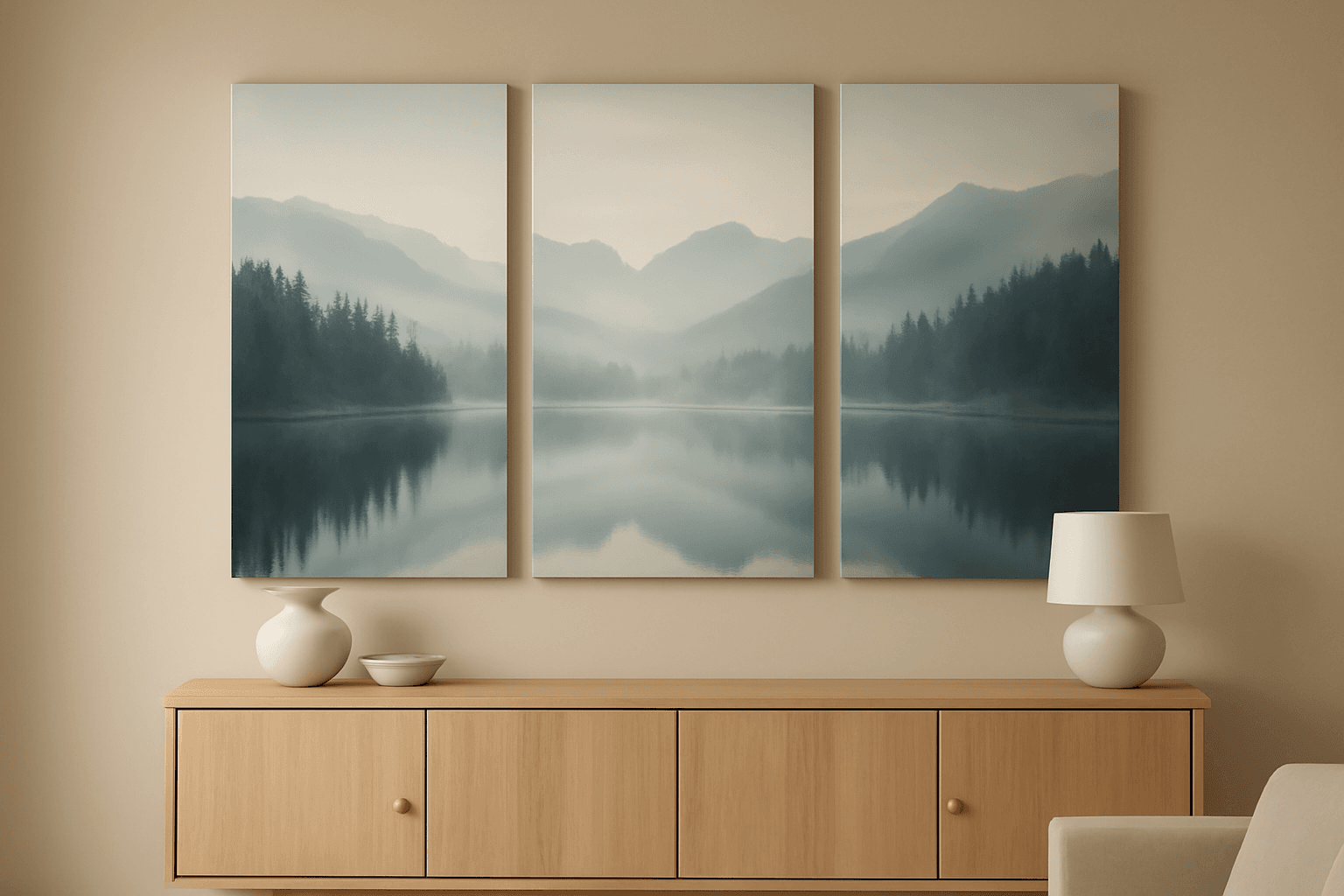
What Is a Triptych? Meaning, Types, and How to Make One in Canva
A triptych is art or a photo split across three panels meant to be seen as one piece. Here's where it came from, how it differs from a diptych, the sizing and spacing rules, and how to lay one out in Canva.
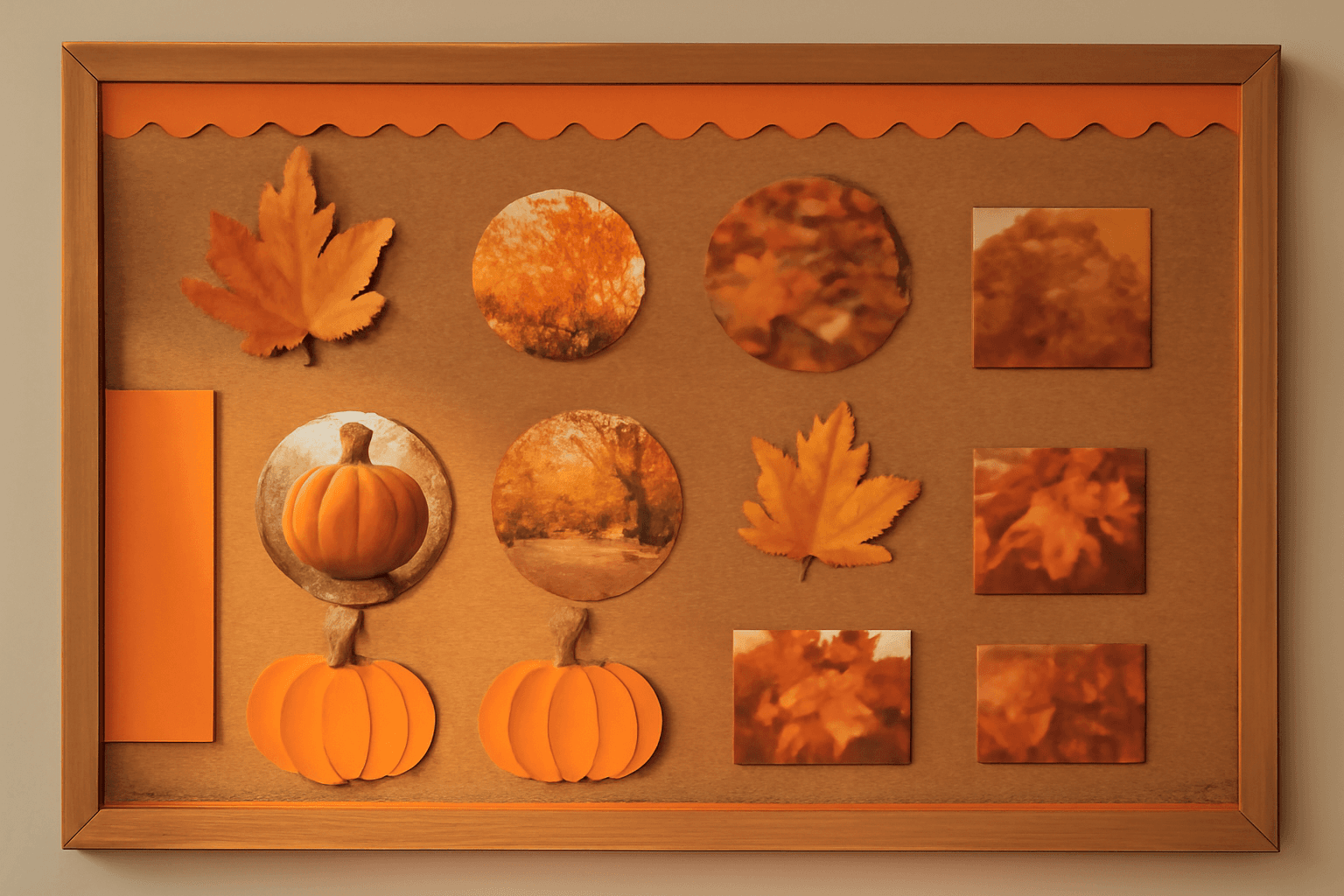
10 Bulletin Board Ideas You Can Make in Canva (Fall, Classroom and Calendar Boards)
10 printable bulletin board ideas for fall and the classroom: monthly calendar boards, photo-filled headline letters, Meet the Class grids, leaf photos, countdowns and more, all designed in Canva.

Serif vs Sans Serif: What's the Difference, and Which Font Should You Use?
Serif fonts have small strokes at the ends of their letters; sans serif fonts don't. Here's what that changes for readability, print, screens and pairing — and why heavy sans serifs win when you put photos inside letters.