
9 Creative Ways to Use Calendar Maker in Canva (Beyond a Wall Calendar)
Most people think a Canva calendar maker is just for wall calendars. Here are 9 creative ways to use Calendar Maker in Canva — from content planners to habit trackers and class schedules.
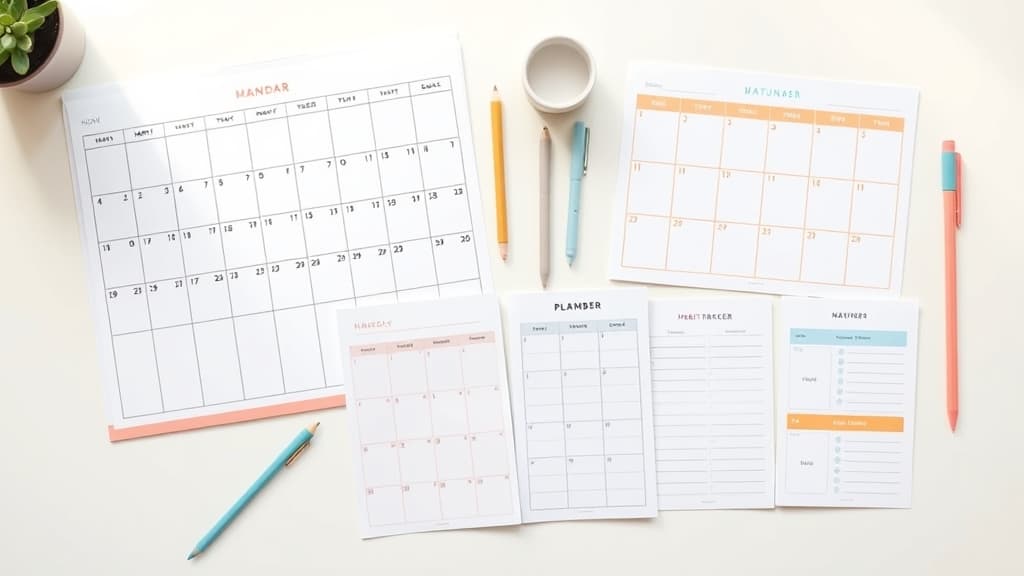
When people hear "Canva calendar maker," they picture one thing: a printable wall calendar. But Calendar Maker, the QRdy Canva app, does a lot more than fill a grid with dates. Because it can build month grids, weekly tables, and any custom date range — and insert them straight into your open Canva design — it becomes the backbone of dozens of planners, trackers, and schedules.
The core idea is simple: instead of drawing tables and typing dates by hand, you pick a month, week, or date range, style the fonts and colors, and click Add to design. Here are nine creative ways to put that to work.
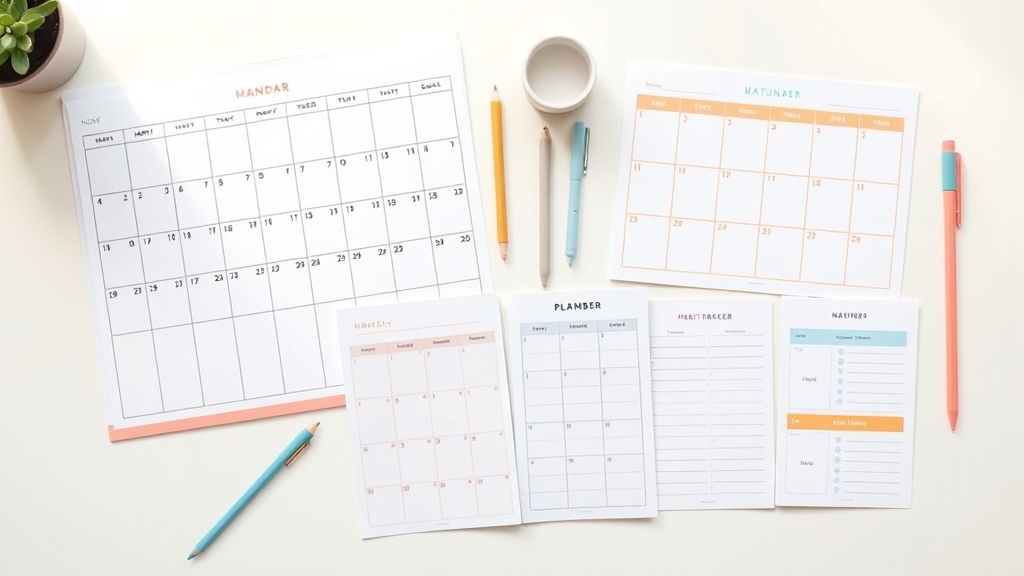
1. Social media content calendar #
Marketers live and die by their posting schedule. Use the Month tab to drop a full month grid onto a Canva design, then color-code cells by platform or campaign. Turn on "Add all months" with "Each month on its own page" and you have a 12-page content calendar in one click — perfect for planning a whole quarter or year of posts.
2. Weekly meal planner #
Switch to the Week tab and pick only the days you want (say, Monday through Sunday). Set "Number of rows" to add blank cells under each day for Breakfast, Lunch, and Dinner. The result is a clean meal-planning template you can print or reuse each week — no manual table-building required.
3. Habit tracker #
A habit tracker is really just a grid you tick daily. Use the Custom tab to generate a date range (up to 150 days), keep the weekday headers, and add rows for each habit. Because you control the fonts, alternating row colors, and 30+ preset color styles, you can match it to any journal or planner aesthetic.
4. Class or lesson schedule #
Teachers can use the Week tab as a timetable: choose the weekdays that have classes, set enough rows for each period, and turn on "Shorten labels" to fit "Mon, Tue, Wed" neatly across the top. Style it once, then save the setup so next term is a one-click rebuild.
5. Wedding or event countdown #
Planning toward a big date? The Custom tab lets you generate the exact stretch of days from today to the event (within the 150-day limit). Lay it over a decorative page and cross off days as they pass. Pair it with Border Art Maker to frame the countdown in dotted or icon borders for a polished, printable keepsake.
6. Editorial / blog publishing calendar #
Writers and content teams can build a month grid, then use the Page templates (around 14 themed designs like Botanical, Scandi Minimal, or Vintage Postcard) to make an editorial calendar that actually looks good in a pitch deck or client report. Each template auto-fills the month and year and matches the calendar's colors to the theme.
7. Project roadmap or sprint calendar #
Startups and teams can turn a custom date range into a lightweight roadmap. Generate the sprint window, add rows beneath each week for milestones, and style the header bar in your brand color. It slots directly into a poster, one-pager, or report — no spreadsheet export needed.
8. Printable monthly planner to sell #
Freelance designers can build entire planner products with it. Generate all 12 months, each on its own page, apply a consistent style, decorate with a page template, and you have a sellable digital or print planner. Because you can save up to ~30 setups per tab, reproducing a matching family of planners is fast.
9. Bookings or appointment calendar with a QR code #
Service businesses can generate a month or week view, then add a Qrdy — Dynamic QR code that links to a booking page or Google Calendar. Clients scan the printed calendar to reserve a slot — and because the QR is dynamic, you can change where it points after printing.
Quick reference: which tab for which job? #
| You want to make | Use this tab |
|---|---|
| Content calendar, editorial calendar, monthly planner | Month |
| Meal planner, class schedule, weekly to-do | Week |
| Habit tracker, event countdown, sprint window | Custom |
Why not just build it manually? #
You can draw tables and type dates by hand in Canva — but that is slow and error-prone, especially across 12 months. Calendar Maker's whole promise is that you never type an individual date cell: enter the month-year (or range), pick a style, and insert. The live preview shows the result before you commit, and saved setups mean you rebuild any of these nine layouts in seconds.
Ready to try it? Open Calendar Maker in Canva and start with the layout that fits your next project.
Frequently asked questions
Calendar Maker is a QRdy Canva app that generates month, week, or custom date-range calendars and inserts them straight into your open Canva design. Instead of drawing tables and typing dates by hand, you pick a month, week, or range, style the fonts and colors, and click Add to design.
Yes. Because Calendar Maker builds month grids, weekly tables (with a custom number of rows), and any custom date range up to 150 days, you can use it for content calendars, habit trackers, meal planners, class schedules, weekly planners, event countdowns, and more — all inside Canva.
No. That is the whole point of Calendar Maker. You choose the month, week, or date range and the app fills in every day, weekday label, and layout automatically, then inserts it into your design.
Related products


More from QRdy Blog

10 Ý tưởng quà Giáng sinh cho ông bà tự làm trong Canva (lịch ảnh, khung ảnh, thiệp)
10 ý tưởng quà Giáng sinh cho ông bà tự thiết kế trong Canva: lịch ảnh gia đình, khung ảnh hình trái tim, thiệp tên bằng ảnh các cháu, lịch đếm ngược. Rẻ, cá nhân hoá và in được ở nhà.
Word Calendar Template vs Canva Calendar Maker: Which Should You Use?
Microsoft Word calendar templates are fast and familiar; Canva's Calendar Maker app is built for good-looking, printable calendars. Here is an honest side-by-side, with a clear verdict for each use case.
The Best Canva Apps for Invitations (2026): Birthday, Baby Shower & Party
Canva's invitation templates get you 80% of the way. These Canva apps cover the rest: custom photo shapes, monogram letters, borders, palettes and RSVP QR codes.