
8 Creative Ways to Put Photos Inside Text in Canva
Photo-filled typography turns a flat headline into a story. Here are 8 creative ways to put pictures inside text in Canva — with a different image in every letter using Text to Frames.
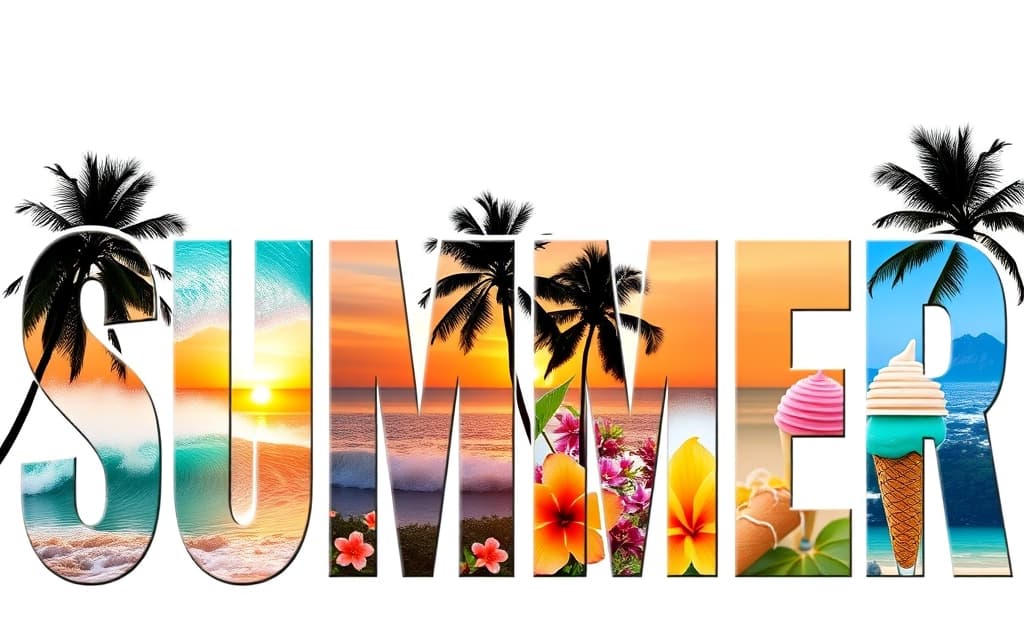
A block of text tells people what. A photo tells them how it feels. Put the two together — a picture showing inside the letters — and a plain headline becomes something people stop and look at.
You've seen the effect: the word SUMMER with waves rolling inside the letters, a movie title where each character reveals a different scene, a brand name where every letter holds a product shot. It used to mean fiddly manual cutting or a trip to Photoshop.
In Canva it's a two-part idea. Clipping Mask shows one image through the whole word — great for a single texture or sky. But if you want a different image in every letter, you need each character to be its own frame. That's exactly what **Text to Frames** does: type your word, and every letter becomes a real Canva frame you can drop a separate photo (or video) into, then reposition and zoom just like any other frame.
Here are 8 creative ways to use it.
1. Seasonal & event banners #
Spell the season or the occasion — SUMMER, FALL, NOËL, PRIDE — and fill each letter with a matching moment: waves, foliage, string lights, confetti. Because each letter is a separate frame, the banner reads as a little photo album instead of a flat word. Perfect for email headers, story covers, and sale announcements where you want instant mood.
2. Movie, album & podcast titles #
Give a title the "trailer" treatment. Put a different scene inside each letter of the name so the artwork previews the story before anyone reads a word. Add the Border effect (a stroke that hugs each letter) so the title still pops when the images inside get busy. Works for YouTube thumbnails, playlist covers, and podcast episode art.
3. Birthday & celebration cards #
Spell someone's name and fill each letter with a favorite memory — a trip, a pet, a childhood photo, an inside joke. It turns a generic card into something personal that took thirty seconds to make. The Inner shadow effect adds a subtle carved-in depth so the name feels crafted rather than pasted.
4. Brand & logo lockups #
Set your brand name and drop a different background behind each letter — product close-ups, brand colors, textures. It's a fast way to test a photographic wordmark for a landing page hero, a pitch deck cover, or a social avatar without committing to a full logo redesign. Keep it legible with a bold, chunky font so the images have room to show.
5. Social media cover words #
One big word — VLOG, SALE, NEW, 2026 — filled with imagery is a reliable scroll-stopper. Because Canva frames accept video as well as photos, you can drop a short clip into each letter for a cover that actually moves. Add the Blur glow effect behind the letters for a neon, night-city feel.
6. Travel & recap collages #
Home from a trip? Spell the destination — KYOTO, BALI, NYC — and give each letter a photo from a different day. It's a recap post and a headline in one graphic, and it beats a standard grid collage because the layout is the word. Great for travel reels, scrapbook pages, and year-in-review posts.
7. Menu & product feature words #
Restaurants and shops can spell FRESH, MENU, or a dish name and fill the letters with ingredient or product photography. It signals the category and shows the goods at the same time — useful for menu boards, storefront posters, and delivery-app banners.
8. Classroom & kids' projects #
Spell a child's name or a theme word — OCEAN, SPACE, HERO — and let each letter hold a themed picture. It's an easy, high-impact craft for teachers making bulletin boards, worksheets, or slideshow titles, and simple enough that older kids can build it themselves.
How to make any of these (the 60-second version) #
- In Canva, open a design, go to Apps, and open Text to Frames.
- Type your word, pick a font (bold, chunky fonts show the most image), and turn on Split into letters so each character becomes its own frame.
- Optionally add Blur, Border, or Inner shadow and pick their colors.
- Click Add to design, then drag a different photo into each letter and zoom/reposition until it looks right.
That's it — the preview matches the final result exactly, so what you see is what lands on the page.
Which Canva app do I actually need? #
- Want one image across the whole word? Use **Clipping Mask** — simplest for a single sky, texture, or photo.
- Want a different image in each letter (everything above)? Use **Text to Frames** — each character is its own frame.
- Already have a shape or PNG you want to fill with a photo? Use **Image to Frame** to turn it into a Canva frame.
- Want text that curves along a path instead of sitting flat? Try **Text Path Maker**.
The building block is the same everywhere: a Canva frame. Once your letters are frames, swapping images, nudging the crop, or dropping in a video is all standard Canva — no cutting, no Photoshop.
Try it on your next headline and let the letters do the storytelling.
Frequently asked questions
Use the Text to Frames app. Type your word, turn on "Split into letters" so every character becomes its own Canva frame, add it to your design, then drag a separate photo into each letter. You can reposition and zoom each image just like any Canva frame. Canva's built-in tools can only show one image across a whole word, which is where Text to Frames differs.
Clipping Mask shows a single image through the entire word — ideal for one texture or sky. Text to Frames makes each letter its own independent frame, so you can drop a different photo (or video) into every character and arrange them freely. Pick Clipping Mask for one image, Text to Frames for a different image per letter.
Yes. Letters created with Text to Frames are real Canva frames, and Canva frames accept video as well as photos. Drop a short clip into a letter for a title or cover that moves — useful for social covers, reels, and YouTube thumbnails.
Related products


More from QRdy Blog
What Is a Silhouette? Meaning, Examples, and How to Use One in Canva
A silhouette is a solid, single-color outline of a shape with no inner detail. Here is what it means, how it works, the main types, and how to turn one into a photo frame in Canva.
10 Weekly Schedule & Countdown Calendar Ideas You Can Make in Canva
Ten practical ideas for weekly schedules and countdown calendars in Canva: class timetables, chore charts, 30-day challenges, wedding and holiday countdowns, all built with Calendar Maker's Week and Custom tabs.
Vector vs Raster: What's the Difference (and Which to Use)
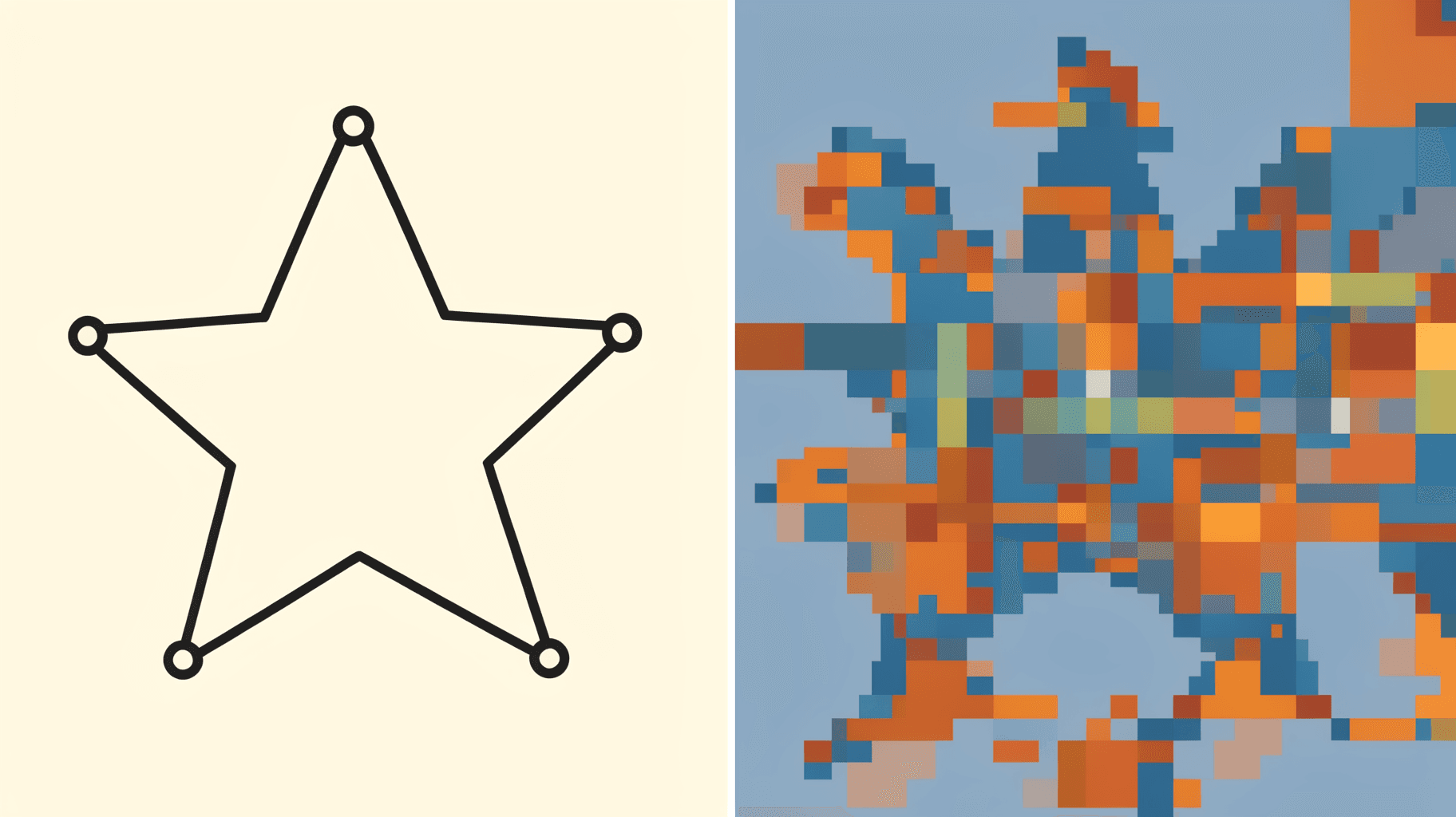
Vector graphics are built from math paths that scale to any size; raster images are grids of pixels that don't. Here's the real difference, plus which one to reach for with logos, photos, and Canva frame shapes.