
10 Instagram Post Ideas You Can Actually Make in Canva
Ten Instagram post ideas that go beyond dropping a photo on a template — photo-filled headlines, grid puzzles, arc frames, burst badges and monthly calendar posts, each with the exact Canva app and settings to build it.
Most "Instagram post ideas" lists stop at use a bold colour or try a carousel. That's not a post — that's a mood. This one goes the other way: ten specific things you can build, and the exact Canva app and settings that build each one.
They're all made inside Canva, they all work from photos you already have, and none of them need Photoshop.
Before you start: open an Instagram Post (1080 x 1080) or Instagram Story (1080 x 1920) page first. The frame apps auto-scale to the page you have open, so setting the size up front saves you a lot of dragging later.
1. A headline with a photo inside every letter #
The single highest-effort-to-payoff post on this list. Instead of white text over a photo, the word itself is the photo.
Open Text to Frames, type your word (up to 200 characters), pick a font, and turn on Split into letters. Each letter becomes a real Canva frame, so you can drop a different photo into each one — six travel shots inside a six-letter place name, six product angles inside a brand name.
Then drag, zoom and reposition each photo inside its letter exactly like any other Canva frame. If the preview says "Text is too long," shorten the word or drop the font size.
Good for: launch announcements, city guides, event names, "2026" recap posts.
2. A 3 x 3 grid puzzle post #
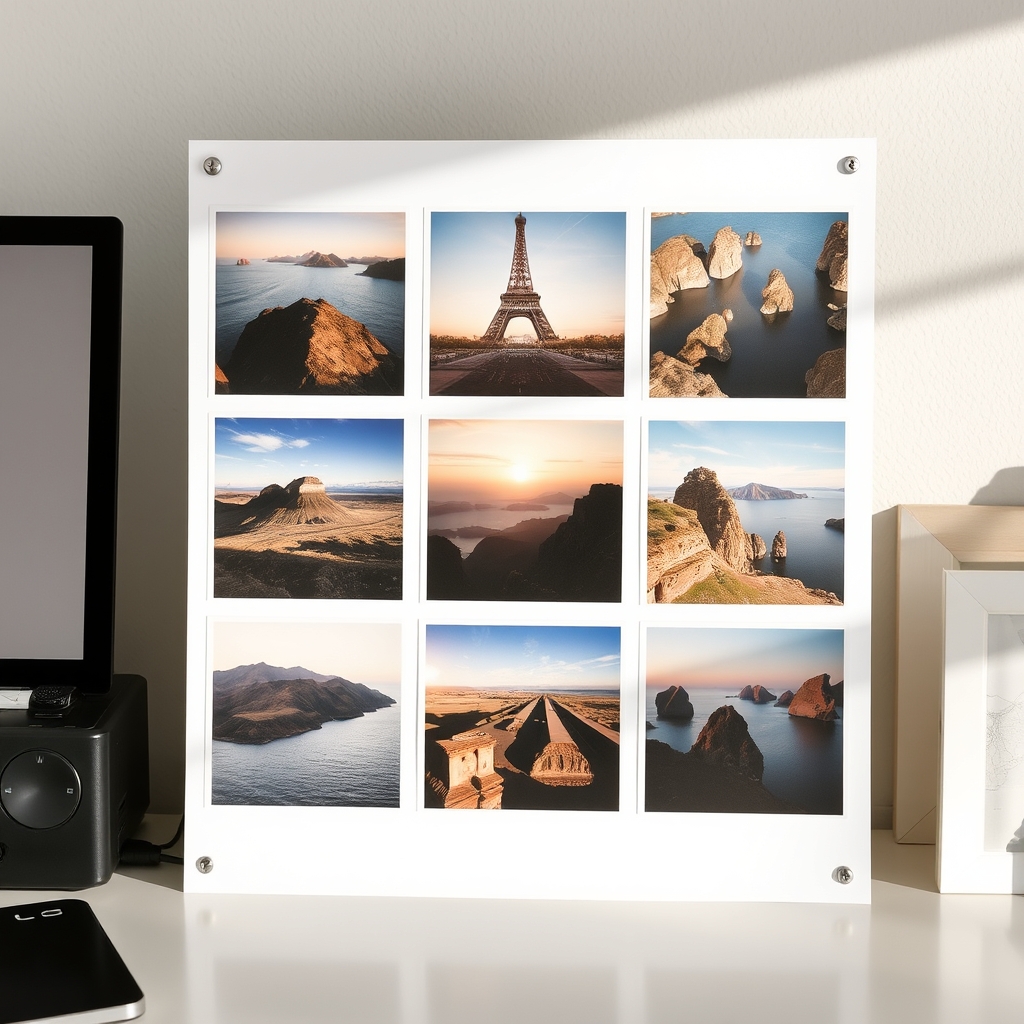
Nine squares that read as one image on your profile grid, but as nine separate posts in the feed.
Use Frames Lab → Create → Grid: set 3 columns, 3 rows, a small gap, and use the Advanced options to merge the cells into one block. Drop your photos in, then export and slice. Keep the layout under about 30 cells — past that Frames Lab blocks it as too complex.
Good for: profile refreshes, portfolio reveals, before/after series.
3. An arc frame for a portrait post #
Rectangular photos of people are everywhere. An arched crop reads as considered.
Frames Lab → Create → Arc gives you two controls that matter: Pill (how much of the circle the arc covers, in degrees — 270° is a good starting point) and Start (where the arc begins). Add a border colour if you want a printed-poster feel.
Good for: team intros, guest speaker announcements, testimonial posts, editorial covers.
4. Your logo, filled with a photo #
Take your logo mark — or any shape — and make the photo live inside it.
Image to Frame accepts PNG, SVG or JPG up to 5 MB and turns it into a working Canva frame. Three ways in: upload a file, select an image already on your canvas, or export the whole page as a transparent PNG. One rule that saves most of the failures: remove the background first. A JPG with a white background becomes a rectangle, not a logo shape.
The optional border (0–50, with a colour picker) doesn't show in the preview — it only renders once the frame is added to your design. That's expected.
Good for: brand-led posts, sponsor cards, "we're hiring" graphics.
5. A monthly "what's coming" calendar post #
A real, dated grid instead of a bulleted list. Much more screenshot-able, much more saveable.
Calendar Maker → Month tab: pick the month and year, choose from ~14 page templates and 30+ colour palettes, style the header and number text separately, and set the header bar plus two alternating row colours. Then annotate the dates with your launches, drops or events. Save settings so next month's post takes thirty seconds.
Good for: content creators, gyms, cafés, schools, anyone with a recurring schedule.
6. A burst badge for a sale or announcement #
The starburst is a cliché because it works — the eye goes straight to it.
Frames Lab → Create → Burst generates them randomly, with controls for Style, Density, Size, Spread, Variation and Distribution, plus a Preview items slider (2–10) for how many options to see at once. Because it's random, click the one you like as soon as you see it — changing any setting regenerates the whole set.

Good for: flash sales, "new in", giveaway posts, price stickers.
7. A diagonal before-and-after #
A hard diagonal split is more dynamic than a vertical one, and it stops the two halves reading as two separate photos.
Frames Lab → Create → Diagonal lets you set the band spacing, gap and — the important one — the angle. Two bands at roughly 20° gives you a clean before/after. Add the wave effect if you want the split to curve.
Good for: renovations, transformations, product comparisons, edits and retouching.
8. A Reel cover with video inside the letters #
Same technique as idea 1, but with motion. Canva frames accept video, not just stills — so a word made in Text to Frames can have a clip playing inside each letter.
Build the word on a Story-sized page, drag a video clip onto a letter, and you have a cover that moves without any animation work.
Good for: Reel covers, event teasers, title cards.
9. Quote posts with a border that isn't a rectangle #
Quote graphics live or die on the frame around them. Border Art Maker builds borders out of repeating dots, icons or your own images, distributes them evenly, and lets you tune spacing and rotation.
Pair it with Color Harmony to pull a matching palette (complementary, triadic and four other harmony types) and apply it across the page in one click.
Good for: quote series, tips carousels, testimonial cards.
10. Story highlight covers in a custom shape #
Highlight covers are the most-seen and least-designed part of most profiles.
Two routes: AI Frames — describe the shape you want in words and it draws the frame, or search its store of 20,000+ free frames. Or Image to Frame if you already have the icon as a file. Make one, then duplicate and swap the photo for each highlight so the whole row stays consistent.
Good for: profile cleanups, service menus, FAQ highlights.
Which app for which idea #
| You want | Use | Key setting |
|---|---|---|
| Photo inside each letter | Text to Frames | Split into letters |
| Grid or puzzle collage | Frames Lab | Create → Grid, merge in Advanced |
| Arched portrait crop | Frames Lab | Create → Arc, Pill degrees |
| Photo inside your logo | Image to Frame | Remove background first |
| Dated schedule post | Calendar Maker | Month tab, save settings |
| Sale / announcement badge | Frames Lab | Create → Burst |
| Diagonal before/after | Frames Lab | Create → Diagonal, angle |
| Decorative quote border | Border Art Maker | Spacing + rotation |
| Custom highlight covers | AI Frames / Image to Frame | Frame store or upload |
What Canva already does well #
Worth being straight about this. Canva's built-in Frames (Elements → Frames) and Grids cover a lot of ground for free — if you want a circle, a heart or an even rectangular collage, use them and skip the apps entirely. Background Remover, Brand Kit and the Instagram template library are all strong, and Canva's Content Planner will schedule the finished post for you.
The apps above earn their place where Canva stops: turning a word into per-letter frames, generating arcs and bursts and angled grids by number, and converting an arbitrary file into a frame.
Four things that will save you a repost #
Set the page size before you build anything. Frames auto-scale to the open page, so changing size afterwards means redoing the layout.
Check text at actual size. A photo-filled headline that reads beautifully at 100% zoom can turn into mush in a feed thumbnail. Zoom out to about 30% and see if the word still reads.
Watch the design type. Some Canva design types won't accept frames at all — if you see "Frames can't be added to this design type," switch to an Instagram Post, Poster or Presentation.
Keep one palette across the set. If you're posting these as a series, generate the palette once with Color Harmony and reuse it. Consistency does more for a grid than any single clever post.
Frequently asked questions
Not for most of them. Canva's built-in Frames, Grids and Instagram Post templates are free, and the free tier of Text to Frames includes five fonts (Roboto, Open Sans, Lato, Playfair Display, Pacifico) plus Split into letters. Pro unlocks the 100+ font library and the Blur / Border / Inner shadow effects in Text to Frames, and Calendar Maker's Add to design button is Pro-gated — free users see 'Unlock to use'. Frames Lab has a free add limit before it prompts you to upgrade.
Partly. Canva's native frames work fine on phones — tap the frame, tap Replace, then double-tap to crop and pinch to zoom. But the frame-making apps (Text to Frames, Frames Lab, Image to Frame, Calendar Maker) run in the desktop editor's sidebar. The practical workflow is to build the frame or headline once on desktop, then swap photos into it from your phone.
Yes. Text to Frames produces genuine Canva frames, and Canva frames accept video as well as images. Drag a clip onto a letter the same way you'd drag a photo. This is the quickest route to a Reel cover or an animated title that still looks hand-made.
Start from Canva's Instagram Post preset (1080 x 1080) or Instagram Story (1080 x 1920) before you add any frames. Frames Lab and Text to Frames both auto-scale what they generate to fit the page you have open, so setting the page size first saves you from resizing everything afterwards.
Related products


More from QRdy Blog
Vector vs Raster: What's the Difference (and Which to Use)
Vector graphics are built from math paths that scale to any size; raster images are grids of pixels that don't. Here's the real difference, plus which one to reach for with logos, photos, and Canva frame shapes.

The Best Canva Apps for Graduation Announcements (2026)
Graduation announcements have to survive being shrunk to a five-by-seven and handled by fifty relatives. Here are the Canva apps that make a cap-shaped photo, a photo-filled headline, and a real four-year collage possible — plus an honest look at what Canva already covers for free.
How to Make Photo Christmas Cards in Canva (Step by Step)
A step-by-step guide to designing photo Christmas cards in Canva: shaped photo windows, multi-photo grids, and lettered greetings, plus the card sizes, bleed, and DPI you need for a clean print.