
The Best Canva Apps for Scrapbooking (2026)
Building a digital scrapbook in Canva? These are the best Canva apps for shaped photo frames, grid collages, decorative borders, and dated memory pages — plus when Canva's built-in tools are already enough.
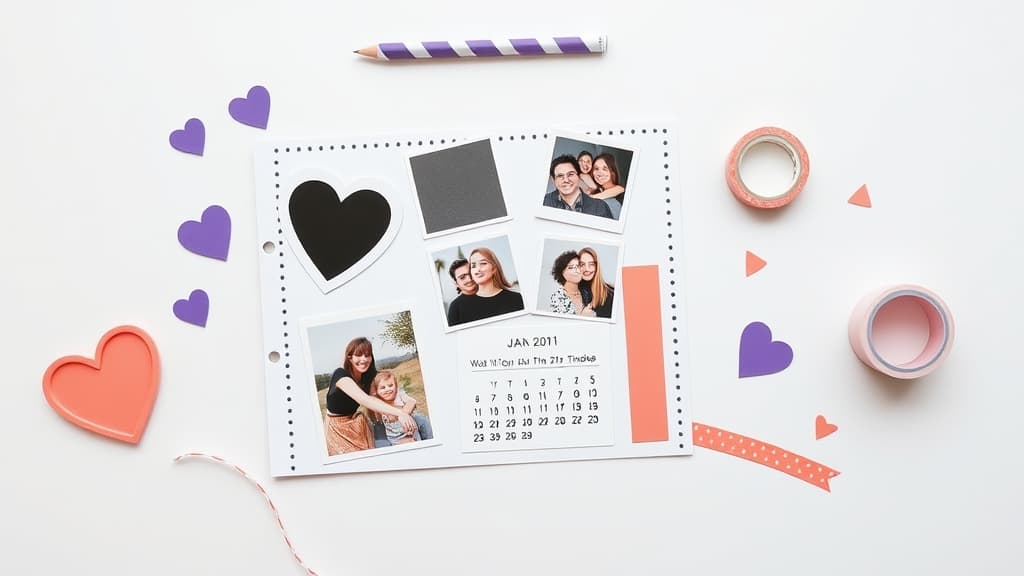
Digital scrapbooking is having a moment, and Canva is where a lot of it happens. But the built-in editor only takes you so far: you get rectangular photos, a handful of frame shapes, and basic grids. Real scrapbook pages need shaped photo frames, playful collages, decorative borders, and dated memory pages — and that is where third-party Canva apps come in.
Below are the best Canva apps for scrapbooking in 2026, what each one is best at, and when Canva's own tools are already enough so you don't over-install.
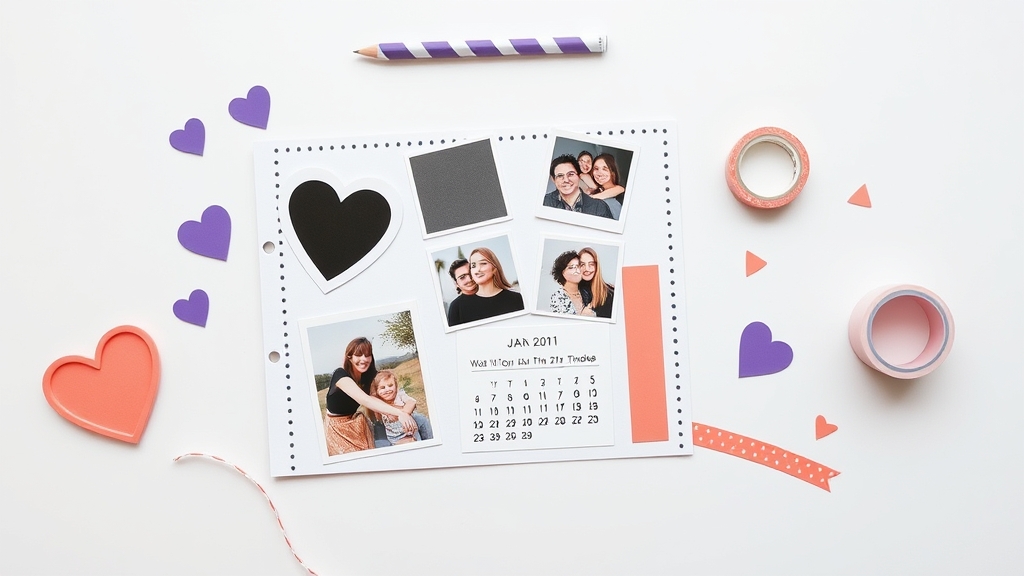
Quick picks #
| App | Best for | Standout feature |
|---|---|---|
| Image to Frame | Shaped photo frames from your own images | Turn any PNG/SVG/JPG into a Canva frame you can drop photos into |
| Frames Lab | Parametric frames (arc, grid, burst) | Five create modes + a ready-made Explore library |
| Frame Collage | Grid & mosaic photo walls | Toggle cells on a 8×8 → 32×32 matrix like pixel art |
| Border Art Maker | Decorative page borders | Auto-distributed dots, icons, and repeating images |
| Calendar Maker | Dated memory & planner pages | Month/week/custom calendars inserted straight into your design |
1. Image to Frame — shaped frames from anything #
If scrapbooking is mostly about photos, this is the app to start with. Image to Frame is a Canva app that converts a PNG, SVG, or JPG (up to 5 MB) into a valid Canva frame — meaning a shape you can drag any photo or video into, just like Canva's native frames.
That opens up layouts Canva can't make on its own: a heart, a star, a hand-lettered word you scanned, or a themed cutout becomes a frame you fill with a memory. The one rule to remember is to remove the background first — if the image still has a white or colored background, the frame comes out rectangular. With a transparent PNG, the frame hugs the true outline. You can also add a border color and thickness for that classic printed-photo look.
Best for: birthday, wedding, and travel pages where you want photos cropped into meaningful shapes rather than plain rectangles.
2. Frames Lab — the frame toolbox #
Where Image to Frame works from an outline you supply, Frames Lab generates frames from parameters. Its Create tab has five modes — Shape, Burst, Grid, Arc, and Diagonal — so you can build a sunburst photo cluster, a curved arch frame, or a multi-cell grid without drawing anything. Frames automatically scale to fit whatever design size you have open.
There is also an Explore tab full of ready-made frame collections if you'd rather not fiddle with settings, and a newer Style tab that adds Blur, Border, and Inner Shadow effects to frames you've already placed. For scrapbookers who like variety on every page, it's the most flexible single app here.
Best for: arch-shaped feature photos, sunburst memory clusters, and mixed grids on a single spread.
3. Frame Collage — grid and mosaic layouts #
Some scrapbook pages are really just a well-organized wall of photos, and Frame Collage nails that. You pick a grid size from 8×8 up to 32×32 and toggle individual cells on or off like pixel art, or start from a preset shape (heart, star, letter, animal). Each active cell becomes its own frame, so you drop a different photo or video into each one.
You can adjust spacing and border color for that tidy, even-margin look that makes a photo wall feel intentional rather than crowded.
Best for: year-in-review spreads, event recaps, and mosaic photo walls shaped like a heart or initial.
4. Border Art Maker — decorative borders #
A scrapbook page lives or dies on its edges. Border Art Maker builds decorative borders fast from three element types — dots, stylish icons, or your own uploaded image — and distributes them evenly so you're not copy-pasting stars around a page by hand. You control spacing and rotation, and you can wrap a border around a photo or a whole block to turn it into an ornamental frame.
Best for: framing feature photos, adding themed edges (hearts, flowers, holidays), and giving a page that finished, crafted feel.
5. Calendar Maker — dated memory pages #
Memory-keeping and planning overlap constantly, and Calendar Maker bridges them. It generates month, week, or custom date-range calendars and drops them straight into your Canva design, with full control over fonts, colors, and more than 30 preset color palettes plus around 14 decorative page templates (Botanical, Watercolor, Scandi Minimal, and more).
For a scrapbook, that means dated pages you can annotate with photos and notes: a "this month in photos" layout, a travel-day journal, or a baby's-first-year calendar spread. You can save setups and reuse them month to month.
Best for: monthly memory pages, travel journals, and hybrid planner-scrapbook spreads.
When Canva's built-in tools are enough #
You don't need any of these for a simple page. Canva's native Frames (Elements → Frames) already crop photos into circles, hearts, and a set of preset shapes, and its Grids handle quick even collages. If your layout only uses those shapes and a rectangular grid, the built-in tools are the fastest path and cost nothing.
Reach for the apps above when you hit their limits: a custom shape Canva doesn't offer (Image to Frame), a denser or non-standard grid (Frame Collage or Frames Lab), a decorative border Canva can't auto-build (Border Art Maker), or dated pages (Calendar Maker).
How to combine them on one spread #
The apps are designed to stack. A typical scrapbook page might use a Frames Lab arch for the hero photo, a small Frame Collage grid for supporting shots, an Image to Frame heart for a standout memory, a Border Art Maker edge to tie it together, and a Calendar Maker strip to date the spread. Add a photo-filled title with Clipping Mask or Text to Frames and the page is done — all without leaving Canva.
Start with the built-in Frames to sketch your layout, then swap in these apps only where you need something Canva can't do. That keeps your scrapbook looking custom without turning every page into a project.
Frequently asked questions
Yes. Canva's built-in Frames and Grids let you crop photos into basic shapes and simple collages at no cost, which covers a lot of scrapbook layouts. The Canva apps below add shaped frames, denser grids, decorative borders, and dated pages; most offer a free tier with limits and a Pro upgrade for unlimited use.
For turning your own image, logo, or cutout into a frame you can pour photos into, Image to Frame is the most direct pick. If you want parametric shapes like arcs, bursts, and grids instead of an uploaded outline, Frames Lab is the more flexible toolbox. Many scrapbookers keep both installed.
No. These are third-party Canva apps with their own free tiers, so you can install and try them on a free Canva account. Removing photo backgrounds for clean shaped frames is easier with Canva Pro, but you can also remove backgrounds with a separate tool before importing.
Related products


More from QRdy Blog
Photoshop Clipping Mask vs Text to Frames: Photo-in-Text in Canva
Filling text with a photo is a classic Photoshop trick. Here is how the Photoshop clipping mask compares with Text to Frames in Canva, and which one fits a quick title or banner.
The Best Canva Apps for Birth Announcements (2026)
Making a birth announcement in Canva? Here are the best Canva apps for it in 2026: custom photo shapes, name lettering, photo grids, borders, and a first-year calendar. Honest picks, with Canva's built-in tools included.
How to Make a Christmas Tree Photo Collage in Canva (Step by Step)
Turn your favorite family photos into a Christmas tree-shaped collage in Canva: two methods (a tree-shaped frame or a stacked grid), exact steps, print sizes, and tips so faces stay visible.