
The Best Canva Apps for Photo Collages (2026)
Canva's built-in grids are fine for a quick collage, but a dedicated app gives you far more control. Here are the best Canva apps for photo collages in 2026 — from simple grids to fully custom frame layouts — and exactly when to use each.
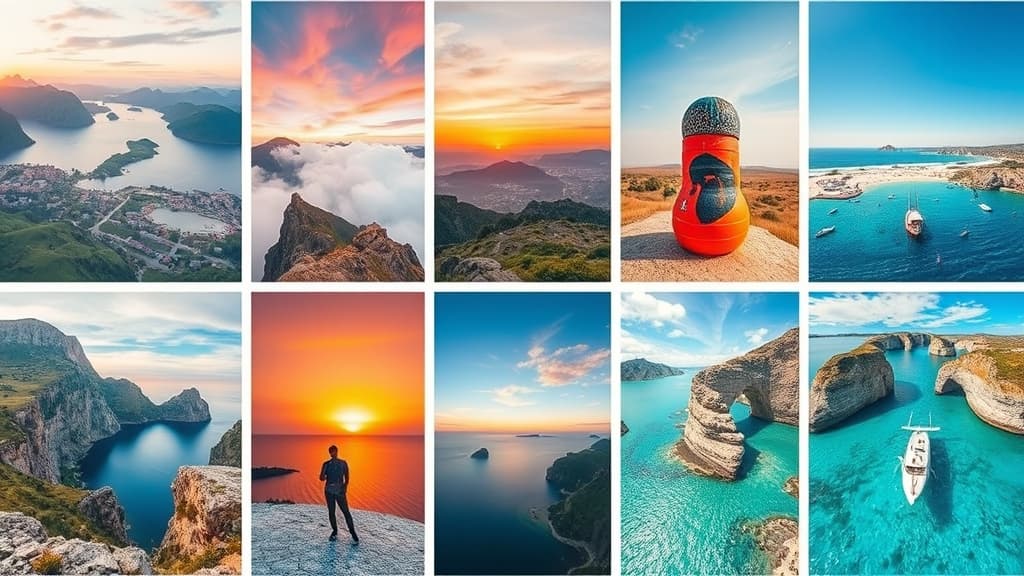
A photo collage is one of the fastest ways to tell a whole story in a single Canva design — a trip, a product line-up, a mood board. Canva has built-in grids, but when you want more cells, custom shapes, or curved layouts, a dedicated app does it better. Here are the best Canva apps for photo collages in 2026, and when to reach for each.
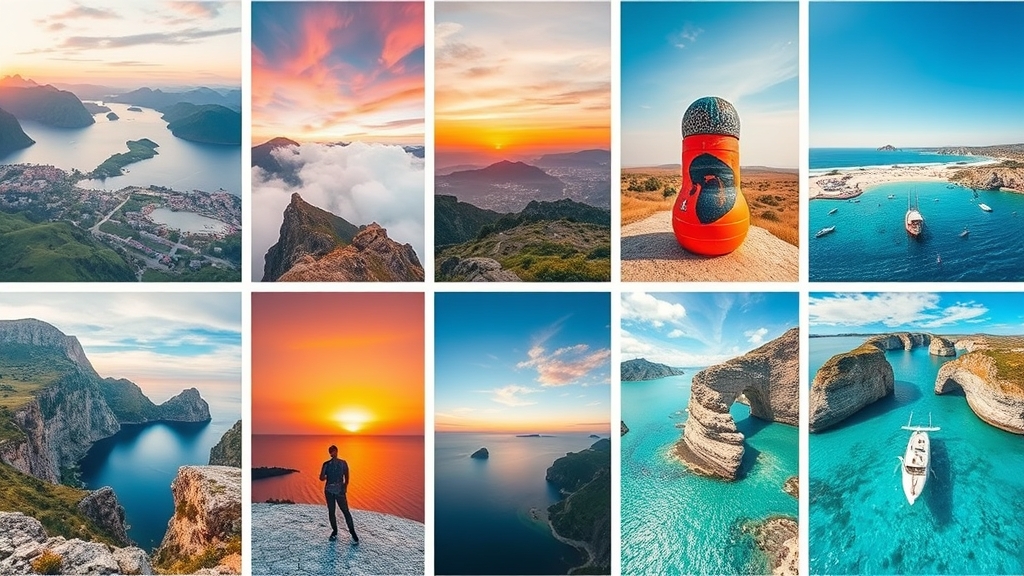
Quick pick #
| You want… | Best app ||---|---|| A simple, dense photo grid | Frame Collage || Custom collage shapes (grids, arcs, diagonals) | Frames Lab || A collage inside your own shape | Image to Frame |
Frame Collage — fast, dense photo grids #
Frame Collage builds a grid where every cell is a frame you fill with a photo or video. Toggle cells from an 8×8 grid up to 32×32, so you can go from a tidy nine-photo layout to a dense mosaic in seconds. It's the quickest way to drop many pictures into one clean grid.
Best for: memory grids, product line-ups, and mosaic layouts with lots of photos.
Frames Lab — collages in custom shapes #
If a plain grid feels too rigid, Frames Lab builds collage frames in five modes — Grid, Diagonal, Arc, Burst, and Shape — with live controls for columns, rows, gaps, and even a wave effect that curves the grid lines. Every cell is a fillable frame, and frames auto-fit your design.
Best for: designer-grade collages with angled, curved, or non-standard layouts.
Image to Frame — a collage inside your own shape #
Want your collage to sit inside a custom silhouette — a heart, a logo, a letter? Image to Frame turns any image into a Canva frame, so you can shape the whole collage, then fill it with your photos.
Best for: collages shaped like a logo, icon, or custom outline.
When Canva's built-in grids are enough #
For a quick two-to-four photo grid, Canva's native Elements → Grids is perfectly fine. Reach for these apps when you need more cells, custom shapes, or precise control the built-in grids don't offer.
The bottom line #
- Lots of photos in a clean grid → Frame Collage.
- Custom, angled, or curved layouts → Frames Lab.
- A collage shaped like your own image → Image to Frame.
Keep all three installed and you can build almost any collage Canva can dream up.
Frequently asked questions
For a simple, dense grid, Frame Collage is the fastest — every cell is a frame you fill with a photo, and you can scale from a 3x3 grid up to a 32x32 mosaic.
Yes. Use Frames Lab for angled or curved layouts, or Image to Frame to shape the whole collage like a logo, heart, or letter.
Not for a quick two-to-four photo grid. Reach for these apps when you want more cells, custom shapes, or precise control the built-in grids don't provide.
Related products


More from QRdy Blog
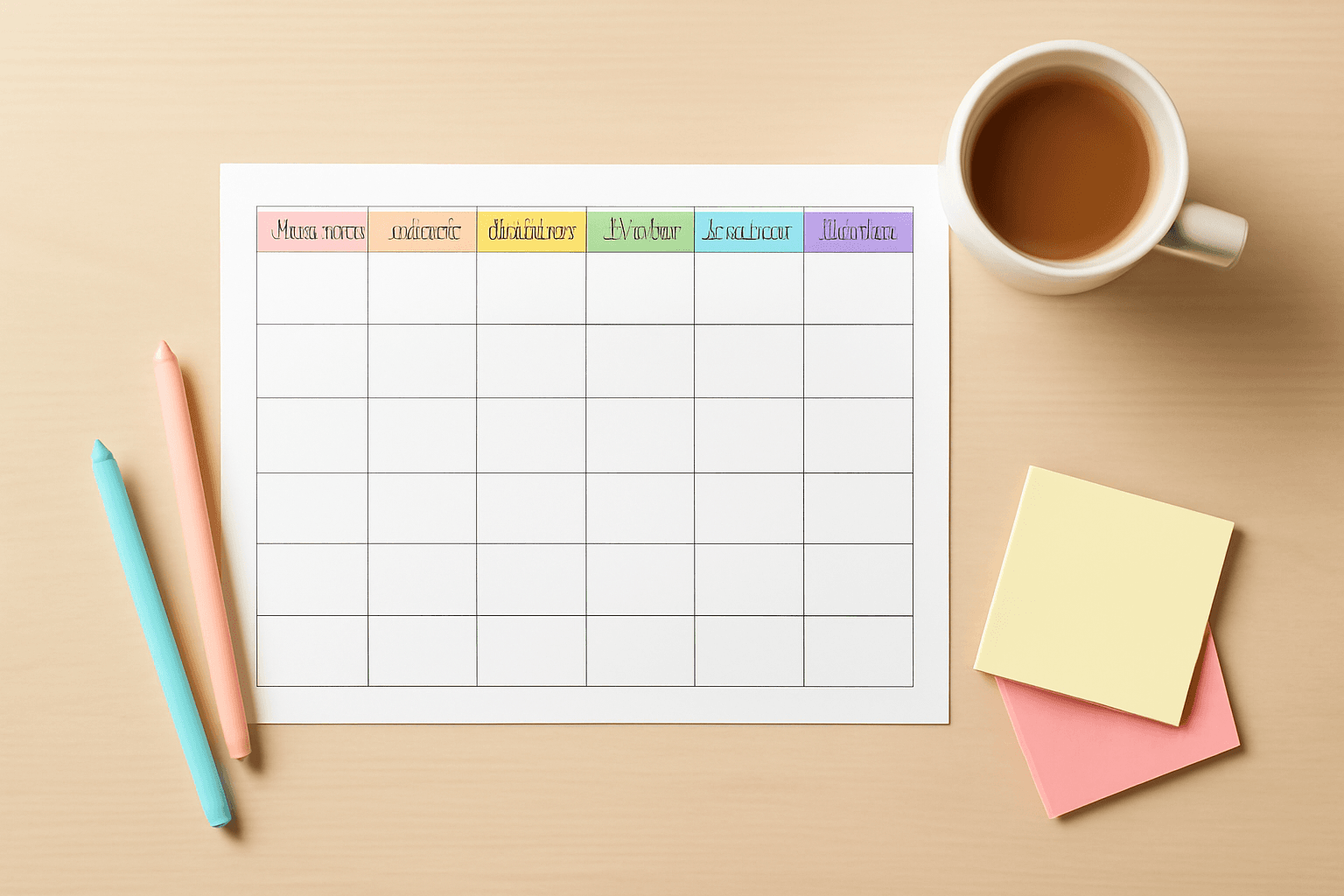
10 Weekly Schedule & Countdown Calendar Ideas You Can Make in Canva
Ten practical ideas for weekly schedules and countdown calendars in Canva: class timetables, chore charts, 30-day challenges, wedding and holiday countdowns, all built with Calendar Maker's Week and Custom tabs.
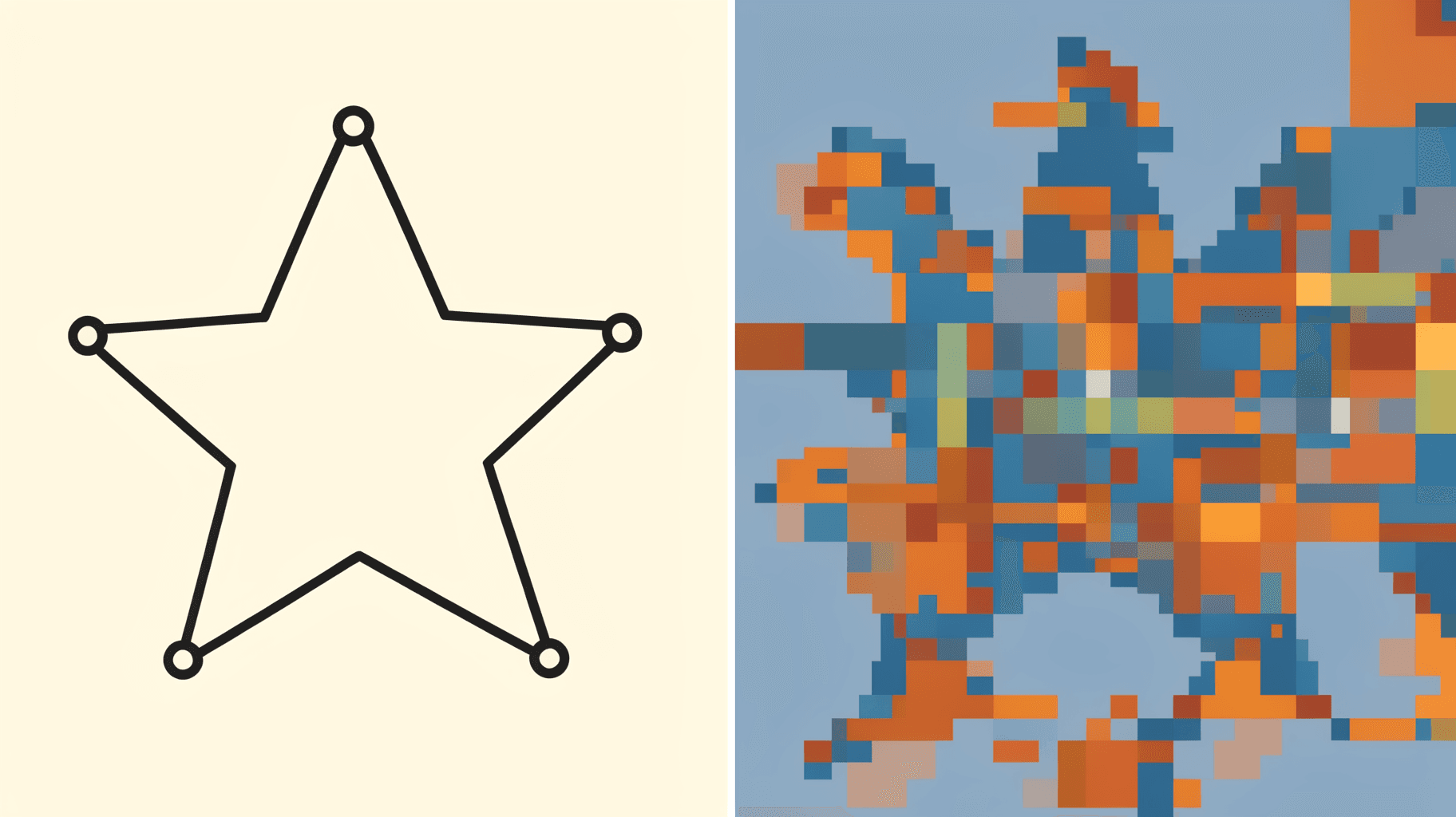
Vector vs Raster: What's the Difference (and Which to Use)
Vector graphics are built from math paths that scale to any size; raster images are grids of pixels that don't. Here's the real difference, plus which one to reach for with logos, photos, and Canva frame shapes.

The Best Canva Apps for Graduation Announcements (2026)
Graduation announcements have to survive being shrunk to a five-by-seven and handled by fifty relatives. Here are the Canva apps that make a cap-shaped photo, a photo-filled headline, and a real four-year collage possible — plus an honest look at what Canva already covers for free.