
What Is a Silhouette? Meaning, Examples, and How to Use One in Canva
A silhouette is a solid, single-color outline of a shape with no inner detail. Here is what it means, how it works, the main types, and how to turn one into a photo frame in Canva.
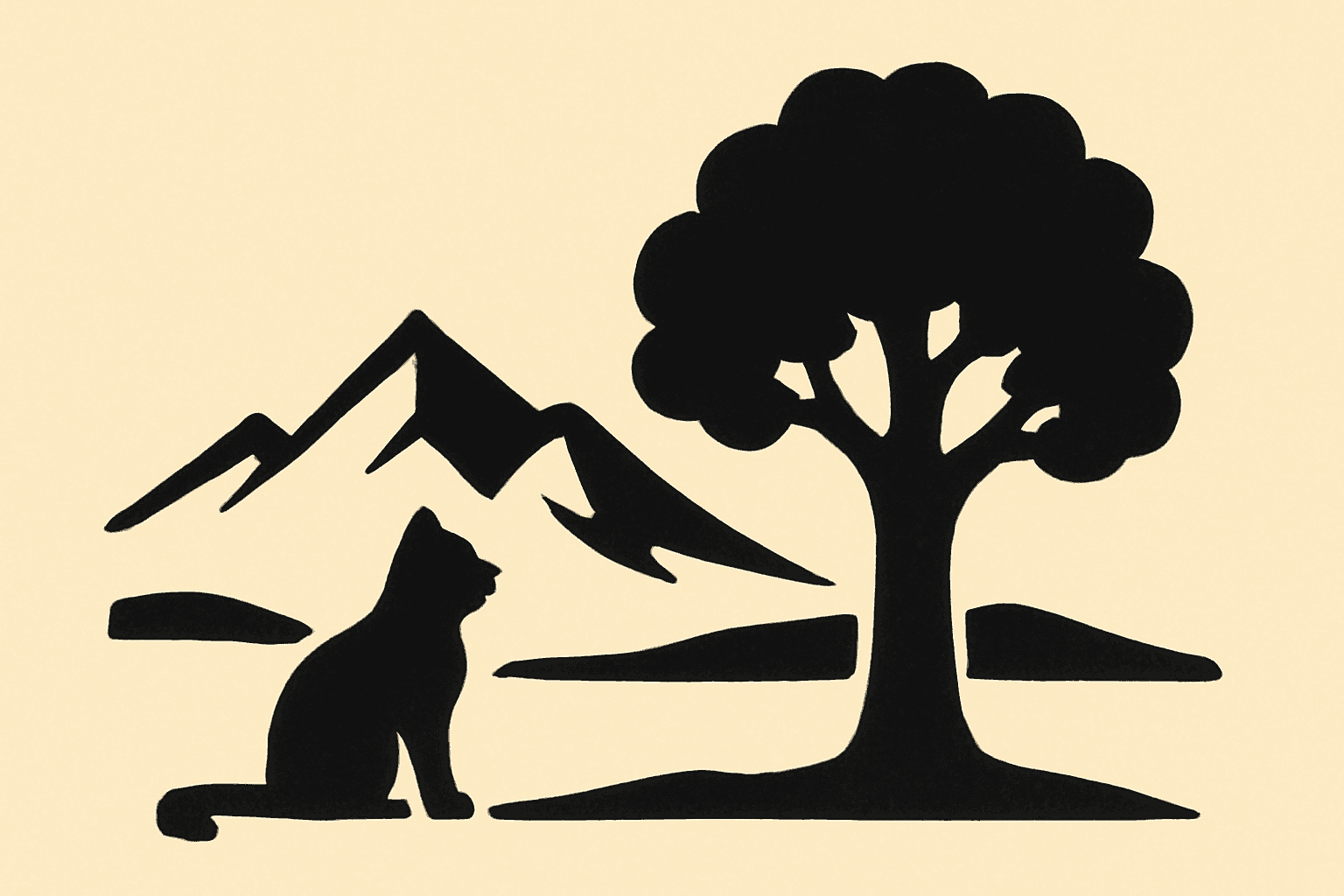
A silhouette is the solid, single-color shape of a subject, usually black, with all the inner detail removed. You cannot see eyes, texture or shading. What is left is only the outline filled in, and you still recognize the subject from that shape alone. Think of a cat sitting on a fence at dusk, a mountain range against the sky, or the classic side-profile portrait.
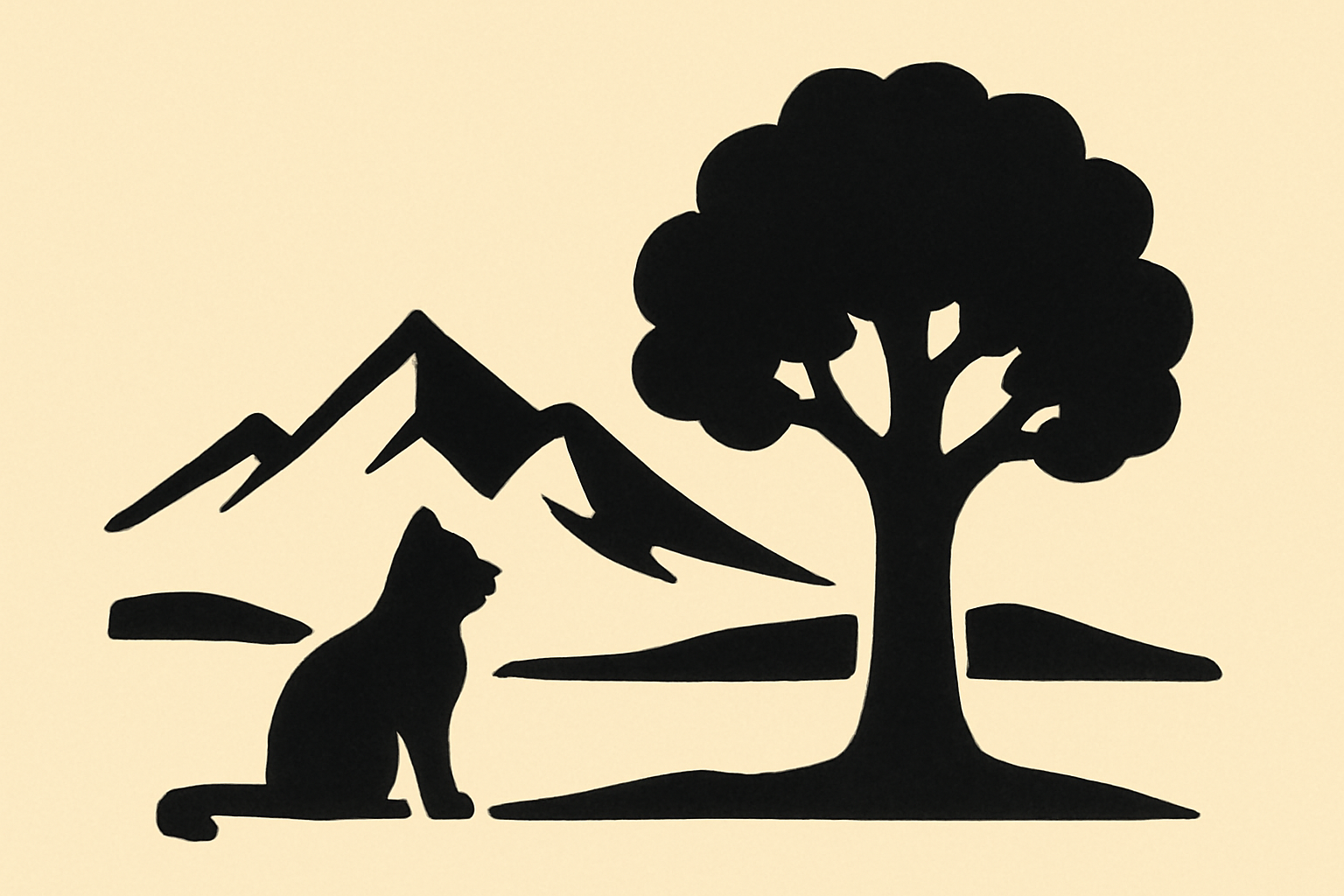
Silhouette meaning, in one line #
A silhouette is a shape you can read without any detail. The word also works as a verb: something is "silhouetted" when it stands dark against a brighter background, like a person in front of a sunset.
Where the word comes from #
The term comes from the 18th century, when quick black paper cut-out portraits were a cheap alternative to painted portraits. Those cut-outs were traced from a shadow cast by a candle. That origin explains the look: a flat, dark, high-contrast profile.
Silhouette vs outline vs shadow #
These three get mixed up, so here is the difference.
| Term | What it is | Inner area |
|---|---|---|
| Silhouette | Solid fill of a shape, one flat color | Filled, no detail |
| Outline | Only the edge line of a shape | Empty |
| Shadow | A cast, blurred darkening on a surface | Depends on light, has soft edges |
A silhouette is the shape as a solid block. An outline is just the edge. A shadow is a light effect, so it can be blurry or distorted.
The main types of silhouette #
- Photographic silhouette. A real subject shot against a bright background (sunset, window, sky) so it goes fully dark.
- Paper-cut silhouette. The traditional cut-out portrait or scene, now common in wall art.
- Vector silhouette. A clean black shape drawn as an icon, sold as SVG or PNG for logos, stickers and decor.
- Digital knockout. A silhouette used as a mask, where the shape is transparent and shows another image through it.
That last type is the most useful for design, and it is where a silhouette becomes a frame.
How a silhouette works in design #
Because a silhouette has a very clear edge and no detail, it does three jobs well:
- Instant recognition. Viewers identify the subject in a fraction of a second.
- Strong contrast. Dark shape, light background, easy to read even when small.
- A container. The shape can hold something else, such as a photo, a gradient or a pattern.
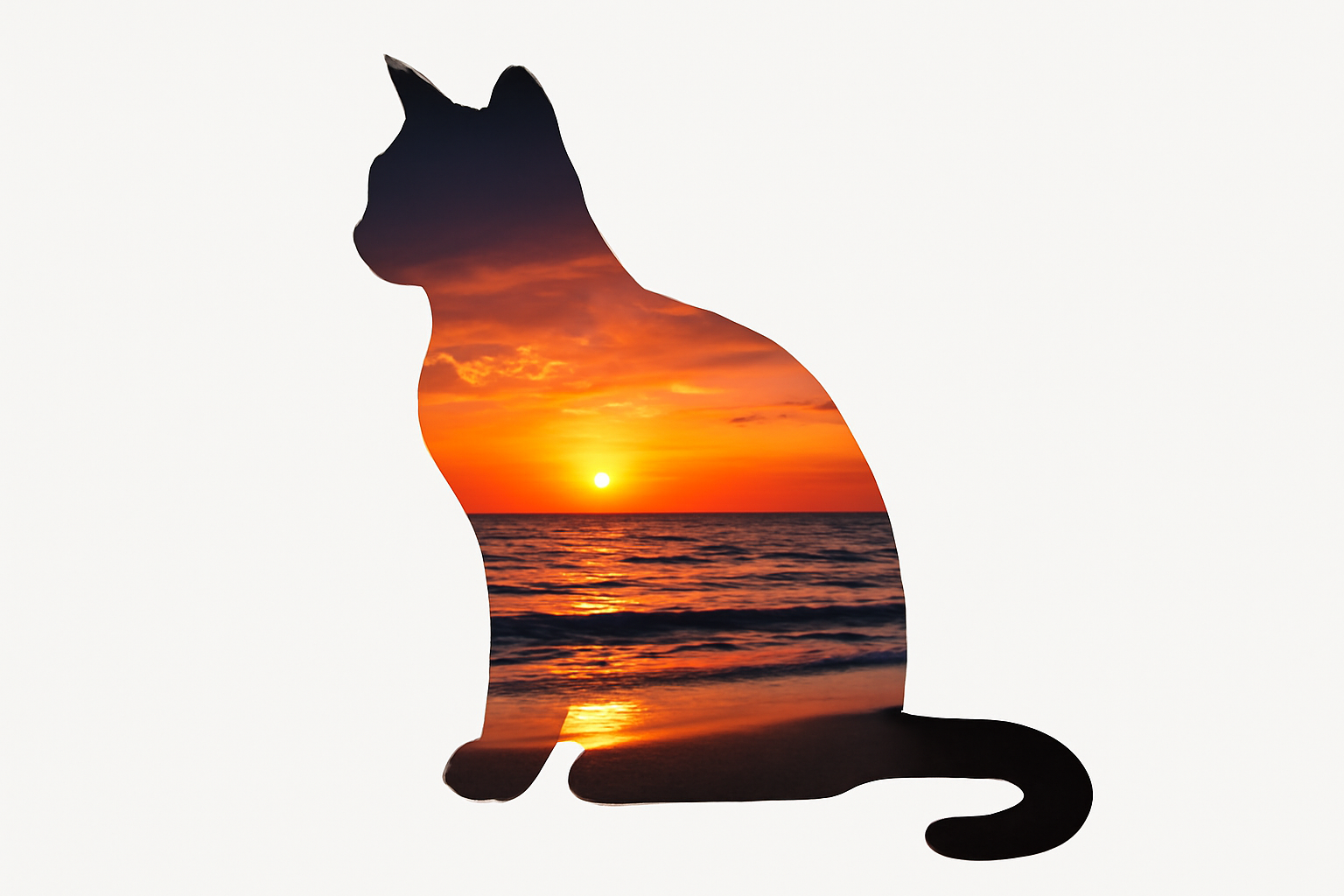
The picture above uses the third job: the cat shape is a window, and the sunset only shows through it.
How to turn a silhouette into a photo frame in Canva #
Canva has built-in frames such as circles, hearts and squares, but not a frame for every shape you might want. If you have a silhouette image (a pet, a monogram letter, a logo, a state map), the Image to Frame app can convert it into a real Canva frame. It accepts PNG, SVG and JPG files up to 5MB.
- Prepare the silhouette. Use a PNG with a transparent background. If your image has a white or colored background, remove the background first. Otherwise the frame comes out as a rectangle instead of the true shape.
- Open Image to Frame in Canva. It runs in the left panel of the editor.
- Bring the silhouette in. Upload the file, pick an image already on your page, or export the current design page as a transparent PNG.
- Check the preview. The app shows the frame it will create. If it is wrong, remove the image and choose another.
- Set the border (optional). Choose the thickness (0 to 50) and color. The border appears after the frame is added to your design, not in the preview.
- Click "Add frame to design". The silhouette now sits on your page as a frame.
- Drag a photo into it. The photo fills the silhouette, and you can move and zoom the photo inside the frame.

Some things to know honestly: very complex shapes with tangled curves may fail to convert, so pick a simpler silhouette or try the Frame Store. Free accounts see an upgrade screen first, since full features need Image to Frame Pro.
Tips for a good silhouette frame #
- Choose a bold, simple shape. Cats, trees, letters and hearts work better than a shape with thin details.
- Avoid thin connections. Slim legs or antennae leave almost no room for the photo.
- Match the photo to the shape. A landscape suits a wide silhouette, a portrait suits a tall one.
- Try a bright, busy photo. Sunsets, florals and cityscapes look striking inside a dark silhouette shape.
Other ways to use a silhouette in Canva #
If you do not have a shape ready, other Qrdy apps cover neighbouring jobs. Frames Lab can generate arc, grid and polygon frames, and Text to Frames turns each letter of a word into its own frame. A regular Canva clipping mask works too when you only need a one-off crop. Canva's built-in shapes are a fine choice when a circle or heart is enough.
Quick recap #
A silhouette is a solid, one-color shape with no inner detail, recognized purely by its outline. It differs from an outline (edge only) and a shadow (a light effect). In Canva you can turn one into a frame and fill it with any photo, which is a simple way to make personal, shape-based designs.
Frequently asked questions
A silhouette is the solid outline of a person, animal or object filled with one flat color, usually black, with no inner detail. You recognize it purely from its shape.
An outline is just the edge line, and the inside stays empty. A silhouette is the edge plus a solid fill, so the whole shape reads as one flat block of color.
Yes. Turn the silhouette into a Canva frame, for example with the Image to Frame app, then drag a photo into it. The photo fills the silhouette shape. Remove the background from the silhouette image first so the frame follows its true outline.
Image to Frame accepts PNG, SVG and JPG up to 5MB. A PNG with a transparent background gives the cleanest result, and simple SVG shapes work well too.
Related products


More from QRdy Blog
10 Weekly Schedule & Countdown Calendar Ideas You Can Make in Canva
Ten practical ideas for weekly schedules and countdown calendars in Canva: class timetables, chore charts, 30-day challenges, wedding and holiday countdowns, all built with Calendar Maker's Week and Custom tabs.
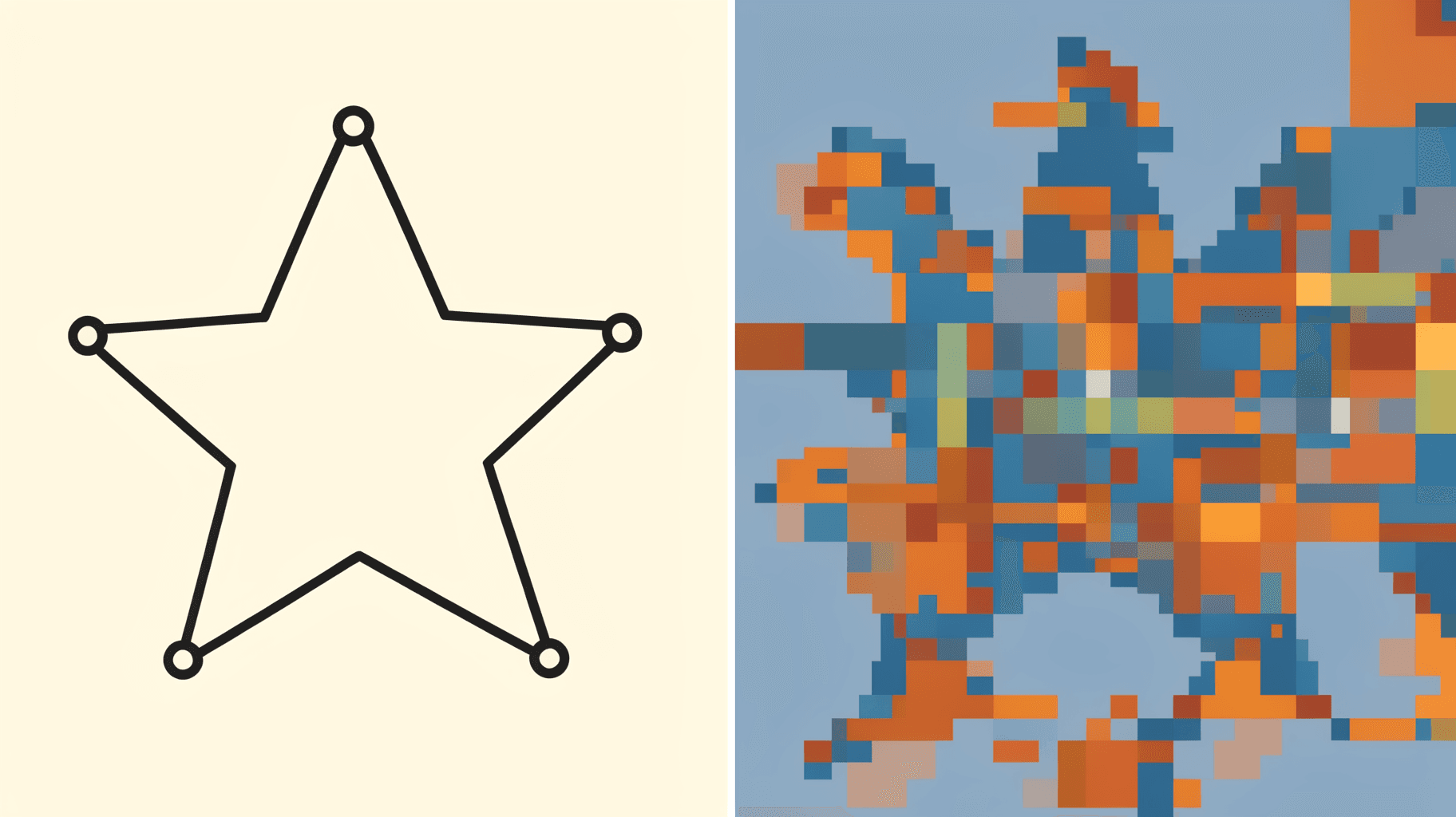
Vector vs Raster: What's the Difference (and Which to Use)
Vector graphics are built from math paths that scale to any size; raster images are grids of pixels that don't. Here's the real difference, plus which one to reach for with logos, photos, and Canva frame shapes.

The Best Canva Apps for Graduation Announcements (2026)
Graduation announcements have to survive being shrunk to a five-by-seven and handled by fifty relatives. Here are the Canva apps that make a cap-shaped photo, a photo-filled headline, and a real four-year collage possible — plus an honest look at what Canva already covers for free.