
How to update dynamic QR codes in Canva with Qrdy Dynamic QR
Discover how to create and update dynamic QR codes in Canva using Qrdy Dynamic QR. Change your QR code links anytime without reprinting.
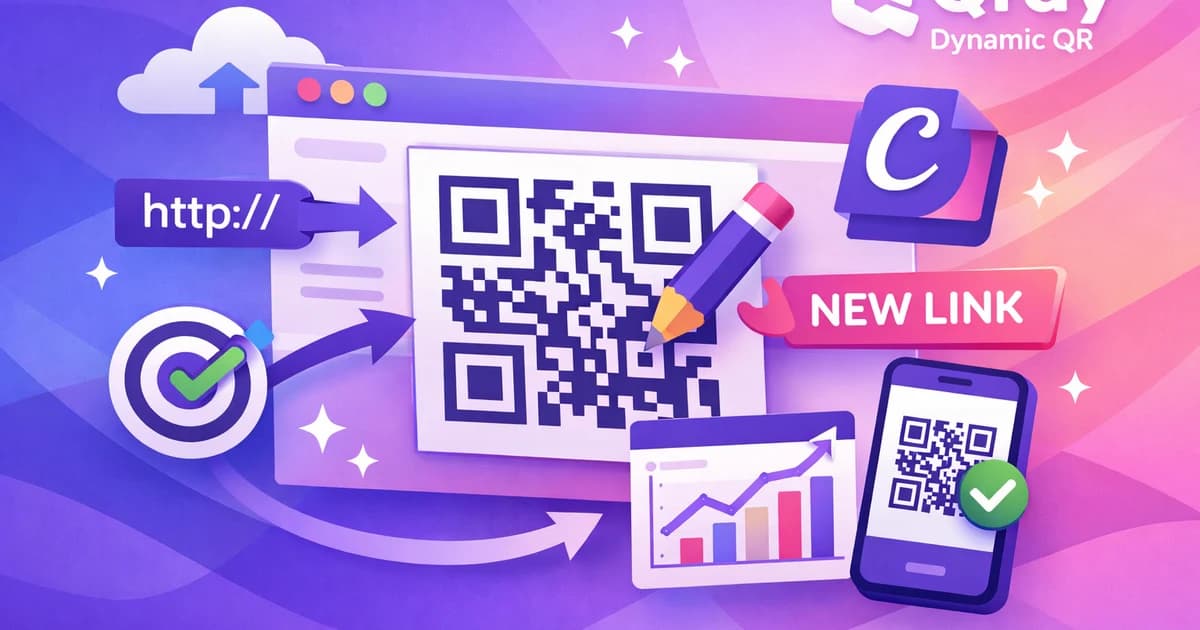
Updating dynamic QR codes in Canva is easy with Qrdy Dynamic QR. You can create QR codes that let you change their destination even after printing, saving time and preventing costly reprints. If you’ve ever needed to update a menu, event flyer, or promotion after it’s already printed, dynamic QR codes are a lifesaver. Here’s how to use Qrdy Dynamic QR inside Canva to keep your QR codes flexible and your marketing agile.
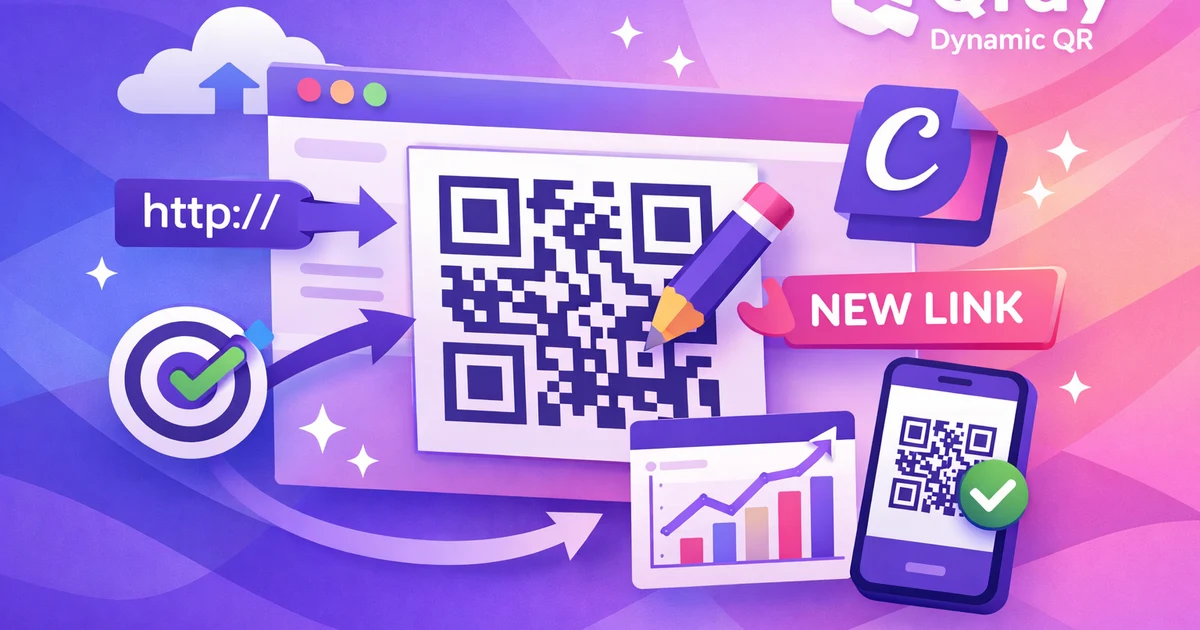
How to update dynamic QR codes in Canva with Qrdy Dynamic QR #
Qrdy Dynamic QR lets you create QR codes inside Canva that you can update later—no need to reprint your designs. The app integrates directly into Canva, so you can add dynamic QR codes to your posters, menus, or flyers, and change where they point anytime from your Qrdy dashboard. Unlike static QR codes, dynamic QR codes give you total control over your printed materials.
To get started, install Qrdy Dynamic QR from the Canva app directory. You’ll be able to generate a dynamic QR, place it into your design, and later update its destination link, phone number, or WiFi info—without editing or reprinting the design. This flexibility is essential when running time-sensitive promotions or needing to fix mistakes after publishing.
Key benefits of using dynamic QR codes with Qrdy in Canva:
- Edit the QR code’s destination after printing.
- Save money and avoid waste by not reprinting.
- Track scans and analyze campaign performance.
- Customize the QR code’s look to match your brand.
For a deeper dive into the differences between static and dynamic QR codes, check out static vs dynamic QR codes in Canva. For campaign inspiration, see QR code marketing tips.
Step-by-step tutorial to create and edit dynamic QR codes in Canva #
Creating and updating a dynamic QR code in Canva with Qrdy Dynamic QR is straightforward. Here’s how to do it:
- Open Canva and install Qrdy Dynamic QR
- Go to the Canva app directory and search for "Qrdy Dynamic QR."
- Click to install and connect your Qrdy account.
- Create a new dynamic QR code
- In your Canva design, open the Qrdy Dynamic QR app.
- Choose the type of QR code you want (website link, app store link, WiFi, phone, or QrdyLink).
- Enter your target content (URL, phone number, WiFi credentials, etc.).
- Customize the QR code appearance
- Adjust colors, add your logo, or pick a frame style to match your design.
- Preview the QR code before inserting it.
- Insert the QR code into your Canva design
- Drag and drop it into your layout—business card, flyer, menu, or poster.
- Export and print your design
- Save or print as usual. The dynamic QR is now live on your physical or digital design.
- Edit the QR code destination after printing
- Log in to your Qrdy dashboard (qrdynamic.xyz).
- Find your QR code and change its destination link, phone number, or settings.
- Changes apply instantly—no need to reprint!
Tips:
- Use custom branding to make your QR code blend with your Canva design.
- Test your QR code before and after editing the destination to ensure it works as expected.
- Keep a record of your QR codes and their destinations for easy updates later.
- Use different QR codes for each campaign or menu version to simplify tracking.
For more on static vs dynamic QR codes in Canva, see this guide.
Benefits of updating QR code links after printing #
Updating dynamic QR codes after printing means you never have to throw away outdated materials. You can refresh promotions, update menus, or fix errors instantly. This flexibility cuts costs, saves time, and keeps your marketing current.
The main advantages include:
- No reprints: Change your content anytime—no wasted prints.
- Easy updates: Adjust your marketing links, contact info, or offers without hassle.
- Track performance: See how many people scan your QR and analyze engagement from your Qrdy dashboard.
- Flexible marketing: Adapt your campaigns to trends or feedback in real time.
- Error-proof: Correct mistakes in your QR destination instantly, reducing risk.
- Stay relevant: Update your offers or event info to keep your audience engaged.

For more ways to use QR codes in marketing, read QR code marketing tips.
Comparison between static and dynamic QR codes in Canva #
Static QR codes in Canva point directly to a fixed link and can’t be changed after printing. Dynamic QR codes, like those made with Qrdy Dynamic QR, let you update the destination anytime. This makes dynamic QR codes far more useful for ongoing campaigns and printed materials.
Definitions:
- Static QR code: A code with a fixed, unchangeable destination.
- Dynamic QR code: A code whose destination can be edited later via a dashboard.
With static QR codes, any mistake or campaign change means you must redesign and reprint your materials. Dynamic QR codes solve this by letting you update the link instantly.
Check out static vs dynamic QR codes in Canva for an in-depth comparison.
Use cases for small businesses and marketers using Qrdy Dynamic QR in Canva #
Small businesses and marketers use Qrdy Dynamic QR in Canva to stay agile and interactive. Here are some real-world examples:
- Update promotions: Change the landing page of your offer QR code as campaigns end or rotate.
- Switch menus: Restaurants and cafes update digital menus with new prices or dishes without reprinting table tents.
- Event info: Update event details, locations, or registration links as plans evolve.
- F&B, salons, retail: Use dynamic QR codes for loyalty programs, reviews, or contactless payment—change links for new offers anytime.
- WiFi QR codes: Let guests scan to connect; update network details as needed without changing the printed code.
- App store routing: One QR code can send iOS users to the App Store, Android users to Google Play, and desktop users to your website.
- Track and analyze scans: Use Qrdy’s dashboard to monitor QR scan counts, devices, and locations, measuring campaign ROI.
- Seasonal offers: Quickly update QR code destinations for holiday specials or limited-time deals.
- Feedback collection: Switch the QR code link to new surveys or feedback forms as your needs change.
For more marketing ideas, browse QR code marketing tips.
Conclusion: Keep your marketing flexible with Qrdy Dynamic QR #
Updating dynamic QR codes in Canva gives you the power to keep your printed and digital materials up to date—without extra cost or wasted effort. Whether you’re running promotions, updating menus, or managing events, Qrdy Dynamic QR puts you in control. Try it in your next Canva project to make your marketing more flexible, responsive, and effective.
FAQ about updating dynamic QR codes in Canva with Qrdy #
How do I change the destination of a QR code after printing? Log in to your Qrdy dashboard, find your dynamic QR code, and update its destination link or action. The change happens instantly—no need to reprint your materials.
Can I use dynamic QR codes for free? Qrdy Dynamic QR offers a free Starter plan with basic features, including dynamic routing and basic scan tracking. Upgrade to Pro for advanced analytics and more customization.
Is there a limit to how many times I can change the QR code link? There’s no fixed limit on editing your QR code’s destination. You can update it as often as you need from your Qrdy dashboard.
How can I track how many times my QR code is scanned? The Qrdy dashboard provides real-time analytics, including scan counts, devices used, and location data. Pro users get access to more detailed reports.
What types of QR codes does Qrdy Dynamic QR support? You can create dynamic QR codes for website links, app store deep links, QrdyLink smart links, WiFi access, and phone numbers. New types are added regularly.
For more on static vs dynamic QR codes, read this comparison.
Ready to try Qrdy — Dynamic QR? #
Qrdy là mã QR động giá phải chăng ($5/tháng), cài thẳng trong Canva, cho phép đổi nội dung sau khi in và theo dõi lượt quét chi tiết.
Frequently asked questions
Log in to your Qrdy dashboard, find your dynamic QR code, and update its destination link or action. The change happens instantly—no need to reprint your materials.
Qrdy Dynamic QR offers a free Starter plan with basic features, including dynamic routing and basic scan tracking. Upgrade to Pro for advanced analytics and more customization.
There’s no fixed limit on editing your QR code’s destination. You can update it as often as you need from your Qrdy dashboard.
The Qrdy dashboard provides real-time analytics, including scan counts, devices used, and location data. Pro users get access to more detailed reports.
You can create dynamic QR codes for website links, app store deep links, QrdyLink smart links, WiFi access, and phone numbers. New types are added regularly.
More from QRdy Blog

The Best Canva Apps for Gift Tags (2026)
Gift tag season starts earlier than you think. Here are five Canva apps that make custom photo tags, decorative borders, name tags and QR tags faster than building each one by hand — plus what Canva already does well on its own.
How to Make Recipe Cards in Canva (Printable 4×6, with Photos)
A step-by-step guide to designing printable recipe cards in Canva: the right card size, a layout that still reads in a messy kitchen, a photo frame that isn't a plain rectangle, and how to print and cut a whole set at home.

What Is a Wall Calendar? Formats, Sizes, and How to Make Your Own
A wall calendar is defined by reading distance, not decoration — it has to be legible from across the room. Here are the five formats, the sizes that actually get printed, how it differs from a desk calendar, and how to design your own in Canva.