
How to update dynamic QR codes in Canva with Qrdy
Discover how to create and update dynamic QR codes in Canva with Qrdy. Change QR destinations anytime after printing without reprinting.
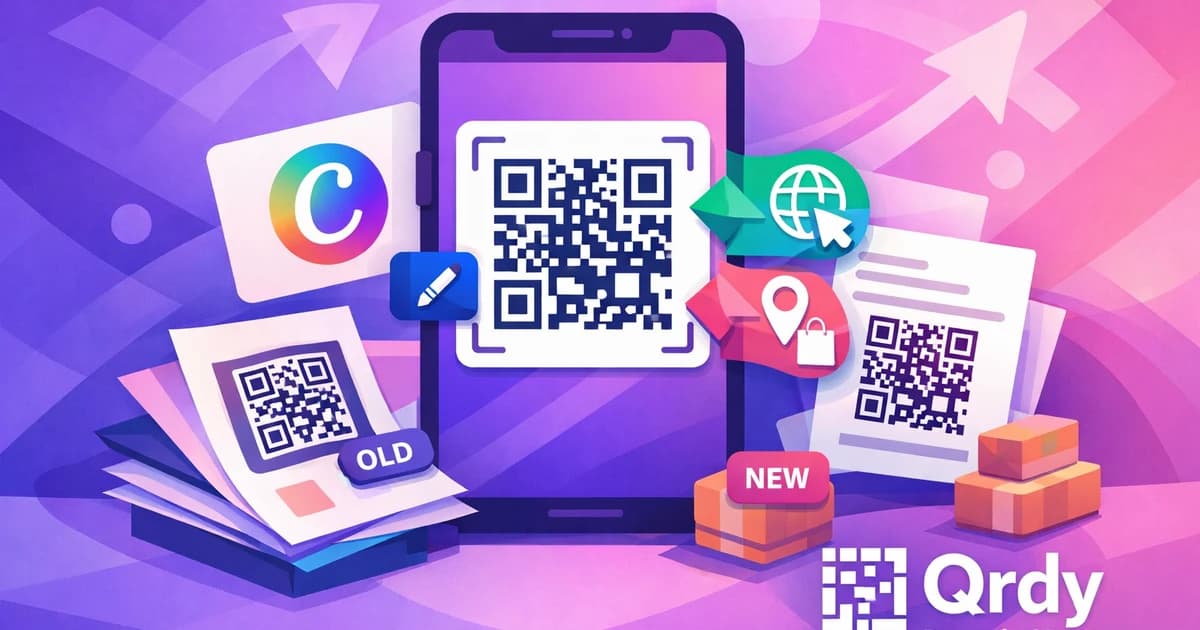
Creating and updating dynamic QR codes in Canva is simple with Qrdy Dynamic QR. With this tool, you can change the destination of your QR code even after printing—no need to reprint your designs. This flexibility saves time, money, and makes your marketing campaigns more effective.
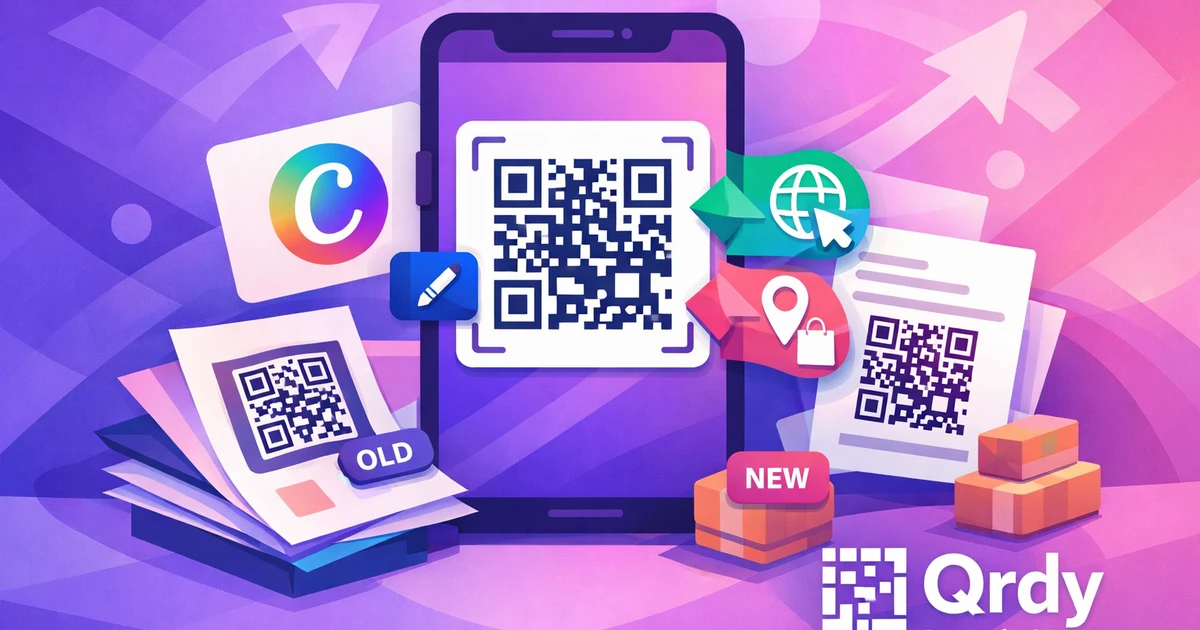
How to update dynamic QR codes in Canva using Qrdy #
With Qrdy Dynamic QR, you can generate QR codes in Canva that stay editable after printing or publishing. This means you can update the link or content behind your QR code anytime, using the Qrdy dashboard—no need to reprint your materials. The process is straightforward: install the Qrdy Dynamic QR app in Canva, create a dynamic QR, add it to your design, and manage destinations from your Qrdy account.
Step 1: Install Qrdy Dynamic QR in Canva #
Search for "Qrdy Dynamic QR" in Canva’s app marketplace and connect it to your design workspace.
Step 2: Create a dynamic QR code #
Input your preferred destination (website, app link, phone, WiFi, etc.) and customize the QR’s look—colors, logo, frames.
Step 3: Insert into your Canva design #
Drag the QR directly into your poster, flyer, menu, or other print material.
Step 4: Edit the QR destination anytime #
After exporting or printing, log in to your Qrdy dashboard to change the QR’s target URL or action. The printed code still works—no reprinting required.
Key benefits #
- Update links for promotions, events, or campaigns instantly.
- Perfect for small businesses and creators who want maximum control.
- No need to reprint when your offer or destination changes.
If you’re looking for more inspiration on using QR codes in campaigns, see using QR codes in marketing and Canva tips for small business.
Why choose dynamic QR codes over static in Canva #
Dynamic QR codes let you update the destination URL after printing, while static QR codes are fixed—once printed, they can’t be changed. If you use a static code in Canva, any change (like a new website or updated menu) means reprinting all materials. Dynamic QR codes from Qrdy solve this by linking to a redirect you control.
Static QR codes #
- Locked to one destination forever
- Must reprint if info changes
Dynamic QR codes #
- Update destination anytime in Qrdy dashboard
- Printed code keeps working with new links
- Save money by avoiding reprints
- Adapt campaigns on the fly
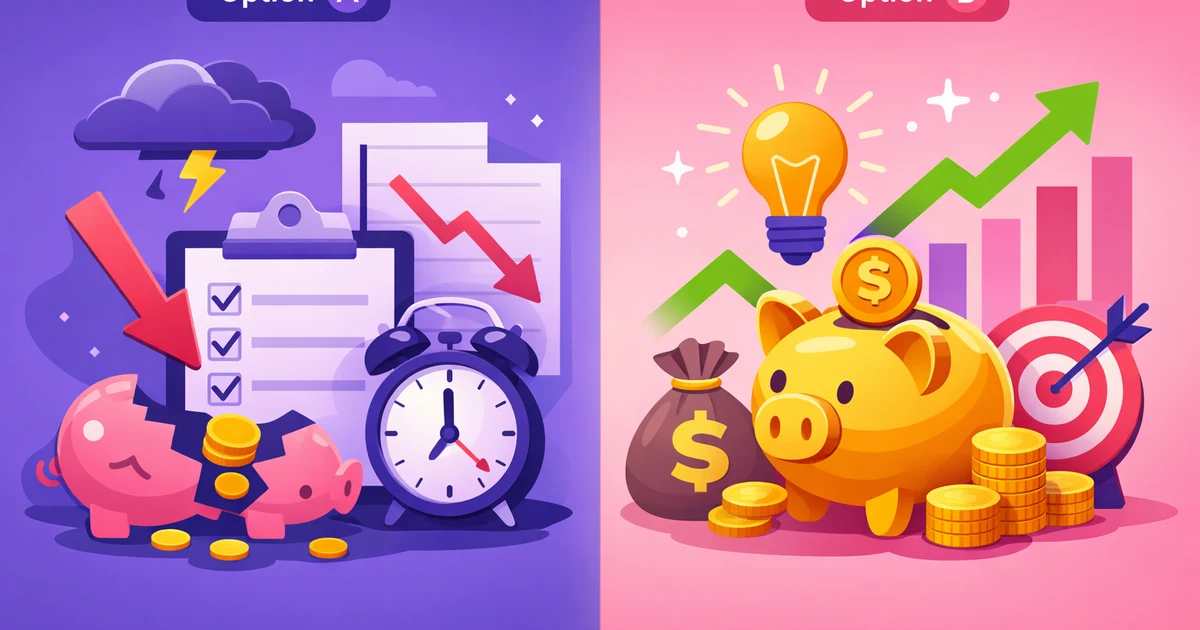
Real-world example
You print flyers with a QR code for a holiday promotion. Later, you want to switch the code to a new coupon. With Qrdy Dynamic QR, just update the link in your dashboard—the printed QR keeps working with the new offer.
Learn more about the differences in static vs dynamic QR codes.
Step-by-step tutorial to create and edit dynamic QR codes in Canva #
Setting up and editing dynamic QR codes with Qrdy Dynamic QR in Canva takes just a few steps. Here’s a clear walkthrough:
Installing and launching the app #
- Open Canva, go to "Apps", search for "Qrdy Dynamic QR", and add it.
- Open or create a design (poster, menu, business card), then click the Qrdy Dynamic QR app in the sidebar.
Creating and customizing your QR code #
- Select from supported options—website link, Appstore, QrdyLink (smart link), WiFi, or phone.
- Pick colors, add your logo, adjust frame and dot style to match your brand.
- Click "Create" and drag the QR code into your design.
Exporting and editing QR codes #
- Download or print your design as usual.
- Go to your Qrdy dashboard (qrdynamic.xyz), find your QR, and update its target. The physical QR on your printed material will now redirect to the new content.

Supported QR content
- Website URLs
- Appstore links (auto-detects device)
- QrdyLink smart routing
- WiFi credentials
- Phone numbers
Tips for smooth workflow
- Use smart routing for app campaigns—send iOS users to App Store, Android to Google Play.
- Match QR color and logo to your brand for a professional look.
- Test your QR code before printing to ensure it scans and redirects correctly.
- Keep a backup of your original Canva design for quick edits.
For more on Canva integrations, see Canva apps for marketers.
Common issues with QR codes in Canva and how Qrdy solves them #
A frequent problem with QR codes made in Canva is the inability to change the destination link after printing. This can lead to wasted prints and extra costs. Qrdy Dynamic QR eliminates this issue by making every QR editable from your dashboard.
Static codes can’t be updated #
With static codes, any change means a new print run. Qrdy Dynamic QR lets you update the destination instantly.
Difficulty updating content #
No need to reprint brochures, menus, or signs. Just update the link in your Qrdy dashboard.
Tracking your QR code performance #
Qrdy provides real-time scan analytics—track total scans, device type, and location to measure campaign success.
Typical troubleshooting steps #
If a QR doesn’t scan, check that the link is active and your print is sharp. Qrdy’s dashboard helps you verify and update links on the fly.
- Make sure your QR code is large enough to scan easily.
- Avoid placing QR codes on folds or edges of printed materials.
- Use high-contrast color combinations for better readability.

Need more solutions? Check out QR code troubleshooting tips.
Best practices for integrating Qrdy dynamic QR codes into Canva designs #
For best results, place your dynamic QR code where it’s easy to see and scan. Customize it with brand colors and logos using Qrdy’s styling features. Smart routing ensures each user lands on the best destination for their device.
Placement tips #
- Position QR codes in clear, accessible spots—think bottom corners of posters or menus, or on packaging.
- Use high-contrast colors and your logo to make the QR both branded and easy to scan.
- Leave enough white space around the QR code for better scanning.
- Test your printed QR codes in different lighting conditions.
Using smart routing #
- Take advantage of smart routing for app downloads or multi-device campaigns.
- Direct users to device-specific links for a seamless experience.
Track and adapt #
- Track scans regularly in your Qrdy dashboard to see what’s working.
- Experiment with new links or promotions—dynamic QR means you can update anytime, keeping your audience engaged.
- Use analytics to refine your campaigns and improve results.
For more design advice, see design tips for QR codes.
Conclusion #
Qrdy Dynamic QR makes it easy to create, edit, and update QR codes in Canva without ever worrying about reprinting. Using dynamic QR codes gives you flexibility, saves money, and lets your marketing adapt as quickly as your business does. Try integrating Qrdy Dynamic QR into your next Canva project for smarter, more effective campaigns.
FAQ about updating dynamic QR codes in Canva with Qrdy #
What is a dynamic QR code and how is it different from static?
A dynamic QR code is editable after printing; you can change its destination link in your dashboard. A static QR code cannot be changed once it’s printed.
How can I edit the URL of a QR code after printing?
Log in to your Qrdy dashboard, select the QR code, and update its destination URL. The printed QR will scan to the new link automatically.
Are there limits on how many times I can change the QR destination?
No, you can update the destination as often as you like while your QR is active.
Is Qrdy Dynamic QR free, and what are the pricing plans?
Qrdy offers a free Starter plan for individuals and small use. Pro plans start at $5/month, unlocking unlimited QR codes, advanced analytics, and full styling options.
How do I track QR code scans after updating?
Use the analytics section in your Qrdy dashboard to view scan counts, devices, and locations for each QR code.
For more answers, visit our QR code FAQ.
Ready to try Qrdy — Dynamic QR? #
Qrdy là mã QR động giá phải chăng ($5/tháng), cài thẳng trong Canva, cho phép đổi nội dung sau khi in và theo dõi lượt quét chi tiết.
Frequently asked questions
A dynamic QR code is editable after printing; you can change its destination link in your dashboard. A static QR code cannot be changed once it’s printed.
Log in to your Qrdy dashboard, select the QR code, and update its destination URL. The printed QR will scan to the new link automatically.
No, you can update the destination as often as you like while your QR is active.
Qrdy offers a free Starter plan for individuals and small use. Pro plans start at $5/month, unlocking unlimited QR codes, advanced analytics, and full styling options.
Use the analytics section in your Qrdy dashboard to view scan counts, devices, and locations for each QR code.
More from QRdy Blog

The Best Canva Apps for Gift Tags (2026)
Gift tag season starts earlier than you think. Here are five Canva apps that make custom photo tags, decorative borders, name tags and QR tags faster than building each one by hand — plus what Canva already does well on its own.
How to Make Recipe Cards in Canva (Printable 4×6, with Photos)
A step-by-step guide to designing printable recipe cards in Canva: the right card size, a layout that still reads in a messy kitchen, a photo frame that isn't a plain rectangle, and how to print and cut a whole set at home.

What Is a Wall Calendar? Formats, Sizes, and How to Make Your Own
A wall calendar is defined by reading distance, not decoration — it has to be legible from across the room. Here are the five formats, the sizes that actually get printed, how it differs from a desk calendar, and how to design your own in Canva.