
How to quickly create a 2024 wall calendar in Canva with Calendar Maker
Discover how to make a 2024 wall calendar in Canva quickly using Calendar Maker. Automate date entry, customize styles, and prepare your calendar for print.
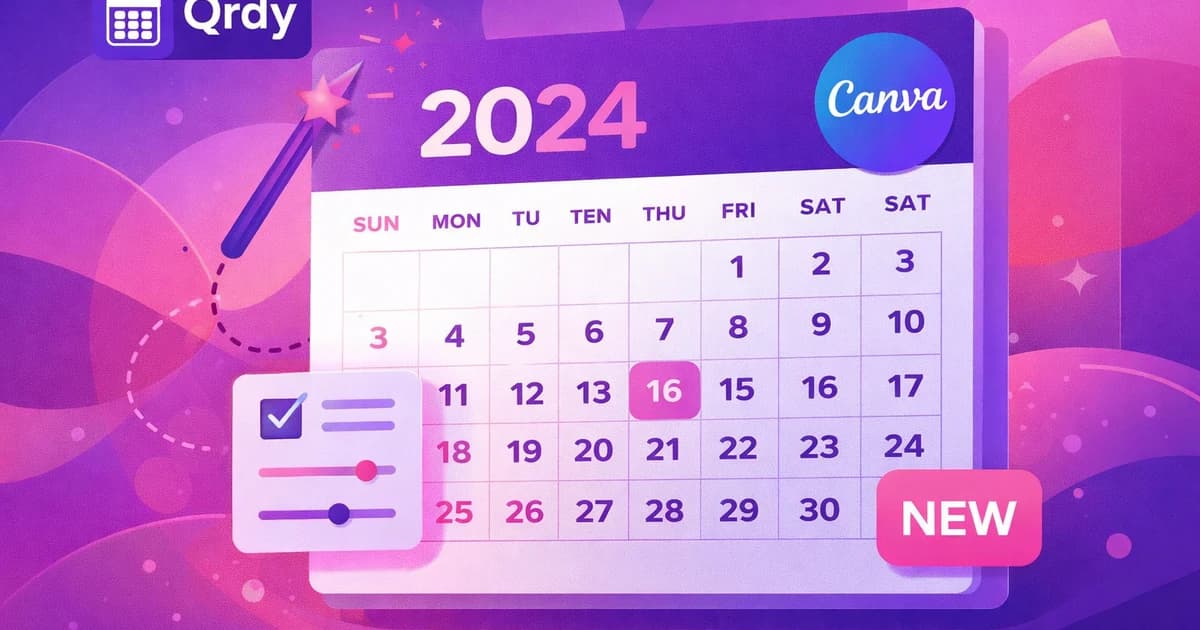
Creating a 2024 wall calendar in Canva can be fast and error-free using Calendar Maker. This app automates the entire process—no more typing out each day by hand. With smart customization and Canva's design tools, you'll have a print-ready calendar in minutes.
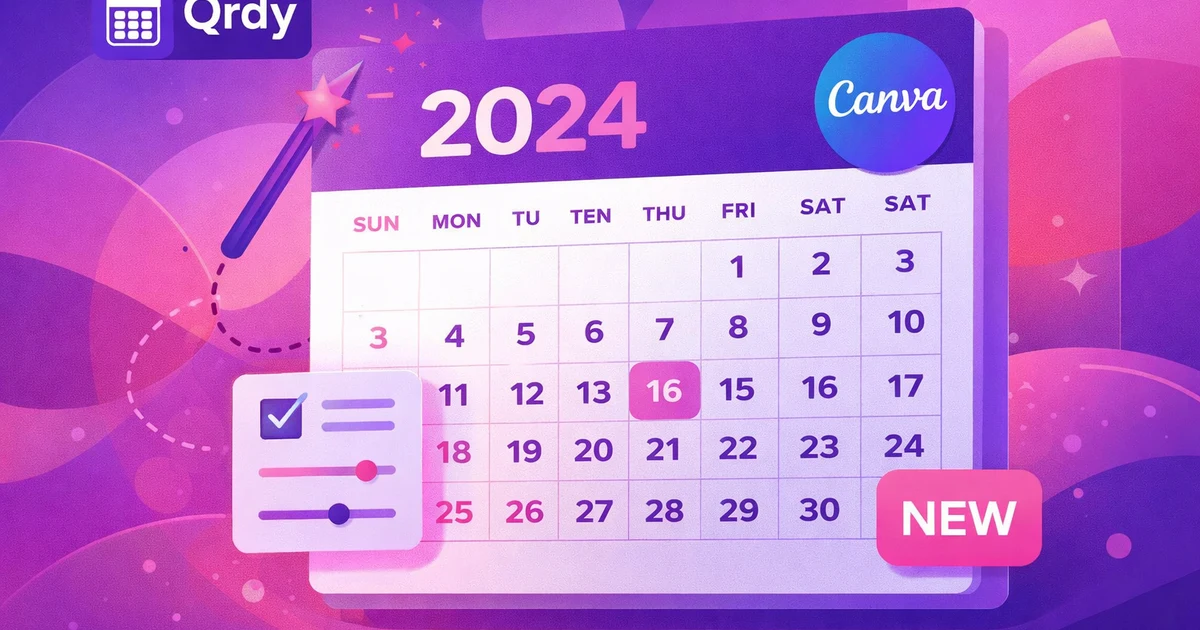
How to create a 2024 wall calendar in Canva using Calendar Maker #
Calendar Maker is a Canva app that lets you generate monthly, weekly, or custom calendars with just a few clicks. Instead of entering every date yourself, you select the year and month (or a custom range), and the app instantly builds a calendar ready to insert into your design. This saves time and significantly reduces the chance of manual errors.
Step-by-step guide to building your 2024 calendar #
- Open Canva and launch Calendar Maker. Search "Calendar Maker" in the Canva app panel.
- Choose your calendar type:
- Monthly calendar: Pick any month and year for a standard grid.
- Weekly planner: Select a start and end date for a week view.
- Custom range: Useful for agendas, content calendars, or unique event schedules.
- Adjust settings:
- Pick whether your week starts on Sunday or Monday to match your region's standard.
- Confirm the date range.
- Insert the calendar:
- Click "Add to design" to place the generated calendar in your Canva project.
- Continue editing your calendar as a Canva element.
Troubleshooting common issues
- Calendar not showing up? Double-check you have the right page selected in your Canva project before clicking "Add to design."
- Dates look off? Make sure the correct year and month are selected in the Calendar Maker settings.
With Calendar Maker, you never have to worry about missing a date or misaligning your days. Every calendar is accurate and formatted to drop straight into your design. For more on calendar creation workflows, check out how to create calendar in Canva.
Tips for customizing your 2024 calendar design in Canva #
Once your calendar is in Canva, you can style it any way you want. Change fonts, colors, and sizes to match your brand or personal taste. Canva's editing tools let you make your calendar unique and professional.
Customizing text and colors #
- Change the font and text size for month names, days, or dates.
- Adjust colors to make weekends, holidays, or special events stand out.
Adding images and decorative elements #
- Add images or icons to highlight important dates or decorate the calendar.
- Insert frames or borders for a polished wall calendar look.
Balancing design and readability #
- Balance design and function: Keep date grids clear and readable, with decorative elements around the edges.
- Try Canva templates: Combine Calendar Maker’s automatic layouts with pre-made Canva calendar templates for faster results.
Highlighting holidays and events
- Mark public holidays: Use colored backgrounds or symbols to make holidays easy to spot.
- Personal events: Add text boxes or icons for birthdays, anniversaries, or special reminders.
Organizing multiple months
- Create a multi-page calendar: Duplicate your design page and generate a new month with Calendar Maker for each page.
- Consistent style: Use Canva’s style copy tools to keep fonts and colors uniform across all months.
Making your calendar stand out
- Use bold headers: Make month and weekday names pop with bold fonts or color blocks.
- Add motivational quotes: Place uplifting quotes in empty grid spaces for extra personality.
A well-designed calendar should be easy to read and visually appealing. Make sure the calendar section stays uncluttered, and use color to guide attention. For more inspiration, read our calendar Canva template tips.

How to prepare and print your 2024 wall calendar from Canva #
To print your calendar, you need to check the size and export settings to ensure sharp, professional results. High-quality prints start with the right file format and layout.
Setting up your calendar for print #
- Set your design size: Choose dimensions that fit standard wall calendar formats (e.g., A3, A4, 11x17 inches).
- Check resolution: Use Canva’s “PDF Print” export for maximum quality.
- Choose the right paper: For best results, use thick, matte, or glossy paper suitable for wall calendars.
- Review margins: Leave enough space around the edges to prevent trimming off important details.
Preparing multi-page calendars for print
- Separate pages: Each month can be a separate page in your Canva project.
- Add page numbers or tabs: Help users navigate multi-month calendars by adding small labels or tabs.
Exporting and printing tips #
- Export your file: Save as PDF for print, or PNG if you need single pages.
- Check color settings: Use CMYK color profiles if your printer supports them, to ensure accurate colors.
Proofing before printing
- Review a digital proof: Double-check for typos, alignment, and color accuracy before printing.
- Test print a single page: Print one page at home to check quality before sending the full calendar to a print shop.
Binding and finishing options
- Choose binding style: Spiral, staple, or hole-punched—pick what works for your wall.
- Consider laminating: For durability, laminate pages or use thicker cover stock.
You can print at home using a high-quality printer, or send your file to a professional print shop. Always review a digital proof before final printing. For a deeper dive, see our calendar Canva print guide.

Why use Calendar Maker instead of manual calendar creation in Canva #
Manually creating calendars in Canva is time-consuming and prone to mistakes. Calendar Maker eliminates these hassles by generating accurate calendar tables instantly. You select the time frame, and the app does the rest—no typing or dragging boxes for each day.
Key advantages of Calendar Maker #
- Save hours: No need to create grids or type out dates.
- Error-free: Dates and weekdays are auto-filled, so you avoid mistakes.
- Supports all formats: Generate monthly, weekly, or custom calendars for any use.
- Easy to customize: The calendar is fully editable once inserted in Canva.
- Flexible layouts: Adjust start-of-week (Sunday or Monday) for regional accuracy.
Comparing manual vs automated calendar creation
- Manual creation: Type each date individually, format grids, and check for mistakes.
- Calendar Maker: Auto-generates layouts, fills in dates, and inserts with one click.
When manual editing makes sense
- Ultra-custom layouts: If you want a completely unique calendar grid, you might still use manual tools for total control.
- Hand-drawn style: For artistic, hand-drawn effects, start with Calendar Maker and then add your own illustrations.
For example, if you need a 12-month 2024 calendar, Calendar Maker builds each month automatically—no copying layouts or checking date accuracy for leap years. For more on this topic, see manual vs automated calendar creation.

Wrapping up: Start your 2024 wall calendar today #
With Calendar Maker, creating a 2024 wall calendar in Canva is simple and fast. You can skip manual date entry, customize every detail, and prepare your design for print with confidence. Ready to get started? Open Canva, launch Calendar Maker, and design your calendar for the new year.
For more tips and troubleshooting, check the FAQ below.
FAQ about creating calendars in Canva with Calendar Maker #
What types of calendars can I create with Calendar Maker? You can generate monthly calendars, weekly planners, or custom date ranges. This covers most use cases from wall calendars to event schedules.
Can I change fonts and colors after inserting the calendar? Yes! Once the calendar is in your Canva design, use Canva’s tools to edit fonts, colors, sizes, and add any decorations you like.
How do I fix alignment or spacing issues? Click on the calendar element and use Canva's resizing and alignment tools. You can also ungroup the calendar for more granular adjustments if needed.
What’s the best file type for printing my wall calendar? Use “PDF Print” from Canva’s export options for the highest quality and correct print dimensions.
Where can I get more help or troubleshooting tips? Check out the Calendar Maker FAQ for answers to common questions and support options.
Ready to try Calendar Maker? #
Calendar Maker là Canva app của QRdy — sinh lịch tháng / tuần / tuỳ chỉnh chỉ bằng vài cú click, chèn thẳng vào Canva cho poster, planner, content calendar.
Frequently asked questions
You can generate monthly calendars, weekly planners, or custom date ranges. This covers most use cases from wall calendars to event schedules.
Yes! Once the calendar is in your Canva design, use Canva’s tools to edit fonts, colors, sizes, and add any decorations you like.
Click on the calendar element and use Canva's resizing and alignment tools. You can also ungroup the calendar for more granular adjustments if needed.
Use “PDF Print” from Canva’s export options for the highest quality and correct print dimensions.
Check out the Calendar Maker FAQ for answers to common questions and support options.
More from QRdy Blog
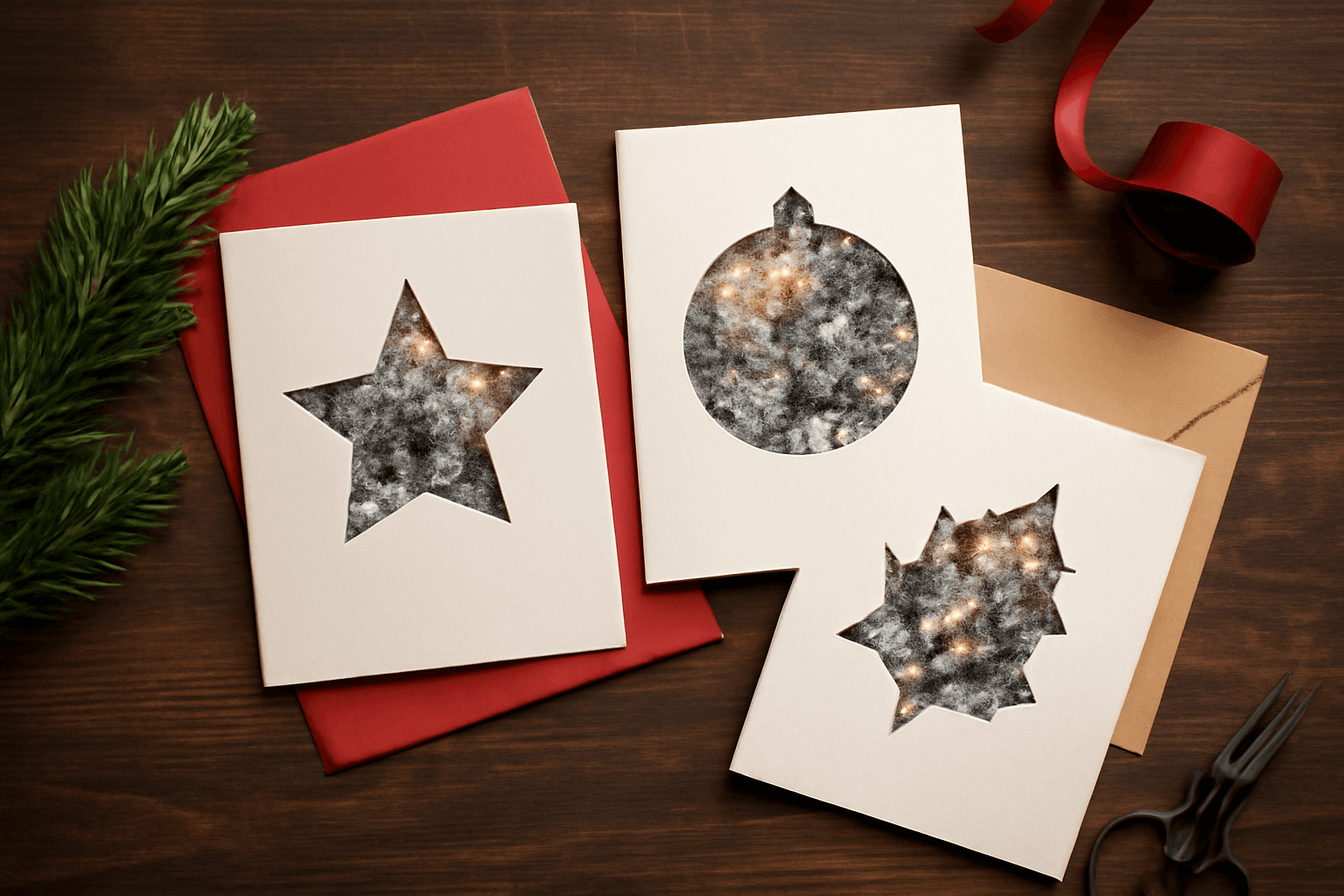
How to Make Photo Christmas Cards in Canva (Step by Step)
A step-by-step guide to designing photo Christmas cards in Canva: shaped photo windows, multi-photo grids, and lettered greetings, plus the card sizes, bleed, and DPI you need for a clean print.
What Is a Triptych? Meaning, Types, and How to Make One in Canva
A triptych is art or a photo split across three panels meant to be seen as one piece. Here's where it came from, how it differs from a diptych, the sizing and spacing rules, and how to lay one out in Canva.
10 Bulletin Board Ideas You Can Make in Canva (Fall, Classroom and Calendar Boards)
10 printable bulletin board ideas for fall and the classroom: monthly calendar boards, photo-filled headline letters, Meet the Class grids, leaf photos, countdowns and more, all designed in Canva.