
How to manage dynamic QR codes in Canva with Qrdy Dynamic QR
Discover how to create and manage dynamic QR codes in Canva with Qrdy Dynamic QR. Update destinations after printing and track scans effortlessly.
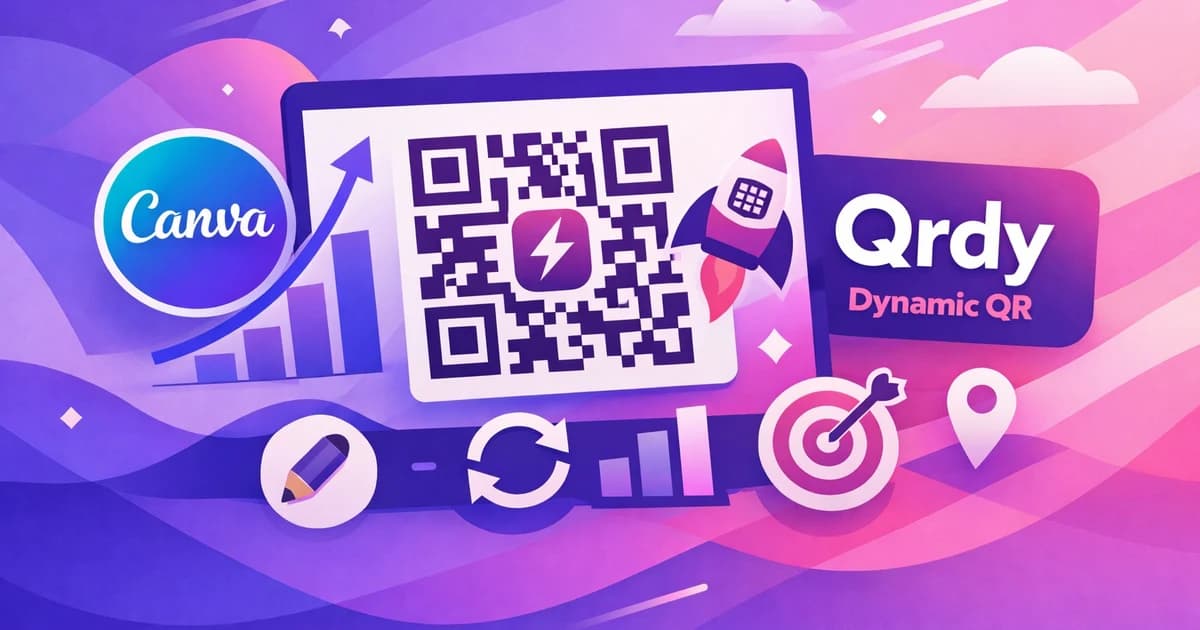
Managing dynamic QR codes in Canva is fast and flexible with Qrdy Dynamic QR. You can create, update, and track QR codes directly inside your Canva designs—no need for separate tools. Here’s how to unlock the full power of dynamic QR code management in Canva for your marketing and print projects.
What is dynamic QR code management in Canva? #
Dynamic QR code management in Canva means you can create QR codes whose destination or content can be changed even after printing. Unlike static QR codes, dynamic QR codes let you update the linked URL or action without reprinting or redesigning your materials. Qrdy Dynamic QR is a Canva app that brings this functionality directly into your design workflow.
With Qrdy Dynamic QR, you can:
- Change where your QR code leads, anytime, even after printing.
- Track scan analytics, including device type and location.
- Manage all your QR codes from one dashboard, right inside Canva.
This saves time and money for creators, small businesses, and marketers. The process is seamless: just add a QR, customize, and stay in control. Learn more in How to create dynamic QR codes in Canva.
Key features of dynamic QR code management #
- Editable destinations: Update the URL or content post-printing.
- Analytics dashboard: See scan data in real time.
- Design integration: Build and manage all within Canva.
Static vs. dynamic QR codes
- Static QR codes: Once printed, the destination can't be changed. Any update requires a new code and reprinting.
- Dynamic QR codes: You can update the destination anytime, saving on print costs and keeping your materials relevant.
How to create and customize dynamic QR codes in Canva using Qrdy Dynamic QR #
Creating a dynamic QR code in Canva is simple with Qrdy Dynamic QR. The app lets you generate a QR, customize its look, and set its destination—all inside Canva. Here’s how:
- Open Canva and add Qrdy Dynamic QR: Search for Qrdy Dynamic QR in the Canva app directory and launch it.
- Choose your QR type: Options include website links, app store links (with smart routing), phone numbers, and WiFi credentials.
- Customize your QR code:
- Change colors to match your brand.
- Add your logo to the center.
- Select dot styles, frames, and backgrounds.
- Connect your Qrdy account: Sync with your Qrdy account for full management and analytics. This step ensures you can edit QR destinations later.
- Insert the QR into your design: Drag and drop the styled QR code directly onto your Canva project.
- Export or print: Your dynamic QR is now ready—update its destination or track scans at any time.
Design tips for effective QR codes #
- Use contrasting colors for scan reliability.
- Place QR codes where they’re easy to see and scan.
- Test the QR in print proofs before mass production.
Customization options in Qrdy Dynamic QR
- Adjust size and shape to fit your design.
- Add a call-to-action near your QR code for better engagement.
- Preview your QR code in different backgrounds before finalizing.
Building QR codes directly in Canva saves you from switching tools and ensures perfect fit with your design. See the full walkthrough in Dynamic QR code creation tutorial.
How to update QR code destinations after printing without reprinting #
Dynamic QR codes let you change their destination after your materials are printed. With Qrdy Dynamic QR, this update is just a few clicks away—no need to reprint anything.
Steps to update a QR code destination #
- Log in to your Qrdy dashboard (accessible from Canva or web).
- Find the QR code you want to edit.
- Update the URL, phone number, WiFi info, or app store link.
- Save changes. The physical QR on your posters, menus, or flyers will now redirect to the new destination.
Tips for managing updates efficiently
- Keep a list of all printed materials with QR codes for easy tracking.
- Test the updated QR code on multiple devices after making changes.
- Schedule regular reviews of your QR codes to ensure links stay current.
This flexibility saves significant printing costs and lets you react to new offers, menu items, or contact changes instantly. Static QR codes, by contrast, are locked once printed—you’d need to generate and print new codes for any update.
Common use cases for updating QR destinations #
- Rotating your promotional links or coupons.
- Updating event schedules or menus.
- Changing contact info or business hours on printed materials.
With Qrdy Dynamic QR, destination changes are synced instantly, keeping your printed assets up to date.
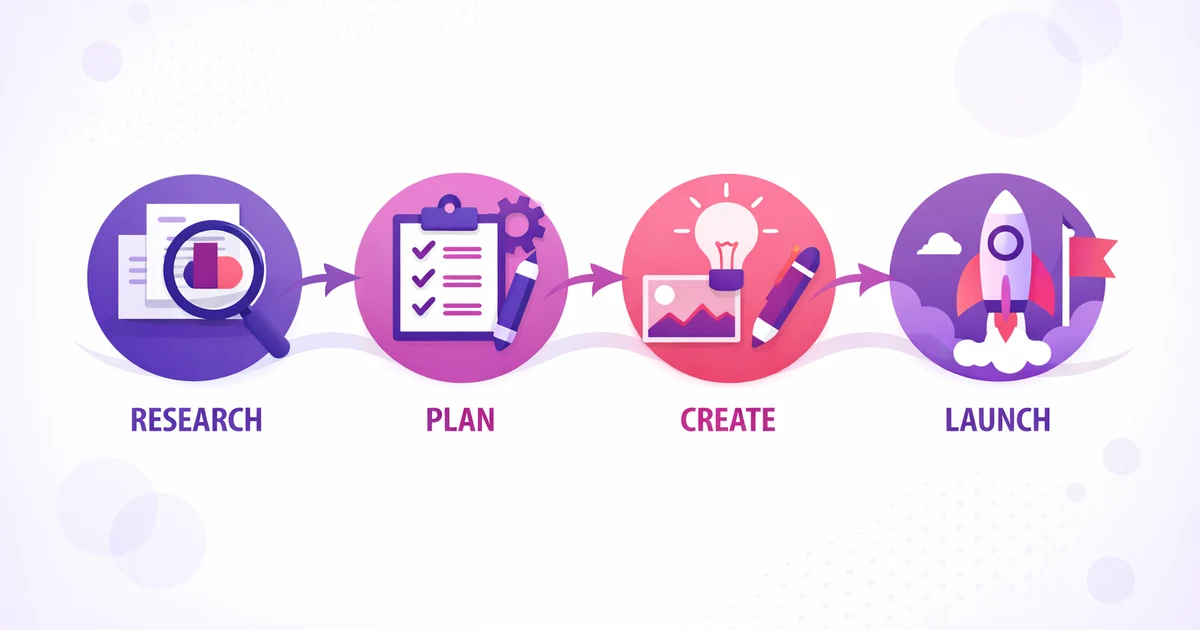
Learn more in Edit QR code destination tutorial.
Tracking and analyzing QR code scans with Qrdy Dynamic QR #
Qrdy Dynamic QR gives you real-time analytics for every QR code you create. You can monitor how often your codes are scanned, which devices are used, and where your audience is located.
What analytics can you track? #
- Total and daily scan counts.
- Device breakdown: iOS, Android, desktop.
- Geographic distribution of scans.
Using analytics to improve your campaigns
- Identify which designs or placements get the most scans.
- Adjust your marketing based on device and location data.
- Set goals for scan rates and track progress over time.
How to access your scan analytics #
- Open the Qrdy dashboard from Canva or web.
- Select any QR code to see its scan statistics and trends.
For marketers and small business owners, these insights help measure campaign effectiveness and optimize placement. Pro users get advanced reports—compare different campaigns, spot trends, and refine your strategy for better results.

Read more in Qrdy Dynamic QR analytics.
Benefits of using Qrdy Dynamic QR for small businesses and marketers in Canva #
Using Qrdy Dynamic QR in Canva streamlines your workflow and gives you marketing superpowers. Here are the biggest benefits:
Top advantages for creators and businesses #
- Save on printing: Change QR content after printing—no wasted materials.
- Track performance: Get analytics to see what works and where to improve.
- Simple integration: Create and manage QR codes inside Canva—no platform switching.
- Smart routing: Direct users to the right app store or website based on device.
- Flexible use: Perfect for F&B, salons, retail, events, and more.
- Support for multiple QR types: Link, WiFi, phone, app store, and more.
How Qrdy Dynamic QR fits different business needs
- Restaurants: Update menus or promotions instantly.
- Retail: Track which flyers drive the most traffic.
- Events: Change schedules or speaker info on the fly.
For more ways to boost your business with QR codes, see QR code marketing tips for small businesses.
FAQ about dynamic QR code management in Canva with Qrdy Dynamic QR #
Can I edit the content of a dynamic QR code after printing?
Yes, with Qrdy Dynamic QR, you can update the destination at any time. Your printed QR codes stay valid and point to the new content instantly.
How do I track QR code scans?
Qrdy Dynamic QR provides real-time analytics for each QR code. Access your dashboard to view scan counts, device types, and locations.
Can I create dynamic QR codes directly in Canva?
Absolutely. Qrdy Dynamic QR is built for Canva, letting you generate and customize dynamic QR codes without leaving your design.
What does Qrdy Dynamic QR cost?
There is a free Starter plan for basic use. The Pro plan unlocks unlimited QR codes and advanced analytics for $5/month.
How do I update a QR code destination after printing?
Log in to your Qrdy dashboard, select the QR code, and change the destination. Your physical QR code will redirect to the new link immediately.
What types of QR codes does Qrdy Dynamic QR support?
You can create QR codes for website links, app stores (with smart routing), phone calls, and WiFi sharing—all directly in Canva.
For more answers, check out Dynamic QR code FAQs.
Conclusion #
Qrdy Dynamic QR makes managing dynamic QR codes in Canva easy, flexible, and powerful. You can create, customize, update, and track QR codes without leaving your design. This saves time, reduces costs, and helps you stay agile with your print and digital marketing. Try it out on your next Canva project and see how much simpler QR code management can be.
Ready to try Qrdy — Dynamic QR? #
Qrdy là mã QR động giá phải chăng ($5/tháng), cài thẳng trong Canva, cho phép đổi nội dung sau khi in và theo dõi lượt quét chi tiết.
Frequently asked questions
Yes, with Qrdy Dynamic QR, you can update the destination at any time. Your printed QR codes stay valid and point to the new content instantly.
Qrdy Dynamic QR provides real-time analytics for each QR code. Access your dashboard to view scan counts, device types, and locations.
Absolutely. Qrdy Dynamic QR is built for Canva, letting you generate and customize dynamic QR codes without leaving your design.
There is a free Starter plan for basic use. The Pro plan unlocks unlimited QR codes and advanced analytics for $5/month.
Log in to your Qrdy dashboard, select the QR code, and change the destination. Your physical QR code will redirect to the new link immediately.
You can create QR codes for website links, app stores (with smart routing), phone calls, and WiFi sharing—all directly in Canva.
More from QRdy Blog

What Is a Triptych? Meaning, Types, and How to Make One in Canva
A triptych is art or a photo split across three panels meant to be seen as one piece. Here's where it came from, how it differs from a diptych, the sizing and spacing rules, and how to lay one out in Canva.
10 Bulletin Board Ideas You Can Make in Canva (Fall, Classroom and Calendar Boards)
10 printable bulletin board ideas for fall and the classroom: monthly calendar boards, photo-filled headline letters, Meet the Class grids, leaf photos, countdowns and more, all designed in Canva.

Serif vs Sans Serif: What's the Difference, and Which Font Should You Use?
Serif fonts have small strokes at the ends of their letters; sans serif fonts don't. Here's what that changes for readability, print, screens and pairing — and why heavy sans serifs win when you put photos inside letters.