
How to create dynamic QR codes in Canva with Qrdy
Discover how to create and edit dynamic QR codes directly in Canva with Qrdy Dynamic QR. Customize your QR codes and track scans without reprinting.
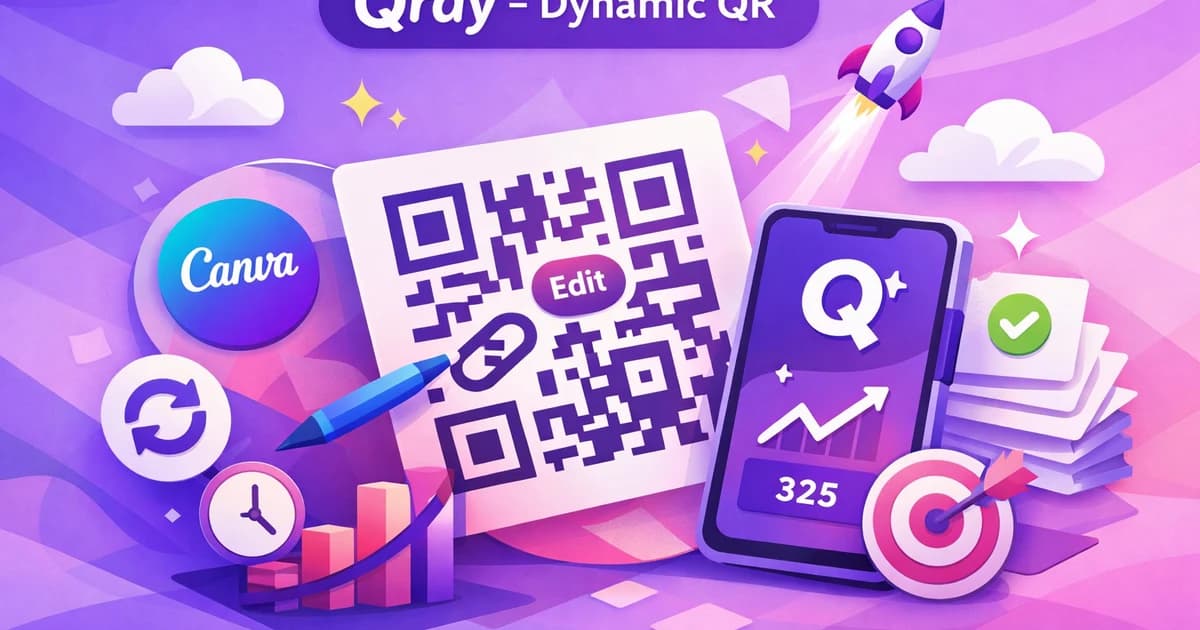
Dynamic QR codes let you update the destination link even after printing, making them perfect for flexible marketing. With Qrdy Dynamic QR, you can create, customize, and track dynamic QR codes directly inside Canva—no extra tools needed.
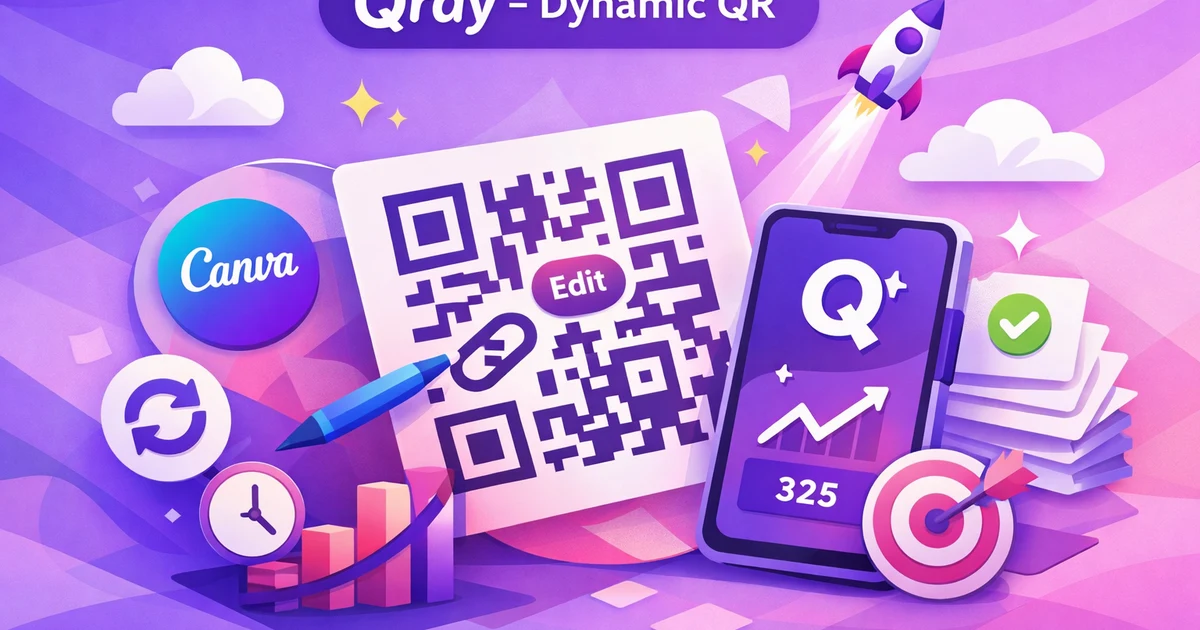
What are dynamic QR codes and why use Qrdy in Canva? #
Dynamic QR codes are QR codes where you can change the destination link or content even after printing or publishing. Unlike static QR codes—where the embedded link is permanent—dynamic QR codes let you update, redirect, or track your campaigns at any time.
Using Qrdy Dynamic QR in Canva brings these advantages right into your design workflow:
- Update the QR code destination after your materials are printed.
- Track scans in real time, including location, device, and total counts.
- Work directly inside Canva, so you never have to leave your design.
- Create more effective marketing campaigns with editable, brand-ready QR codes.
For a deeper dive on marketing with QR codes, check out our QR code marketing tips.
Step-by-step tutorial to create and edit dynamic QR codes in Canva #
Creating dynamic QR codes in Canva with Qrdy is fast and simple. Here’s how to do it:
- Install Qrdy Dynamic QR in Canva
- Open Canva and go to the "Apps" section.
- Search for "Qrdy Dynamic QR" and add it to your workspace.
- Launch the Qrdy app inside your design
- Open your Canva design.
- Click "Apps" and select "Qrdy Dynamic QR."
- Create a new dynamic QR code
- Choose the QR type: Website link, App Store, WiFi, or Phone.
- Enter your destination link or info.
- Qrdy generates a dynamic QR code instantly.
- Customize your QR code
- Select colors, add your logo, change dot style, or add a frame.
- Preview changes live.
- Insert the QR code into your Canva design
- Drag and drop your customized QR code wherever needed.
- Resize or adjust as you would with any Canva element.
- Export or print your design
- Download or print as usual. The QR code remains dynamic.
- Edit the QR code destination after printing (optional)
- Log in to your Qrdy dashboard (via web or Canva app).
- Select the QR code and update its destination link—no reprinting required.
For more details on working with Canva apps, see how to use Canva apps.
How to customize the look of your dynamic QR codes for branding #
Qrdy lets you fully style your QR codes to match your brand identity. Custom QR codes look more professional and increase scan rates.
You can customize:
- Colors: Match your brand palette or campaign theme.
- Logo: Place your logo in the center for instant brand recognition.
- Dot style: Choose from classic, rounded, or creative dot shapes.
- Frame: Add a border or frame to make your QR code stand out.
Tips for design:
- Use high-contrast color combinations for scan reliability.
- Choose a logo that’s simple and clear, so it’s readable at small sizes.
- Preview your QR code—avoid over-customizing, which can make scanning difficult.
- Use Qrdy’s QR Styler tool for unique, branded QR codes.
For more inspiration, check out our post on branding with QR codes.

Update QR code destination after printing without reprinting #
With Qrdy Dynamic QR, you can change the destination of your QR code anytime—even after your flyers, posters, or menus are printed. This saves money and time, letting you reuse the same printed codes for new promotions or updates.
How to update a QR code’s destination:
- Log in to your Qrdy dashboard.
- Find the QR code you want to update.
- Edit the destination link or info.
- Save changes—the physical QR code instantly points to the new content.
Real-life examples:
- Change a restaurant menu QR from "Lunch Specials" to "Dinner Offers."
- Update event flyers with new registration links.
- Switch a QR on packaging from product info to a seasonal campaign.
This flexibility is something static Canva QR codes can’t match. For more, see the benefits of dynamic QR codes.

Tracking and analyzing QR code scans with Qrdy dashboard #
Qrdy provides real-time analytics for every dynamic QR code you create. This lets you measure campaign performance and optimize your marketing.
Key metrics you can track:
- Total scans
- Device type (iOS, Android, desktop)
- Geographic location
- Time and date trends
How to access analytics:
- Open your Qrdy dashboard (in web or Canva app)
- Select the QR code to view detailed stats
- Use insights to adjust your campaigns for better results
Marketers and small business owners can use this data to:
- See which locations or materials drive the most engagement
- Identify peak times for scanning
- Fine-tune offers for different audiences
Learn more about QR code reporting in our QR code analytics post.

Combining Qrdy Dynamic QR with Canva design elements for marketing materials #
Integrating Qrdy Dynamic QR into your Canva designs is easy and effective for marketing materials like posters, menus, brochures, and packaging.
Creative ideas:
- Place a branded QR in a prominent spot on your poster or flyer.
- Use a custom frame or color to match your campaign theme.
- Add a call-to-action ("Scan for today’s deal!") for higher engagement.
- Layer the QR over background graphics, but keep enough contrast for scanning.
Benefits:
- Maintain brand consistency across all marketing assets.
- Quickly update QR code destinations as campaigns change.
- Design once—use everywhere, online and offline.
Try experimenting with Canva’s text and shape tools to make your QR code both functional and visually appealing. For more inspiration, read about creative QR code uses.

Common mistakes to avoid when using dynamic QR codes in Canva #
Dynamic QR codes are powerful, but a few simple mistakes can reduce their effectiveness. Here’s what to watch for:
- Low contrast: Always use a strong contrast between the QR code and background for reliable scanning.
- Over-customization: Too many design elements can interfere with scanability. Keep it clean and simple.
- Tiny logos: If you add a logo, make sure it’s large enough to be recognizable but not so big it blocks the code.
- No call-to-action: Tell users what to expect when they scan. A simple prompt like “Scan for menu” increases engagement.
- Forgetting to test: Always scan your QR code with multiple devices before printing or publishing.
By avoiding these pitfalls, you’ll ensure your dynamic QR codes work smoothly in every campaign.
Conclusion: Start designing with Qrdy Dynamic QR in Canva #
Dynamic QR codes give you flexibility and control over your printed and digital materials. With Qrdy Dynamic QR, you can create, customize, and track QR codes—all inside Canva. Ready to try it? Install Qrdy Dynamic QR in Canva, design your first dynamic QR, and see how easy it is to update links and track results.
For more tips and tutorials, explore the Qrdy blog or reach out to support if you have questions. Simple. One tap. Done.
FAQ: creating and managing dynamic QR codes in Canva with Qrdy #
How is Qrdy Dynamic QR different from Canva’s built-in QR code tool?
Qrdy Dynamic QR lets you update the destination link and track scans after printing—Canva’s built-in QR tool creates static codes that can’t be edited or tracked.
What types of QR codes can I create with Qrdy Dynamic QR?
You can create dynamic QR codes for website links, App Store/Google Play, WiFi access, phone numbers, and smart links with device-based routing.
Can I customize the look of my QR codes?
Yes! Qrdy allows you to change colors, add your logo, choose dot style, and add a frame—all directly inside Canva.
How do I edit the QR code’s destination after exporting my design?
Log in to your Qrdy dashboard, select the QR code, and update the destination. No need to reprint your materials.
Is Qrdy Dynamic QR free to use?
Qrdy offers a free Starter plan with basic features. For advanced customization and analytics, upgrade to Pro for $5/month.
Where can I access analytics for my QR codes?
All tracking stats are available in the Qrdy dashboard, accessible from both Canva and the web.
For a deeper overview, see our introduction to Qrdy Dynamic QR.
Ready to try Qrdy — Dynamic QR? #
Qrdy là mã QR động giá phải chăng ($5/tháng), cài thẳng trong Canva, cho phép đổi nội dung sau khi in và theo dõi lượt quét chi tiết.
Frequently asked questions
Qrdy Dynamic QR lets you update the destination link and track scans after printing—Canva’s built-in QR tool creates static codes that can’t be edited or tracked.
You can create dynamic QR codes for website links, App Store/Google Play, WiFi access, phone numbers, and smart links with device-based routing.
Yes! Qrdy allows you to change colors, add your logo, choose dot style, and add a frame—all directly inside Canva.
Log in to your Qrdy dashboard, select the QR code, and update the destination. No need to reprint your materials.
Qrdy offers a free Starter plan with basic features. For advanced customization and analytics, upgrade to Pro for $5/month.
All tracking stats are available in the Qrdy dashboard, accessible from both Canva and the web.
More from QRdy Blog

Serif vs Sans Serif: What's the Difference, and Which Font Should You Use?
Serif fonts have small strokes at the ends of their letters; sans serif fonts don't. Here's what that changes for readability, print, screens and pairing — and why heavy sans serifs win when you put photos inside letters.

The Best Canva Apps for Gift Tags (2026)
Gift tag season starts earlier than you think. Here are five Canva apps that make custom photo tags, decorative borders, name tags and QR tags faster than building each one by hand — plus what Canva already does well on its own.
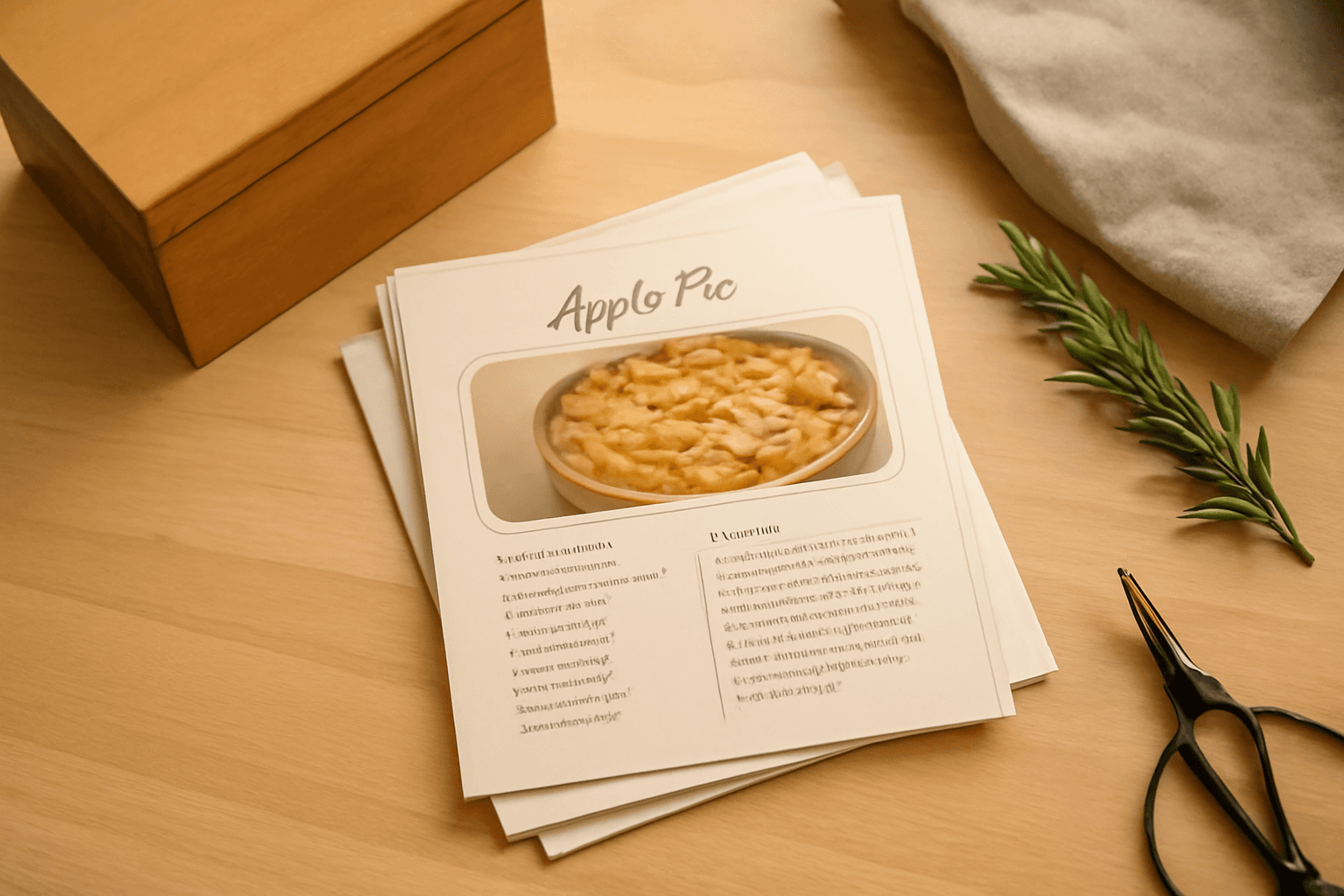
How to Make Recipe Cards in Canva (Printable 4×6, with Photos)
A step-by-step guide to designing printable recipe cards in Canva: the right card size, a layout that still reads in a messy kitchen, a photo frame that isn't a plain rectangle, and how to print and cut a whole set at home.