
How to create dynamic QR codes in Canva using Qrdy Dynamic QR
Discover how to create dynamic QR codes in Canva using Qrdy Dynamic QR. Update your QR code destination anytime after printing and track scans effortlessly.
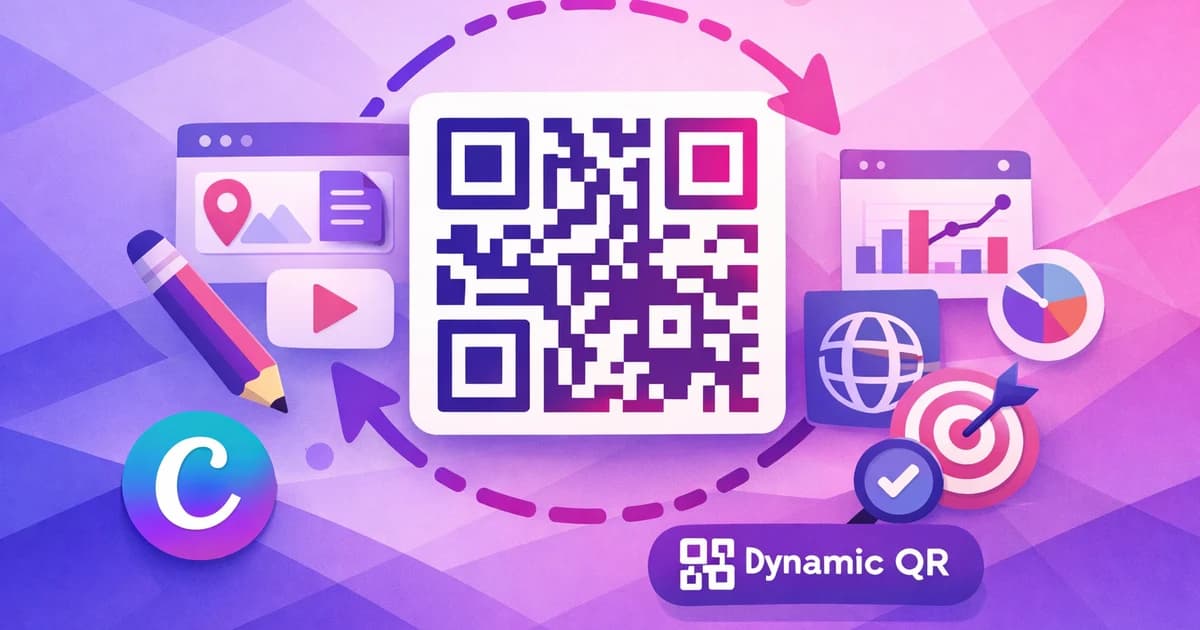
Dynamic QR codes in Canva unlock flexibility and analytics that regular QR codes can't match. With Qrdy Dynamic QR, you can update your QR code’s destination after printing and track every scan — all without leaving Canva. Here’s why this matters, and how to get started with the Qrdy Dynamic QR app.
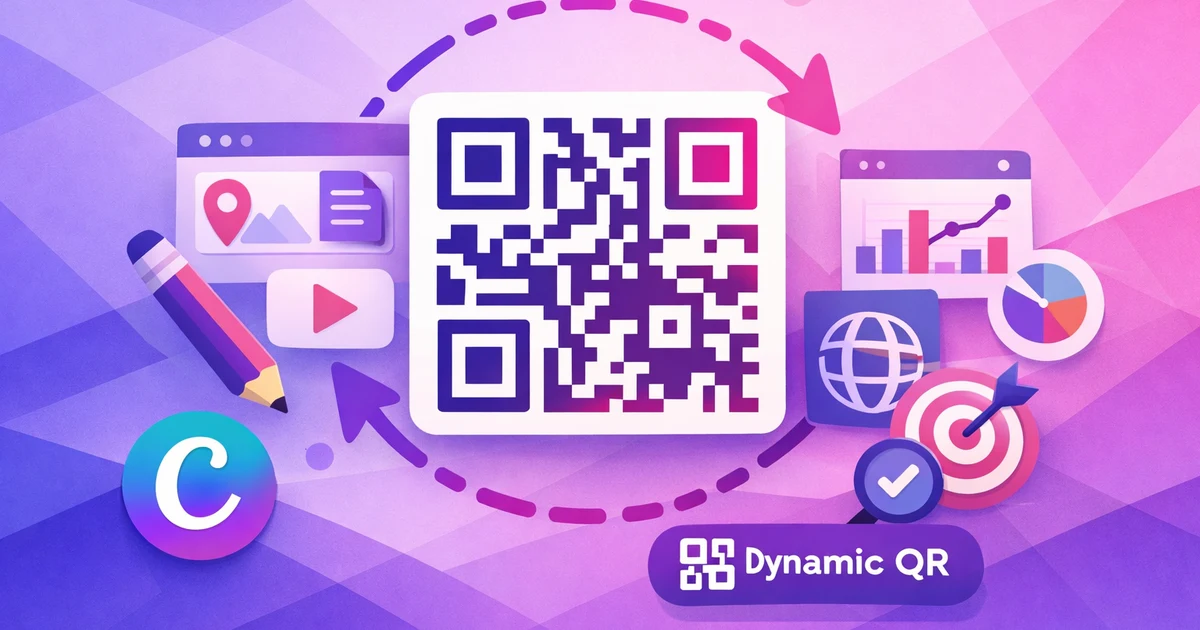
What is a dynamic QR code in Canva and why use Qrdy Dynamic QR? #
A dynamic QR code in Canva is a QR that lets you change its destination or content anytime, even after printing. Unlike static QR codes, which are fixed once created, dynamic codes stay flexible. Qrdy Dynamic QR lets you generate dynamic QR codes right inside Canva and update them from the Qrdy dashboard later.
Static vs. dynamic QR codes #
Static QR codes in Canva can't be edited after export — if your link changes, you need to reprint everything. Qrdy Dynamic QR solves this by keeping the QR code itself unchanged while letting you update the linked content. Plus, you get scan tracking to measure campaign performance. For more ways QR codes drive results, check out our QR code marketing tips.
Step-by-step guide to creating dynamic QR codes in Canva with Qrdy #
Getting started with Qrdy Dynamic QR in Canva is simple. Here’s how to add a dynamic QR code to your design:
Install and open Qrdy Dynamic QR in Canva #
- Install and open Qrdy Dynamic QR in Canva.
- Find "Qrdy Dynamic QR" in Canva’s app directory and add it to your workspace.
Create and customize your dynamic QR code #
- Create a new dynamic QR code.
- Choose the QR type: Website URL, QrdyLink (smart link), WiFi, or phone number.
- Customize your QR code’s look.
- Adjust colors, add your logo, pick dot shapes, and select a frame style.
Add your QR code to your Canva design #
- Insert the QR code into your Canva design.
- Drag and drop the generated QR onto your page.
- Export or print your design as usual.
You can manage and edit your QR code’s destination anytime from your Qrdy dashboard, even after your design has been printed. For Canva newcomers, see our Canva tips for beginners to make the most of your layouts.
How to edit and update dynamic QR codes after printing #
Dynamic QR codes shine when you need to change destinations after printing. Simply log in to your Qrdy dashboard to access all your QR codes. Choose the code you want to update, then change the URL, phone number, or other content as needed.
Benefits of updating after printing #
There’s no need to reprint your materials — the QR code on your poster, menu, or flyer will automatically send scanners to your new destination. This saves money and waste, and keeps your marketing effective. For example, update a promo link, swap out a seasonal menu, or change contact details in seconds. Changes take effect instantly, so anyone scanning the old QR code gets the new info. Learn more in our guide to update QR code content.
Tracking and analytics features of Qrdy Dynamic QR #
Qrdy Dynamic QR offers built-in analytics so you can track every scan. See total scans, trends over time, device types (iOS, Android, desktop), and even region data. All this is available from your Qrdy dashboard.
Using analytics to improve your campaigns #
Use these insights to optimize campaigns and understand your audience. For example, if you see more scans from mobile, refine your landing page for smartphones. Static QR codes don’t offer this level of tracking — only dynamic QR codes let you see what’s working and improve over time. Dive deeper into scan data with our QR code analytics article.

Design tips for integrating dynamic QR codes seamlessly in Canva projects #
To make your dynamic QR codes both beautiful and functional in Canva, follow these tips:
Placement and sizing #
- Position smartly: Place QR codes where they’re easy to see and scan, but don’t overcrowd your design (bottom right or center often works well).
- Size matters: Ensure the QR code is big enough to scan easily (at least 2 cm x 2 cm for print).
Branding and customization #
- Match your style: Use Qrdy’s color and frame options to blend the QR with your branding.
- Add your logo: Including a logo in the QR code increases trust and brand recognition.
Testing before publishing #
- Test before printing: Always scan your QR in draft designs to confirm it works.
These tips work for posters, menus, brochures, and any marketing material. For more inspiration, check out our design tips for marketing materials.
Common problems with QR code expiration and how Qrdy solves them #
Static QR codes or outdated redirect links can expire, breaking your user journey and hurting your campaigns. When a QR code expires, customers can’t reach your site or offer, leading to missed opportunities and wasted print costs.
How Qrdy Dynamic QR prevents expiration issues #
Qrdy Dynamic QR eliminates this issue — you can update the destination anytime, so your QR code never goes stale. This flexibility saves time and money, and helps maintain customer trust. For example, a restaurant can update their menu link without reprinting table cards, or a shop can change promo links without replacing posters. This prevents lost customers due to expired codes. Read more about these challenges in QR code expiration issues.

More ways to use dynamic QR codes in your Canva designs #
Dynamic QR codes aren’t just for marketing. You can use them for event check-ins, digital menus, quick downloads, business cards, and more.
Creative use cases #
- Add a QR code to a classroom handout for easy resource sharing.
- Put one on an event badge for fast attendee management.
- Use on business cards to provide up-to-date contact info.
The flexibility means you can update the destination as your needs change—no need to reprint. This makes Qrdy Dynamic QR a practical tool for teachers, event planners, and anyone who wants to keep their printed materials up to date without extra hassle.
Conclusion: Why try Qrdy Dynamic QR for Canva? #
Dynamic QR codes give you freedom and control that static codes can’t. With Qrdy Dynamic QR, you can update your QR’s destination anytime, track scans, and keep your printed materials up to date with just a few clicks. It’s a simple way to future-proof your marketing and make your Canva designs work harder for you. Try Qrdy Dynamic QR to see how easy it is to manage and update QR codes in all your Canva projects.
FAQ about creating and managing dynamic QR codes in Canva #
How do I create a free dynamic QR code in Canva with Qrdy? You can use the Starter plan of Qrdy Dynamic QR for free in Canva, which allows you to create and customize dynamic QR codes and track basic scans.
Can I edit my QR code’s destination after printing? Yes. With Qrdy Dynamic QR, you can update the destination or content anytime from your dashboard, even after the code is printed.
Does Qrdy Dynamic QR support scan tracking? Absolutely. The dashboard provides analytics on scans, including total scans, device types, regions, and trends over time.
How do I add a QR code to my Canva design? Open the Qrdy Dynamic QR app inside Canva, generate your dynamic QR code, and drag it directly into your design.
What does Qrdy Dynamic QR cost? Qrdy offers a free Starter plan and an affordable Pro plan at $5/month, which unlocks unlimited QR codes, advanced analytics, and extra customization features.
For more answers, see our QR code FAQ.
Ready to try Qrdy — Dynamic QR? #
Qrdy là mã QR động giá phải chăng ($5/tháng), cài thẳng trong Canva, cho phép đổi nội dung sau khi in và theo dõi lượt quét chi tiết.
Frequently asked questions
You can use the Starter plan of Qrdy Dynamic QR for free in Canva, which allows you to create and customize dynamic QR codes and track basic scans.
Yes. With Qrdy Dynamic QR, you can update the destination or content anytime from your dashboard, even after the code is printed.
Absolutely. The dashboard provides analytics on scans, including total scans, device types, regions, and trends over time.
Open the Qrdy Dynamic QR app inside Canva, generate your dynamic QR code, and drag it directly into your design.
Qrdy offers a free Starter plan and an affordable Pro plan at $5/month, which unlocks unlimited QR codes, advanced analytics, and extra customization features.
More from QRdy Blog

The Best Canva Apps for Graduation Announcements (2026)
Graduation announcements have to survive being shrunk to a five-by-seven and handled by fifty relatives. Here are the Canva apps that make a cap-shaped photo, a photo-filled headline, and a real four-year collage possible — plus an honest look at what Canva already covers for free.

How to Make Photo Christmas Cards in Canva (Step by Step)
A step-by-step guide to designing photo Christmas cards in Canva: shaped photo windows, multi-photo grids, and lettered greetings, plus the card sizes, bleed, and DPI you need for a clean print.

What Is a Triptych? Meaning, Types, and How to Make One in Canva
A triptych is art or a photo split across three panels meant to be seen as one piece. Here's where it came from, how it differs from a diptych, the sizing and spacing rules, and how to lay one out in Canva.