
The Best Canva Apps for Students (2026)
Class schedules, revision posters, group project boards and society flyers — six Canva apps that save students real time, plus an honest look at what Canva already does for free.
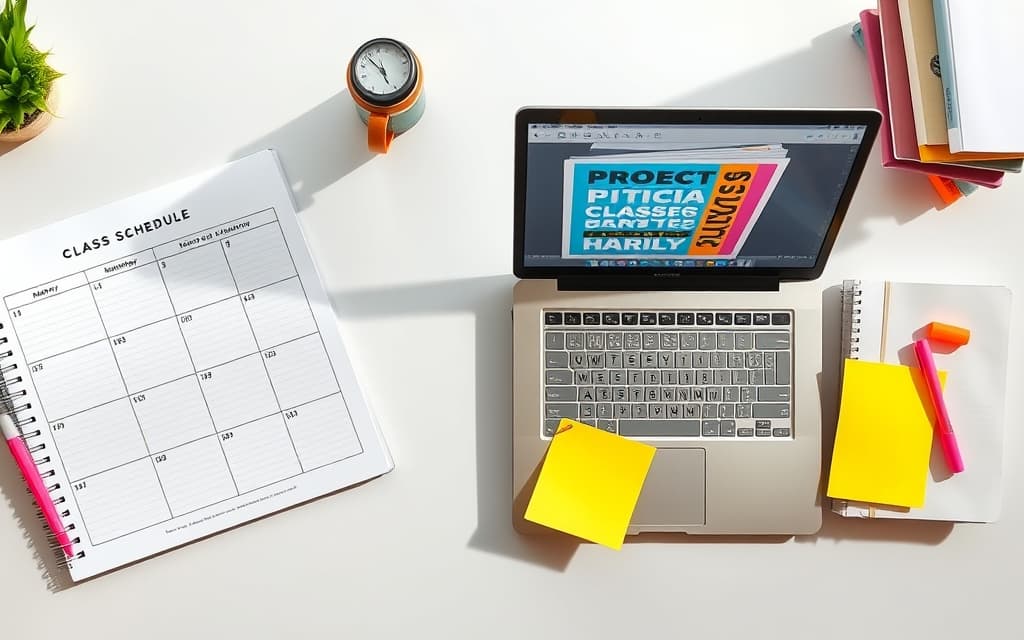
Most students already open Canva for the obvious stuff — a slide deck, a club poster, a CV. What eats the time is the fiddly work around it: drawing a timetable cell by cell, cropping twelve photos into neat squares for a group project board, making a title that doesn't look like every other title in the room.
Canva apps are small tools that run inside the Canva editor sidebar and handle exactly that kind of repetitive work. Here are the six worth installing at the start of a semester, what each one actually does, and where Canva already covers you for free.
Quick pick #
| If you need to… | Use | Why |
|---|---|---|
| Build a class timetable or semester planner | Calendar Maker | Generates a real dated grid — you never type a date |
| Turn revision notes into a visual | Text Shape | Word list in, shaped word cloud out |
| Lay out a project poster or photo board | Frames Lab | Arc, grid, burst and diagonal photo frames that auto-fit the page |
| Make a title with photos inside the letters | Text to Frames | Each letter becomes its own Canva frame |
| Put a photo inside a custom shape or logo | Image to Frame | Converts your PNG/SVG into a usable frame |
| Pick colours that don't clash | Color Harmony | Palettes generated from colour theory, applied in one click |
1. Calendar Maker — timetables, semester planners, deadline grids #
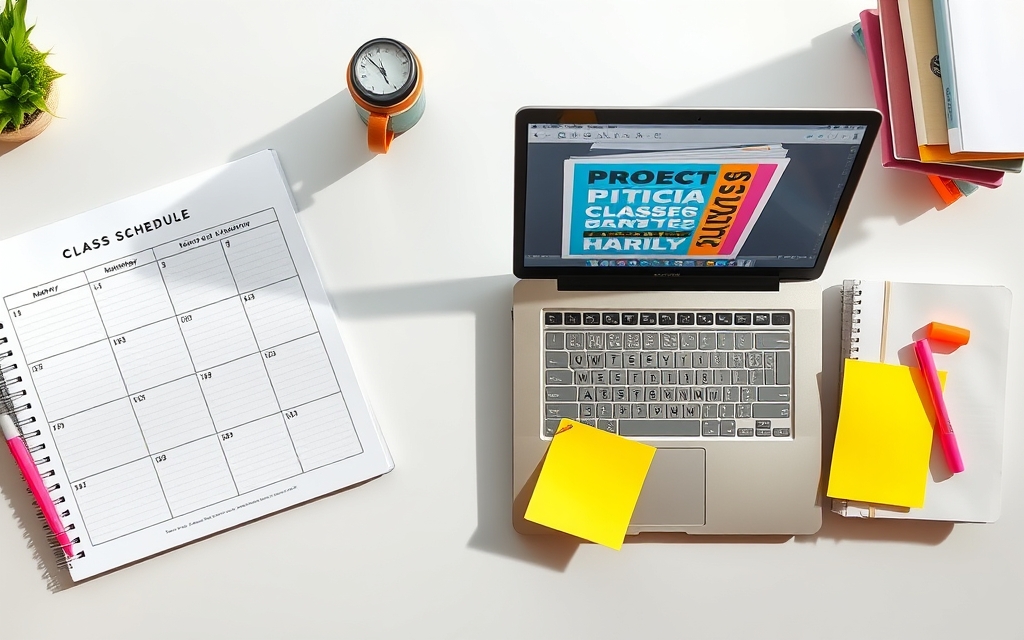
This is the one that saves the most hours, and it's the least glamorous. Calendar Maker generates a dated calendar table and drops it straight into your open design. Three tabs cover the three things students actually build:
- Week — the timetable. Tick which days appear (Monday to Sunday, at least one), set Number of rows anywhere from 1 to 27 so each day has enough empty cells for periods or study blocks, and turn on Shorten labels to get "Mon" instead of "Monday" when space is tight.
- Month — the deadline calendar. Pick a month and year (anywhere in a ±10-year window), or tick Add all months to generate all twelve at once, with Each month on its own page for a full-year planner.
- Custom — a date range that ignores month boundaries. Useful for exam season or a dissertation timeline. Maximum span is 150 days; go over and the app flags it right on the date field.
Everything is styleable before you insert it: font, bold/italic/underline, alignment, size on a 1–100 slider, text colour, a header-bar colour and two alternating row colours. There are 30+ preset palettes in a scrollable carousel if you'd rather not fiddle, and a live preview so you see the result before it lands on the page.
One genuinely useful trick for a recurring timetable: tick Save settings after adding successfully below the button. Every successful insert stores the whole configuration, and each tab keeps roughly the last 30 setups. Next semester you click a saved card and your styling comes back instantly.
Honest note: Canva has plenty of calendar and timetable templates, and the Table element works fine for a one-off. What Canva does not have is a generator that fills in real dates for a chosen month. Also, Calendar Maker's Add to design button is Pro-gated — free accounts see Unlock to use instead.
2. Text Shape — revision word clouds and topic summaries #
Paste a list of terms, pick a shape, and Text Shape arranges the words into a filled word cloud. Shapes include presets (circle, square, star, heart, cloud, map) or any image you upload, so a biology revision cloud can sit inside a leaf outline and a history one inside a map.
Word size can be weighted so the important terms come out biggest, and colour and font are yours to set. For revision it works because it forces you to write the list first — the design is just what makes it stick to a wall.
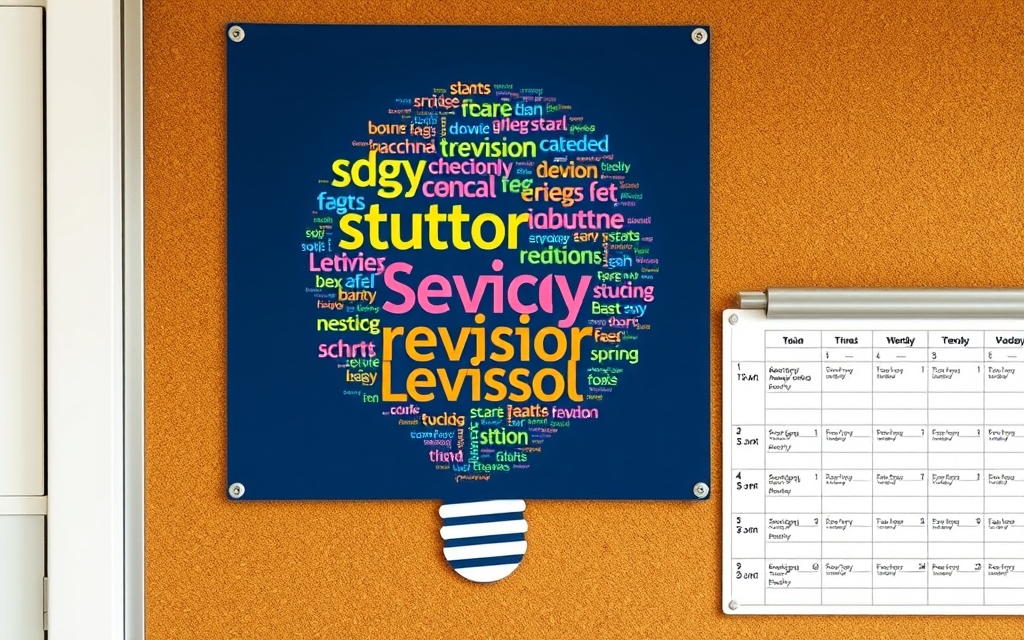
It's also the fastest way to fill dead space on a group presentation slide with something that looks considered rather than padded.
3. Frames Lab — project posters, photo boards, lab write-ups #
Frames Lab is the heavy tool for anything involving several photos at once. It builds frames — shapes you drop photos into — in five modes:
- Grid — a collage of rows and columns with adjustable gap, border, rounded corners, and even a wave effect that bends the grid lines.
- Arc — a curved band of photos, good for a title area at the top of a poster.
- Burst — randomly generated sunburst-style frames with density, size, spread and distribution controls.
- Diagonal — grid strips running at an angle you choose.
- Shape — takes a shape already sitting in your design (added from Elements → Shape or Graphics) and converts it into a frame. Press Recheck design after you change anything; it does not refresh on its own.
Frames automatically scale to fit the page you're working on, which removes the usual resizing fight. There's also an Explore tab of ready-made frames and a Style tab that re-adds a frame you recently used with Blur, Border or Inner Shadow applied.
Watch out for: grids much beyond ~30 cells (or a very strong wave setting) get blocked as too complex — drop the rows or columns, or build two grids side by side.
Honest note: Canva's built-in Grids are free, work on mobile, and are perfectly good if all you need is rectangles in a neat layout. Frames Lab earns its place when you want arcs, bursts, diagonals, or precise control over gaps and borders.
4. Text to Frames — titles that people actually look at #
Type a word, and every letter becomes its own real Canva frame. Drop a photo into each one and the image fills the letter shape exactly. Toggle Split into letters and each letter takes a different photo — a society name where every letter holds a different event photo, a graduation post spelling out the year, a project title made of lab shots.
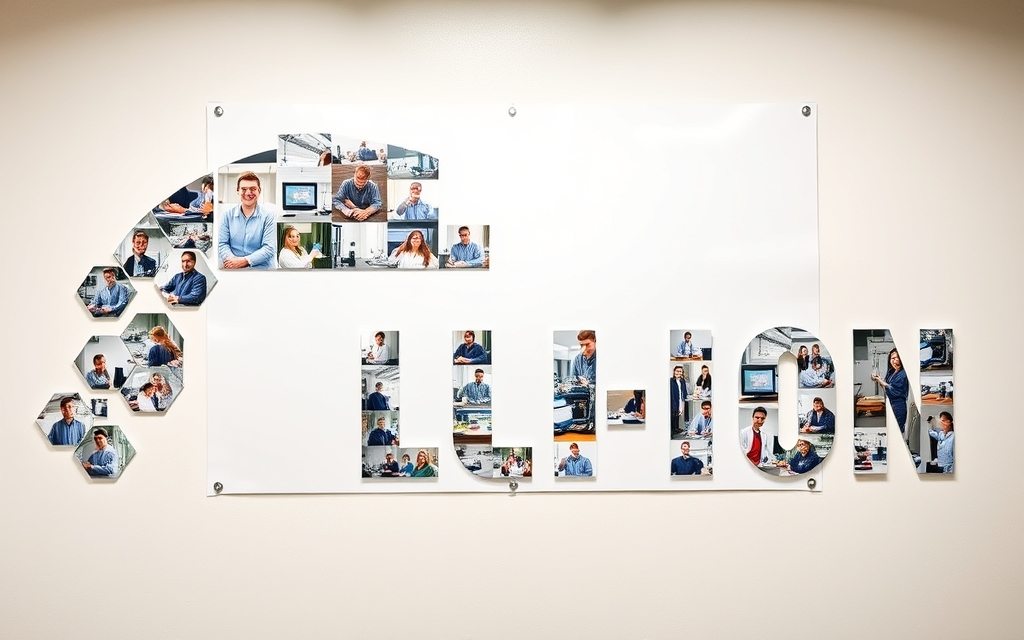
Practical limits worth knowing: the text field caps at 200 characters, letter spacing runs from −100 to 100, and the preview is generated exactly the same way as the final result, so what you see is what you get. If the app says "Frames can't be added to this design type", that's a Canva restriction — switch to a Presentation, Poster or Instagram Post design.
Free vs Pro: five fonts (Roboto, Open Sans, Lato, Playfair Display, Pacifico) and the Split into letters toggle are free. The other 100+ fonts and the three effects — Blur, Border, Inner shadow — are Pro.
5. Image to Frame — put a photo inside any shape you have #
Got a society logo, a hand-drawn sketch you scanned, or an icon PNG? Image to Frame converts it into a working Canva frame you can drop photos or video into. It accepts PNG, SVG and JPG up to 5MB, and there are three ways in: upload a file, select an image already on the canvas, or export the current page as a single transparent PNG.
The one rule that decides whether this works: remove the background first. If the source file still has a white or coloured background, the frame comes out rectangular. PNG and SVG carry transparency; JPG never does. Border thickness (0–50) and colour are adjustable, though the border only renders after the frame is added, not in the preview.
Worth a look for students specifically: the app's upgrade screen advertises a free offer for students and teachers. Open it and read that screen before you pay for anything.
6. Color Harmony — stop guessing at slide colours #
Pick a base colour and Color Harmony generates palettes that follow actual colour theory — complementary, analogous, triadic, tetradic, split-complementary, monochromatic. Combined with Canva's Apply colours to page, you can recolour an entire template in one click.
For a group presentation where four people built four slides in four different shades of blue, this fixes the whole deck faster than arguing about it.
What Canva already does well (and you shouldn't pay to replace) #
Being fair about this matters more than selling you six apps:
- Templates — thousands of timetables, study planners, posters and presentation decks, free.
- Frames and Grids — built into Elements. Standard shapes and rectangular collages are covered, and they work in the mobile app.
- Background Remover — if you have Canva Pro or Canva for Education, this is the tool that makes Image to Frame work properly.
- Canva for Education — free Pro-level access if your school qualifies. Check this before spending anything.
The apps above are worth installing when Canva's built-in version stops at the boundary of what you need: a dated grid instead of a blank table, an arc instead of a rectangle, a title where each letter holds its own photo.
A starter stack, by what you're doing #
- Just organising the semester: Calendar Maker on its own.
- Revising: Calendar Maker + Text Shape.
- Group project or poster session: Frames Lab + Text to Frames + Color Harmony.
- Running a society account: Text to Frames + Frames Lab + Image to Frame for the logo.
Before you print anything #
Set the page size first — in centimetres or inches, before you place a single element. Resizing a finished poster is how blurry printouts happen. Export as PDF Print, and zoom to 100% to check your photos hold up at full size. That last check takes ten seconds and saves a trip back to the print shop.
Frequently asked questions
Canva runs a free offer for eligible students and teachers through Canva for Education — check whether your school qualifies before paying for anything. Separately, Image to Frame's upgrade screen advertises a free offer for students and teachers, so it is worth opening the app and reading that screen before you buy a subscription.
None of them, really. Qrdy's apps run in the sidebar of the Canva editor on desktop. The things they produce — frames, calendar tables, word clouds — behave like normal Canva elements afterwards, so you can open the design on your phone and drop photos into frames there. Build on a laptop, finish on your phone.
It varies per app. Text to Frames gives you 5 free fonts and the Split into letters toggle at no cost, with 100+ fonts and the Blur/Border/Inner-shadow effects behind Pro. Frames Lab limits how many frames free users can add. Calendar Maker's Add to design button is Pro-only — free users see Unlock to use instead. Try each one before you decide.
Yes — they output ordinary Canva elements, so the usual Canva content licence applies just as it would to anything else you make. If you are printing a poster, set the page size in centimetres or inches before you design, and export as PDF Print so nothing comes out fuzzy.
Related products


More from QRdy Blog
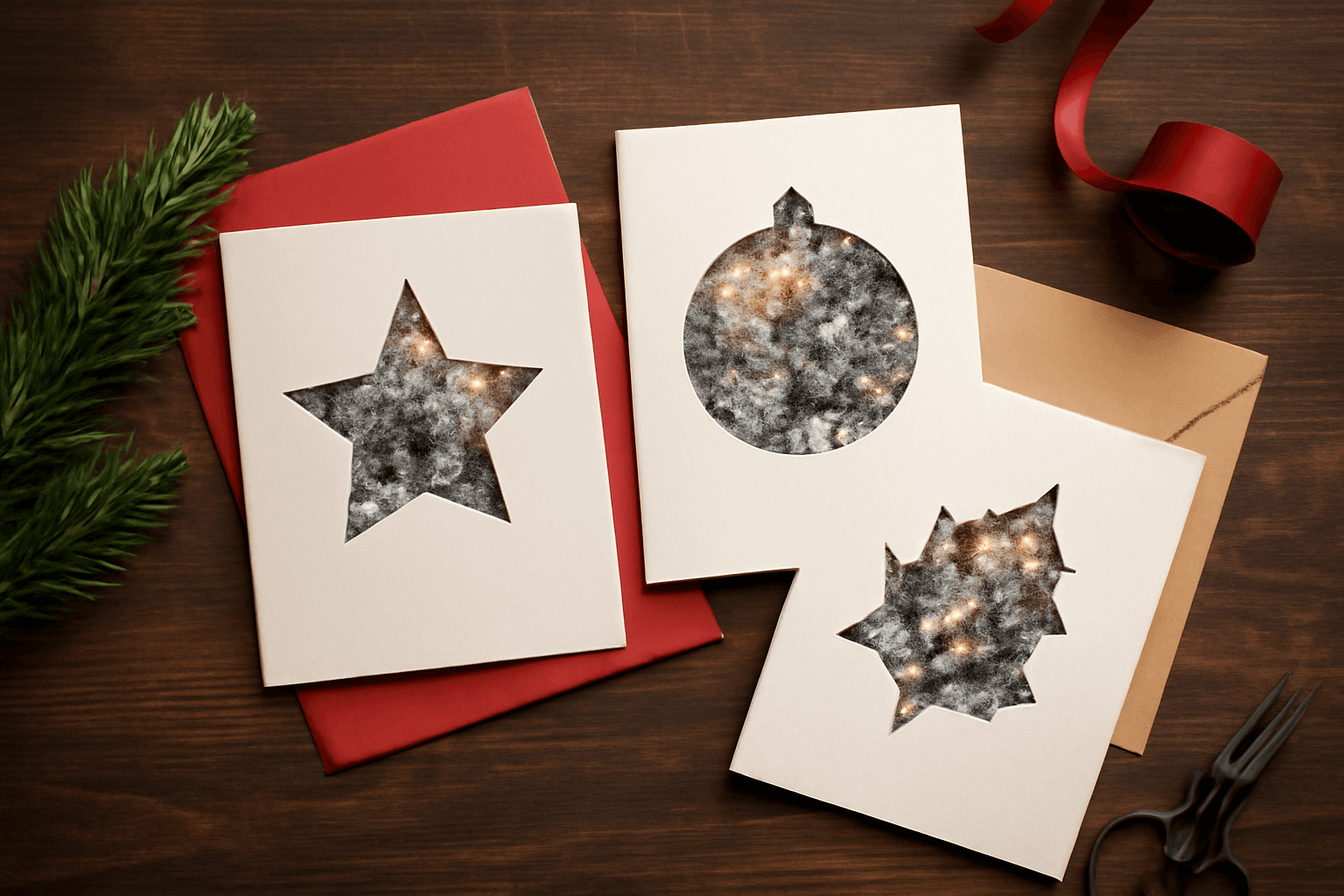
How to Make Photo Christmas Cards in Canva (Step by Step)
A step-by-step guide to designing photo Christmas cards in Canva: shaped photo windows, multi-photo grids, and lettered greetings, plus the card sizes, bleed, and DPI you need for a clean print.
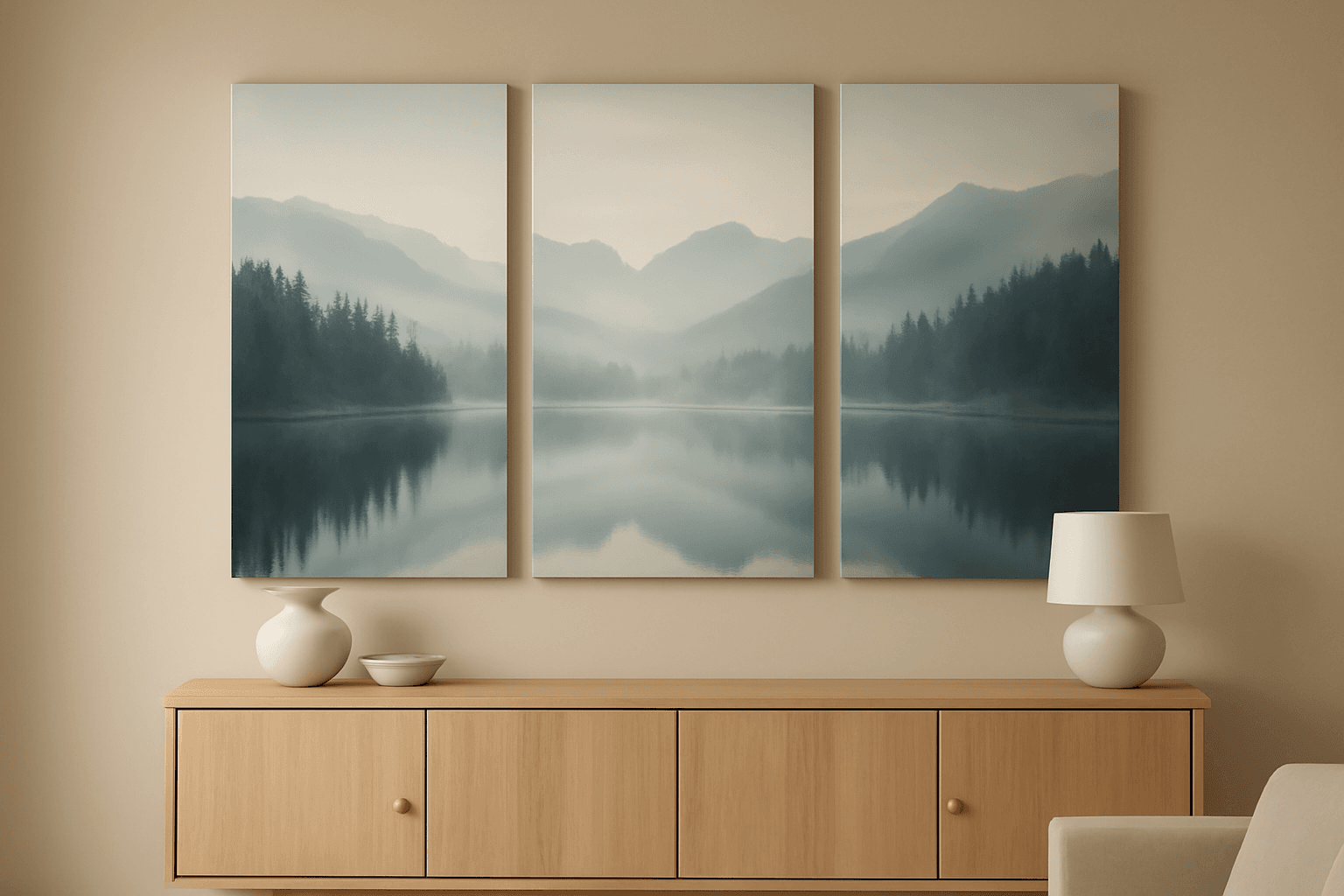
What Is a Triptych? Meaning, Types, and How to Make One in Canva
A triptych is art or a photo split across three panels meant to be seen as one piece. Here's where it came from, how it differs from a diptych, the sizing and spacing rules, and how to lay one out in Canva.
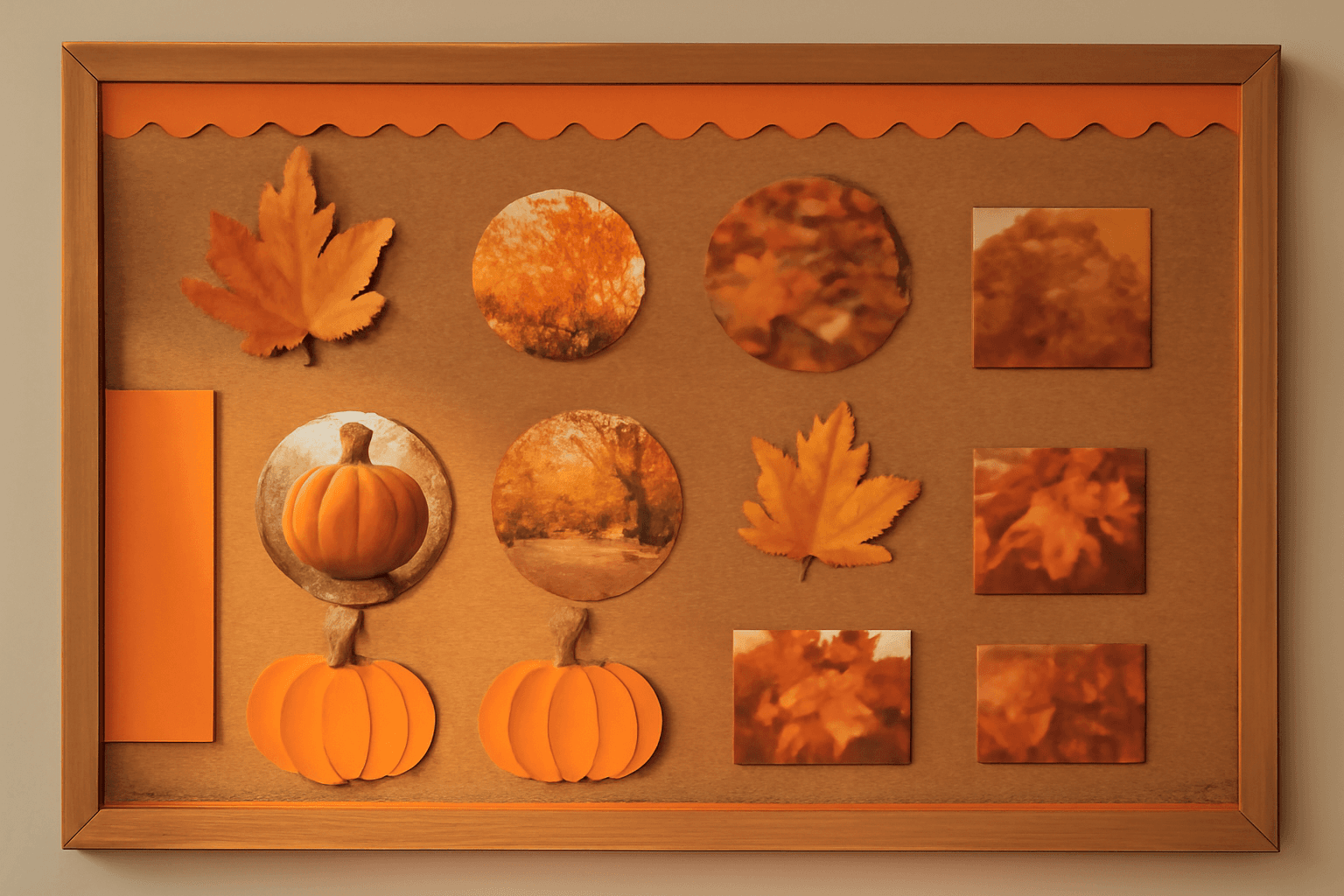
10 Bulletin Board Ideas You Can Make in Canva (Fall, Classroom and Calendar Boards)
10 printable bulletin board ideas for fall and the classroom: monthly calendar boards, photo-filled headline letters, Meet the Class grids, leaf photos, countdowns and more, all designed in Canva.