
The Best Canva Apps for Graduation Announcements (2026)
Graduation announcements have to survive being shrunk to a five-by-seven and handled by fifty relatives. Here are the Canva apps that make a cap-shaped photo, a photo-filled headline, and a real four-year collage possible — plus an honest look at what Canva already covers for free.

A graduation announcement has a strange job. It has to look good shrunk down to a five-by-seven, survive being handled by fifty relatives, and still mean something four years from now when it turns up in a drawer. That is a harder brief than most of the cards this blog has covered, and it is why "open a template and change the name" so often reads like exactly what it is.
The good news is that Canva already carries most of the weight for a standard card. The apps below only earn their place for the parts a template cannot do: a photo shaped like a cap instead of a rectangle, a headline with the grad's own photos inside the letters, a four-year collage that actually lines up, and a QR code that can still point somewhere useful after the cards are already in the mail.

What Canva already does well (read this first) #
Before installing anything, it is worth knowing what the free tier already covers, because for a lot of families this is genuinely enough.
- Thousands of free graduation and announcement templates, for every grade level from preschool to a doctorate.
- Native Frames and Grids for a plain rectangular, circular, or arched photo — no app required if the shape is that simple.
- Background Remover (Canva Pro) for cutting a subject out of its background.
- Custom page sizes plus a bleed toggle, so a 5x7 card or an A2 invitation prints edge to edge.
- Brand Kit, useful for keeping the announcement, the open-house sign, and the thank-you cards in the same two or three colors.
If the announcements need to be at the printer tomorrow, open a template, drop in the photo, and go. Everything below is for the version that does not look like the one three other families in the same graduating class also picked.
Quick pick #
| App | Best for | Free tier |
|---|---|---|
| Text to Frames | A name or "Class of 2027" filled with photos, letter by letter | 5 fonts, no Split into letters limit, effects are Pro |
| Image to Frame | A cap, tassel, or diploma-shaped photo window | Full app, free for students and teachers |
| Frames Lab | A four-year grid collage or an arched senior portrait | Grid and Arc modes, capped add count |
| Border Art Maker | A dotted or icon border around the card or a gift tag | Full app, capped add count |
| Calendar Maker | An open-house date card or a countdown to the ceremony | Month and Custom tabs, Add to design is Pro |
| Qrdy Dynamic QR | A QR that still points somewhere useful after the cards are mailed | Free Starter tier with device-based routing |
1. Text to Frames — the headline that is actually made of photos #
This is the app that does the one thing a template genuinely cannot: a headline where every letter is its own photo.
Type a name or a line like "CLASS OF 2027" (the box holds up to 200 characters), pick a font, and Canva builds a live preview of the same text made of empty letter-shaped frames. Turn on Split into letters and every character becomes an independent frame, so a name can carry four different photos instead of one photo repeated across every letter. The free tier includes five fonts — Roboto, Open Sans, Lato, Playfair Display, and Pacifico — which is enough range to go from a clean sans headline to a handwritten one; Pro unlocks the rest of the library.
A few things worth knowing before it goes on a card:
- The B and I buttons grey out when the chosen font has no real bold or italic cut — the app deliberately will not fake one.
- Border (0-50), Blur (0-20), and Inner shadow (0-40) are the three effects, all Pro, all color-pickable. Border is the one that matters most on a small card, because a photo-filled letter can sink into a busy background without a clean edge around it.
- Pick a heavy, blocky font for the headline. A thin script face like Pacifico leaves too little interior area for a photo to actually read as a photo rather than a smear of color.
- If the app says "Frames can't be added to this design type," that is a Canva restriction, not a bug — open it inside a Poster, Presentation, or Instagram Post design instead.
Once the frame is placed, drag a photo in — Canva fits it to the letter shape automatically, and it can be repositioned by double-clicking inside the frame.
2. Image to Frame — a cap, a diploma, or a tassel instead of a rectangle #
For a single hero photo, Image to Frame turns any shape into a real Canva frame: upload a PNG, SVG, or JPG up to 5MB, or export the current design as one flattened page, and the app converts the outline into a frame you can drop a photo into.
The one rule that decides whether this works: the source image needs a transparent background. A JPG can never carry transparency, so a JPG source always comes out as a plain rectangle no matter what shape is drawn on it — remove the background first (Canva's Background Remover, Pro, or any cutout tool), then bring in the PNG or SVG. Simple silhouettes convert cleanly; an intricate, tangled outline can fail to convert, in which case the app's own Frame Store has ready-made shapes to fall back on.
Border color and thickness (0-50) are also there, but they only render after the frame is added to the design — the preview does not show them, which is expected behavior rather than a broken slider. Image to Frame is free for students and teachers, which is worth mentioning here specifically because the person making the announcement usually still qualifies.
3. Frames Lab — the four-year collage that actually lines up #
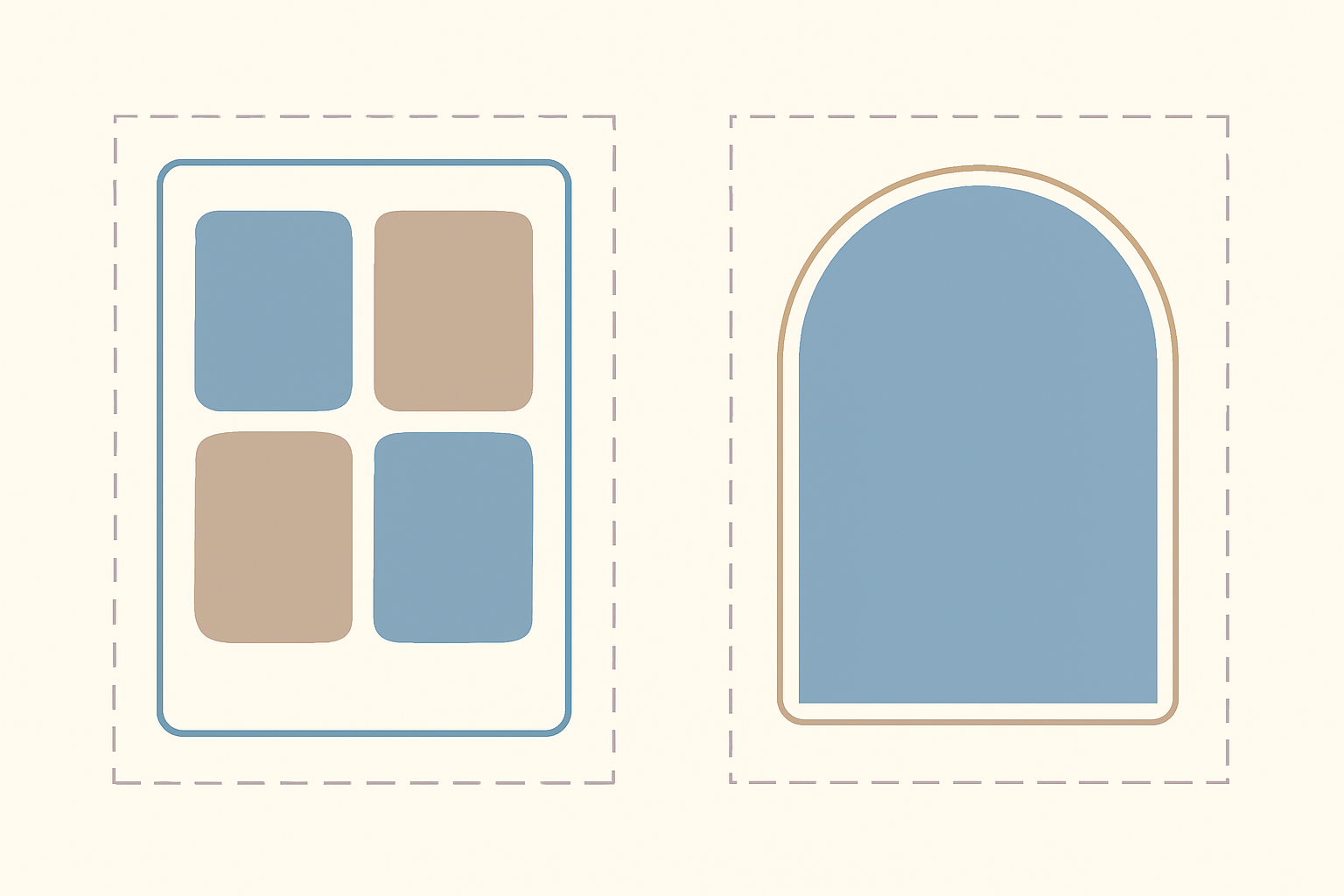
A single photo tells one story; four photos across four years tell a better one. Frames Lab's Grid mode builds a real photo grid with its own column count, row count, and gap, plus an Advanced panel for rounded corners or a merged single-block layout — set it to four cells for a simple freshman-to-senior strip, or a bigger grid for a whole team or graduating class page. There is a roughly 30-cell ceiling on how complex one grid can get before Canva blocks it; a bigger memory wall needs two grids rather than one enormous one.
Arc mode is the other pick worth knowing about here: a Pill-shaped photo panel with an adjustable degree and start angle, closer to the arched cutout that shows up on a lot of senior portrait layouts than anything in Canva's native shape library. Both modes live under the same Create tab alongside Diagonal, Burst, and Shape, and every frame auto-scales to whatever page size is currently open — set the card or poster size before building the grid, not after, since a frame only ever scales down to fit, never up.
4. Border Art Maker — the trim that makes a plain card feel finished #
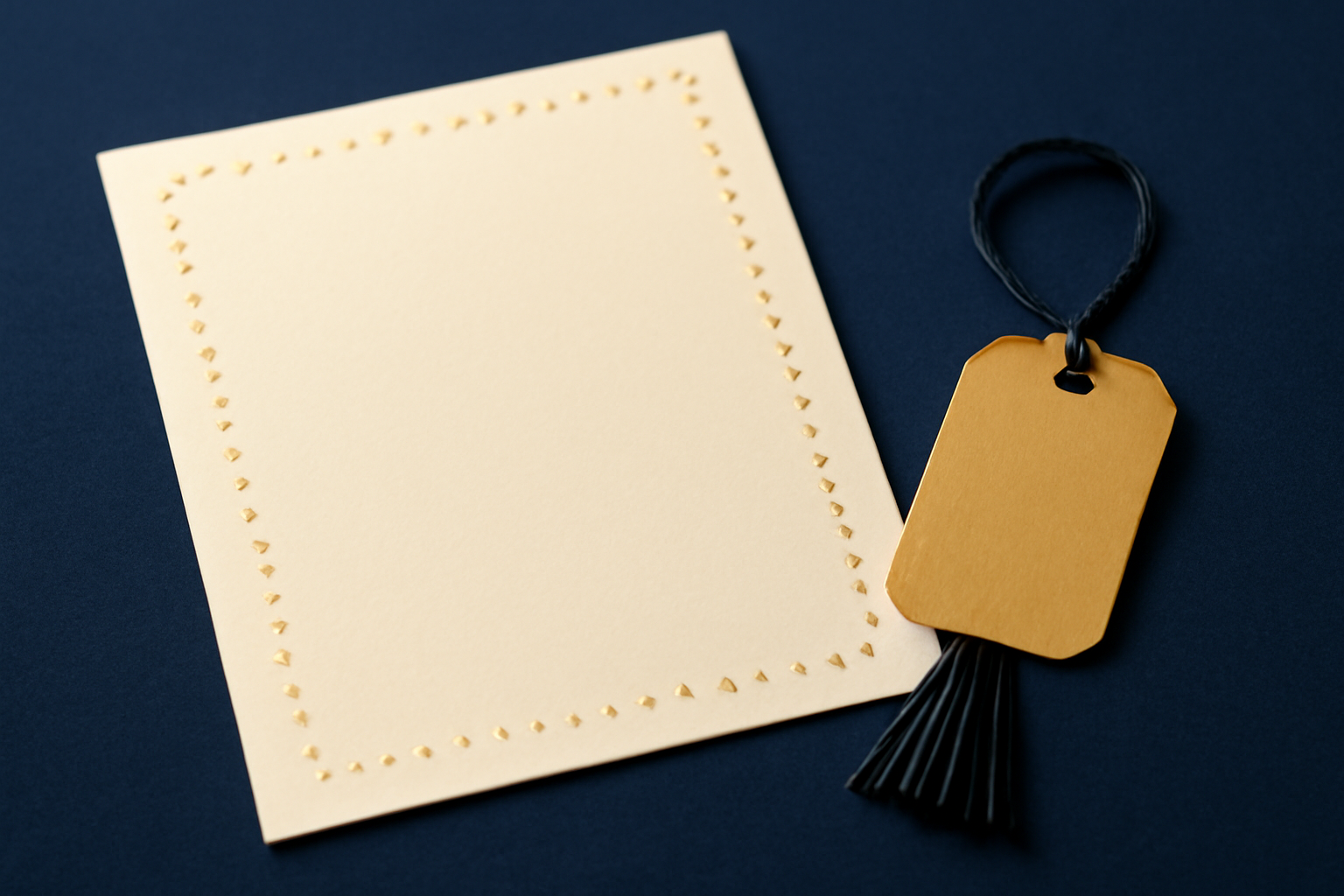
A repeating border of small dots, stars, or an uploaded icon, spaced evenly and rotated for rhythm rather than pasted in a straight monotonous line. It is a small addition, but it is the difference between a card that looks like a text box and one that looks like it was actually designed — and it works just as well on a matching gift tag or a thank-you card as on the announcement itself.
One print-specific note: border elements tend to look heavier once they are actually printed than they do on screen, so it is worth going a shade lighter and thinner than looks right on the display before sending the file to a printer.
5. Calendar Maker — the open-house date, not another calendar #
Calendar Maker is built for full months and weeks, but the Custom tab — any start date to any end date, up to 150 days — is also a clean way to build a small countdown or an open-house date card without dragging in a whole month grid that nobody asked for. It carries over 30 built-in color palettes and roughly 14 decorated page templates if the card needs to visually match a matching yearly calendar gift, and it saves up to about 30 recent setups per tab so the same header and number styling can be reused for the invitation, the open-house sign, and the thank-you card. Add to design is Pro-gated on the free tier.
This is the pick worth skipping if the announcement genuinely only needs one date printed once — a text box does that job fine. It earns its place when there is a countdown, a multi-event weekend, or a matching set of printed pieces that all need the same date treatment.
6. Qrdy Dynamic QR — a code that still works after the cards are mailed #
A free static QR code, the kind Canva already generates for nothing, is fine for a single link that will never change. The honest reason to reach for a dynamic one on an announcement specifically: the destination usually is not decided yet when the cards go to the printer. A shared photo album, a livestream link for family who cannot travel, an RSVP form for the open house, a gift registry — any of those can be swapped after printing without reprinting a single card, and the Free Starter tier already includes device-based routing (iOS to the App Store, Android to Google Play, desktop to a website) plus basic scan tracking. Pro is $5 a month and adds unlimited codes, full QR styling with a logo and matching colors, and detailed analytics by device and region.
The honest caveat that applies to any dynamic QR, this one included: it works by redirecting through the provider's own domain, so the code depends on that service staying online — worth knowing before putting one on something that gets kept for years, less of a concern on an announcement that mostly gets used in the first few months after it is printed.
Card sizes and print settings #
| Format | Trim size | Typical use |
|---|---|---|
| A7 flat card | 5in x 7in | The standard photo announcement size, matches A7 envelopes |
| A2 flat card | 4.25in x 5.5in | A smaller, less expensive announcement or a matching thank-you card |
| Postcard | 4in x 6in | Mails without an envelope, cheapest per-piece option |
| Folded card | 5in x 7in flat, folds to 5in x 3.5in | More surface area for a longer message plus a photo |
| Gift tag | 2.5in x 4.5in | Matches the Border Art Maker trim above |
Whichever size is chosen, set it as the Canva page size before building anything else — every frame app in this list scales down to fit the open page, never up. Turn on bleed (roughly 0.125in / 3mm) if the design touches the edge of the card, keep text and the photo shape inside a safe margin of about 0.125in, and export as PDF Print rather than PDF Standard so the file comes out at the full 300 DPI a printer expects instead of screen resolution.
Before it goes to print #
- Print one card at actual size and hold it at arm's length — a lot of small compositional problems only show up off-screen.
- Check the layout at 100% zoom, not the 30-40% Canva defaults to while editing.
- Confirm the transparent-background rule held for every shaped photo — a stray white square where a cap or diploma shape should be is almost always a JPG source that never had its background removed.
- Proofread every name if the card is being customized per family or per student. It is the one error nobody forgives.
- Order a small test batch before committing to the full print run, especially on card stock instead of standard paper.
The best graduation announcement is not the most elaborate one — it is the one that gets opened, actually looked at, and kept. A shaped photo, a name that carries a few real pictures instead of a stock font, and a size that fits the envelope already in the drawer will beat almost anything busier.
Frequently asked questions
No. Canva's own templates, native Frames and Grids, and PDF Print export are all free. Image to Frame is free outright for students and teachers, and the other apps here have a working free tier with some features, like extra fonts, effects, or unlimited adds, reserved for Pro.
5x7 inches (A7) is the standard photo-card size and matches widely available envelopes. A postcard at 4x6 inches is a cheaper option that skips the envelope entirely, and a folded 5x7 card gives more room for a longer message alongside the photo.
Only if it is a dynamic QR code. A free static QR code from Canva points at one fixed destination forever. Qrdy Dynamic QR's free tier lets the destination be swapped after printing, which matters most when the shared photo album or RSVP link is not finalized yet at print time.
Related products


More from QRdy Blog
How to Make Photo Christmas Cards in Canva (Step by Step)
A step-by-step guide to designing photo Christmas cards in Canva: shaped photo windows, multi-photo grids, and lettered greetings, plus the card sizes, bleed, and DPI you need for a clean print.
What Is a Triptych? Meaning, Types, and How to Make One in Canva
A triptych is art or a photo split across three panels meant to be seen as one piece. Here's where it came from, how it differs from a diptych, the sizing and spacing rules, and how to lay one out in Canva.
10 Bulletin Board Ideas You Can Make in Canva (Fall, Classroom and Calendar Boards)
10 printable bulletin board ideas for fall and the classroom: monthly calendar boards, photo-filled headline letters, Meet the Class grids, leaf photos, countdowns and more, all designed in Canva.